 F12 Labs
 CartSync Pro
CartSync Pro documentation / Set up
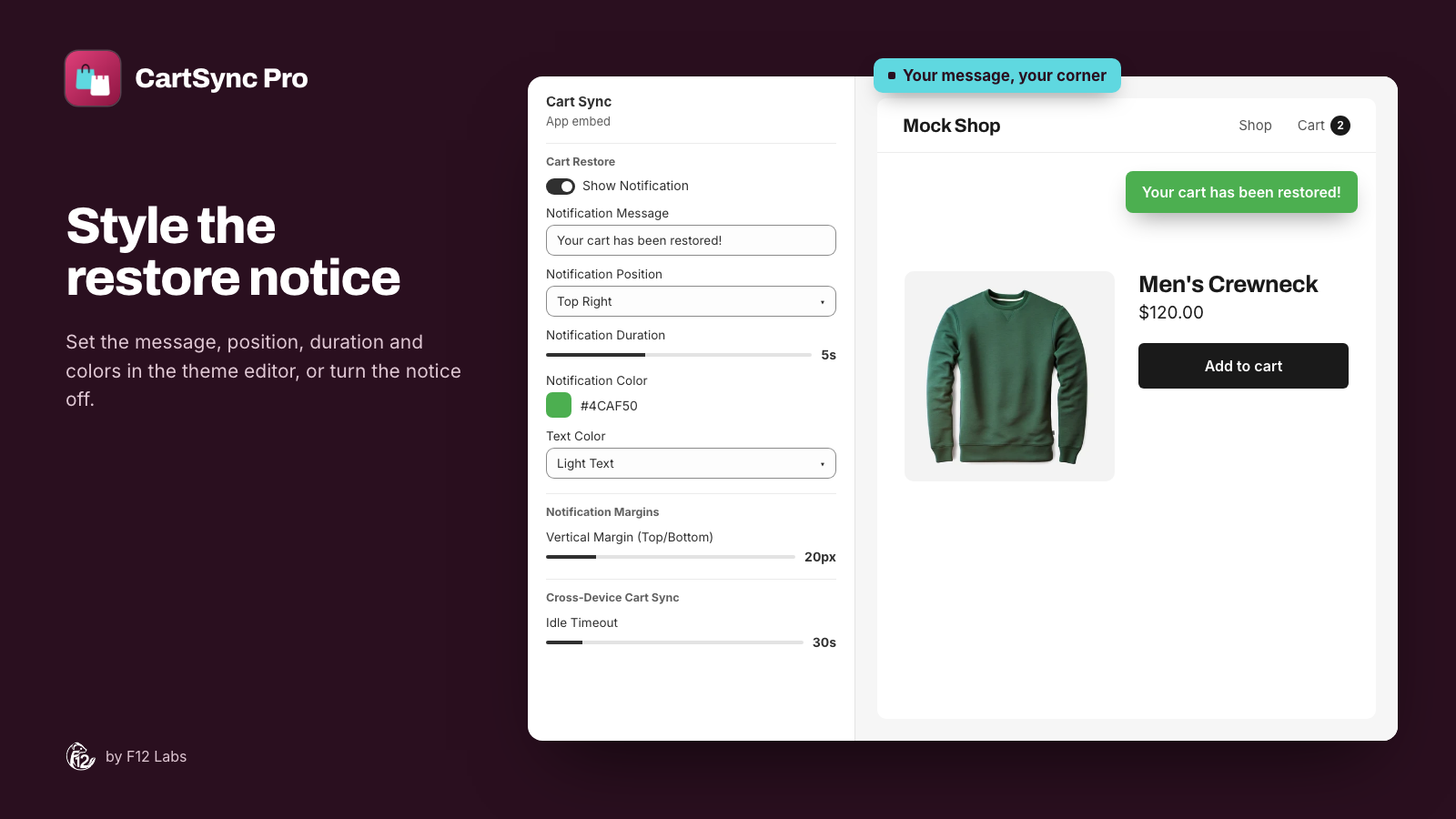
Cart Sync app embed settings
Every setting of CartSync Pro's Cart Sync app embed in the theme editor, with its default: the restore notice's message, position, duration, colors and margins, the idle timeout, and debug logging.
The Cart Sync app embed is the part of CartSync Pro that runs on your storefront. Its settings control the notice shoppers see when their cart is restored, and how soon an open page catches up after the shopper has been idle. The defaults work as they are.
Open the settings
- Go to Online Store → Themes → Customize.
- Click the App embeds icon in the left sidebar.
- Click Cart Sync to expand its settings. It needs to be turned on to save and restore carts.
Or open CartSync Pro and click Manage in theme editor on the home page.
Click Save in the theme editor after changing anything. While you edit, the theme editor previews the notice on the page with your current settings.
Cart Restore
The notice appears when CartSync Pro puts saved items back in the cart, for example when a customer signs in on a new device, or picks up products your team added in Cart Helper.
| Setting | Default | What it does |
|---|---|---|
| Show Notification | On | Shows the notice when cart items are restored. Turn it off to restore carts silently |
| Notification Message | Blank | Your own text for the notice. Leave it blank to show "Your cart has been restored!" in the shopper's language |
| Notification Position | Top Right | Top Right, Top Left, Top Center, Bottom Right, Bottom Left or Bottom Center |
| Notification Duration | 5s | How long the notice stays, from 2 to 10 seconds |
| Notification Color | #4CAF50 | The notice's background color |
| Text Color | Light Text | Light Text (white) for dark backgrounds, Dark Text (dark gray) for light ones |
The message in other languages
Left blank, the message shows in the shopper's language: English, French, German, Italian, Japanese or Spanish. Text you type in Notification Message shows as you typed it, in every language. If your store sells in several languages, leave it blank.
If some items couldn't be restored, usually because they're out of stock, the notice adds a second line: "Note: 2 item(s) could not be restored (likely out of stock)." That line is always in the shopper's language and can't be changed.
Notification Margins
| Setting | Default | What it does |
|---|---|---|
| Vertical Margin (Top/Bottom) | 20px | Distance from the top edge (top positions) or bottom edge (bottom positions), 0 to 150px |
| Horizontal Margin (Left/Right) | 20px | Distance from the left or right edge, 0 to 150px. Not used for the center positions |
Cross-Device Cart Sync
| Setting | Default | What it does |
|---|---|---|
| Idle Timeout | 30s | From 15 to 120 seconds, in steps of 15. When a shopper has done nothing on the page (no mouse, keyboard, scroll or touch) for this long, their next action fetches the latest saved cart |
The idle timeout is for a page left open on one device while the shopper uses another. Switching back to the tab always fetches the latest cart, whatever the timeout. A shorter timeout catches up sooner; a longer one fetches less often. 30 seconds suits most stores.
How cart sync works lists every moment a cart catches up.
Debugging
| Setting | Default | What it does |
|---|---|---|
| Enable Debug Logging | Off | Writes detailed messages about saving and restoring to the browser console |
Turn it on only while looking into a problem, then off again. Errors are logged to the console either way.
Things the settings don't change
- The notice's look beyond its colors: it uses the system font at 14px, up to 300px wide, with rounded corners and a soft shadow.
- What's saved: variants and quantities. See What's saved.
- Who it runs for: only signed-in customers. Guests' carts aren't saved.
Troubleshooting
The notice never shows. Check that Show Notification is on and you clicked Save. The notice only shows when items are actually put back. Opening a page whose cart already matches the saved cart shows nothing.
The notice is hidden behind the header or a chat button. Increase Vertical Margin (Top/Bottom), or pick another position.
The notice is hard to read. Switch Text Color to match your Notification Color: Light Text on dark colors, Dark Text on light ones.
The settings are saved but nothing syncs. The embed has to be on in your live theme. The CartSync Pro home page shows which theme it checked.