 F12 Labs
Shopify abandoned carts that never reach checkout: how to see them
Shopify's abandoned checkouts only list shoppers who reached checkout and gave an email. Here's what that misses, what Shopify's reports show about the rest, and how to see what's waiting in signed-in customers' carts and which of those carts turn into orders.
You open Abandoned checkouts in Shopify to see what shoppers left behind. It shows a handful of names. Your analytics, meanwhile, say hundreds of visits added something to the cart this month. Where did the rest go?
They never reached checkout, or reached it without typing an email. Shopify doesn't list those carts anywhere you can open. Here's why, what Shopify does show you, and how to see the carts your signed-in customers are sitting on.
What Shopify's abandoned checkouts cover
Shopify's help center says a checkout counts as abandoned when it "remains incomplete for more than ten minutes," and only once the customer "has provided their email information." From there you can send the customer a link back to their cart, by hand or with an automated email. (Abandoned checkouts)
So the list starts at checkout. A shopper who fills a cart and leaves from the cart page or the product page isn't on it.
Where the other carts are
On the online store, the cart is kept in the shopper's browser. Shopify's cookie policy lists a cart cookie that "contains information related to the user's cart," kept for two weeks. (Shopify's cookie policy)
Shopify's analytics count these carts, but not what's in them. The sessions data behind the reports has "online store visits in which a visitor added an item to cart," visits "in which the checkout page was reached" and visits "in which a purchase was completed." (ShopifyQL sessions schema) That tells you how many carts dropped out between adding to cart and checkout. It doesn't tell you which customer, which products, or how much they were worth.
Why it matters
- The biggest drop is often before checkout. Comparing visits that added to cart with visits that reached checkout shows how many carts were left there. Those are the ones you can't see.
- Signed-in customers are your best leads. They have an account, they've bought before or meant to, and they put something in the cart. They're also the ones you could reach.
- You can't tell what was left. Without the products, you can't tell a forgotten $15 refill from a $600 order someone is still thinking about.
- You can't tell if bringing carts back works. If a customer finds their cart again on another device and buys, nothing connects the two.
What to look for
- A list of open carts, by customer, with their value, and how long they've been waiting.
- The products in each, so your team knows what the customer wanted.
- A way to act on it: add a gift, fix the cart, or send a draft order, without retyping it.
- Honest numbers on what came back: orders that included items put back in the cart, counted only for those items, in a set window.
How CartSync Pro shows it
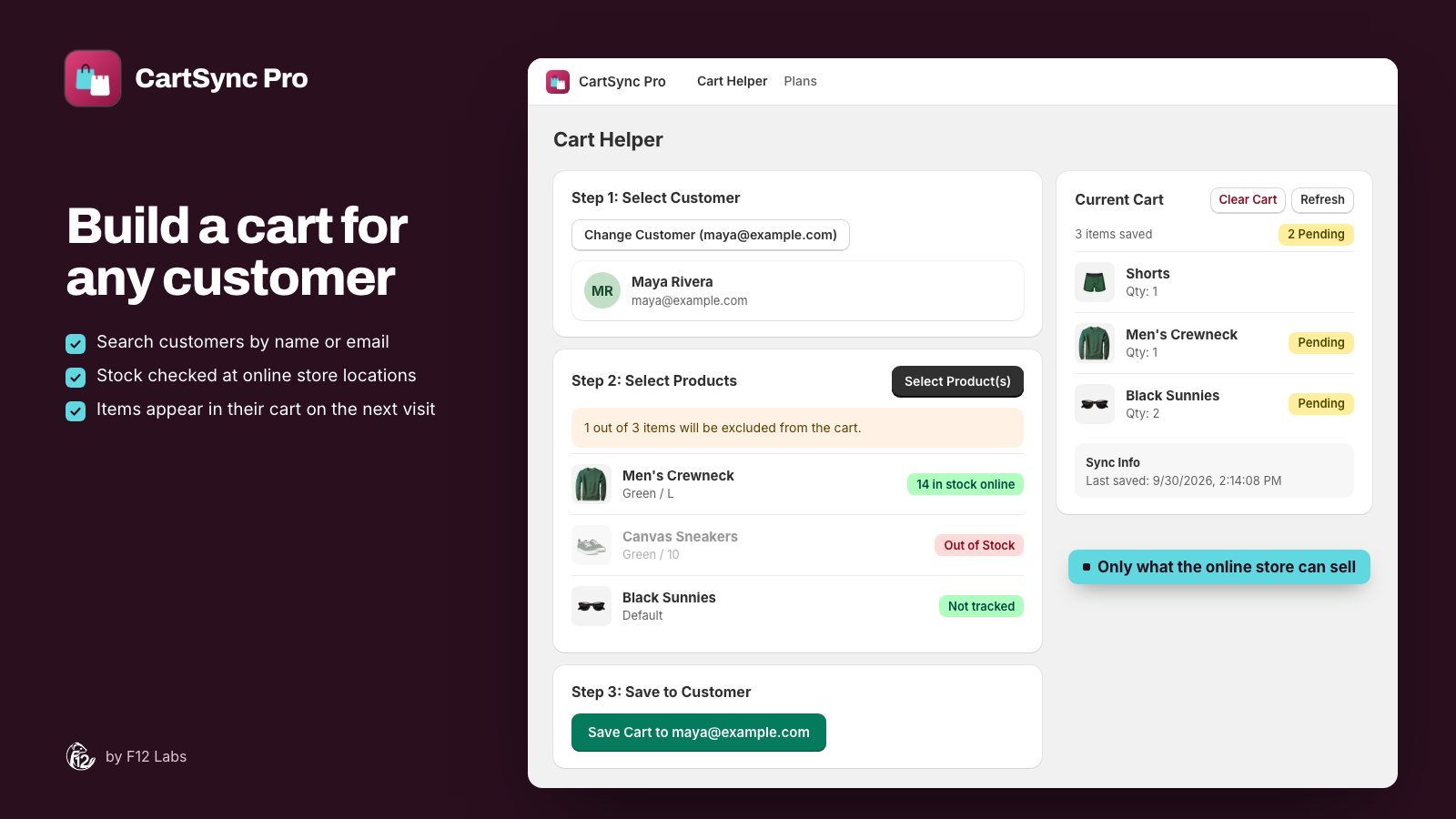
CartSync Pro saves the cart of every signed-in customer to their customer record in Shopify and keeps it the same on every device. Because each saved cart is on a customer, its home page can show what's in them. It's free.
Waiting in saved carts. The total value of every customer's saved cart, at today's prices, split by how long it's been waiting: 0–7 days, 8–30 days and 30+ days. Largest carts lists the five most valuable, by customer name. Click one to open that customer in Cart Helper, with their cart.
Act on a cart. In Cart Helper your team can change the cart, add a free gift that's free at checkout for that customer only, or turn it into a draft order and email the invoice. The customer sees the changes in their cart on their next visit, on any device.
Cross-device carts. When CartSync Pro puts a customer's saved items back in their cart, on another device, after they sign in, or after your team changed it, it records which items. When that customer places an order, the lines whose products were put back in the 30 days before count as Recovered revenue: after discounts, without shipping and taxes, up to the quantity put back. The card also shows how many carts were put back, how many customers bought, and how long they typically took.
Carts built by your team. Revenue from items staff added in Cart Helper, by staff member.
Insights and attribution explains every number and how an order is credited.
Setting it up
- Install CartSync Pro from the Shopify App Store.
- From the app's home page, open your theme editor, turn on the Cart Sync app embed, and click Save.
- Make signing in easy: a visible account link in your header, and a line in the cart that signed-in shoppers can pick up on any device.
- Come back to the home page after a few days. Insights fill in as signed-in customers shop.
Getting started with CartSync Pro covers the setup.
Before you rely on it
- Signed-in customers only. A guest's cart stays in their browser, and CartSync Pro can't see it. Shopify's abandoned checkouts and reports are still where you see your whole store.
- From the day it's on. Carts filled before you turned on the app embed aren't there until the customer visits again, signed in.
- Attribution isn't proof. An order counts when the customer bought something CartSync Pro put back in their cart. Some of them would have bought anyway. Treat Recovered revenue as an upper bound, not a guarantee.
- Refunds aren't subtracted. Orders are counted when placed. Refunds, cancellations and edits afterwards don't change the numbers.
- Saved carts can include old ones. A cart waiting 30+ days may never be bought. Look at the age split before you count it as pipeline.
- A bought cart can come back. The saved cart is emptied when the customer orders. If they still have items in their cart on another device and open your store there, those items can be saved again.
- CartSync Pro keeps its own records. To show these numbers, it stores each version of the cart (variant IDs and quantities, no names or addresses) and which items were put back, on F12 Labs' servers. They're deleted 48 hours after you uninstall. See What's stored.
Shopify behavior checked on 25 October 2026 against Shopify's help center (Abandoned checkouts), the ShopifyQL sessions schema on shopify.dev and Shopify's cookie policy (the cart cookie). If Shopify starts listing carts that never reached checkout, we'll update this post.