 F12 Labs
What happens to a Shopify cart when a customer signs in
A shopper fills a cart as a guest, signs in, and expects the cart they left in their account last week to be there too. Why Shopify keeps a cart per browser rather than per account, what that means at sign-in, and how to keep a guest cart and merge it with the customer's saved cart.
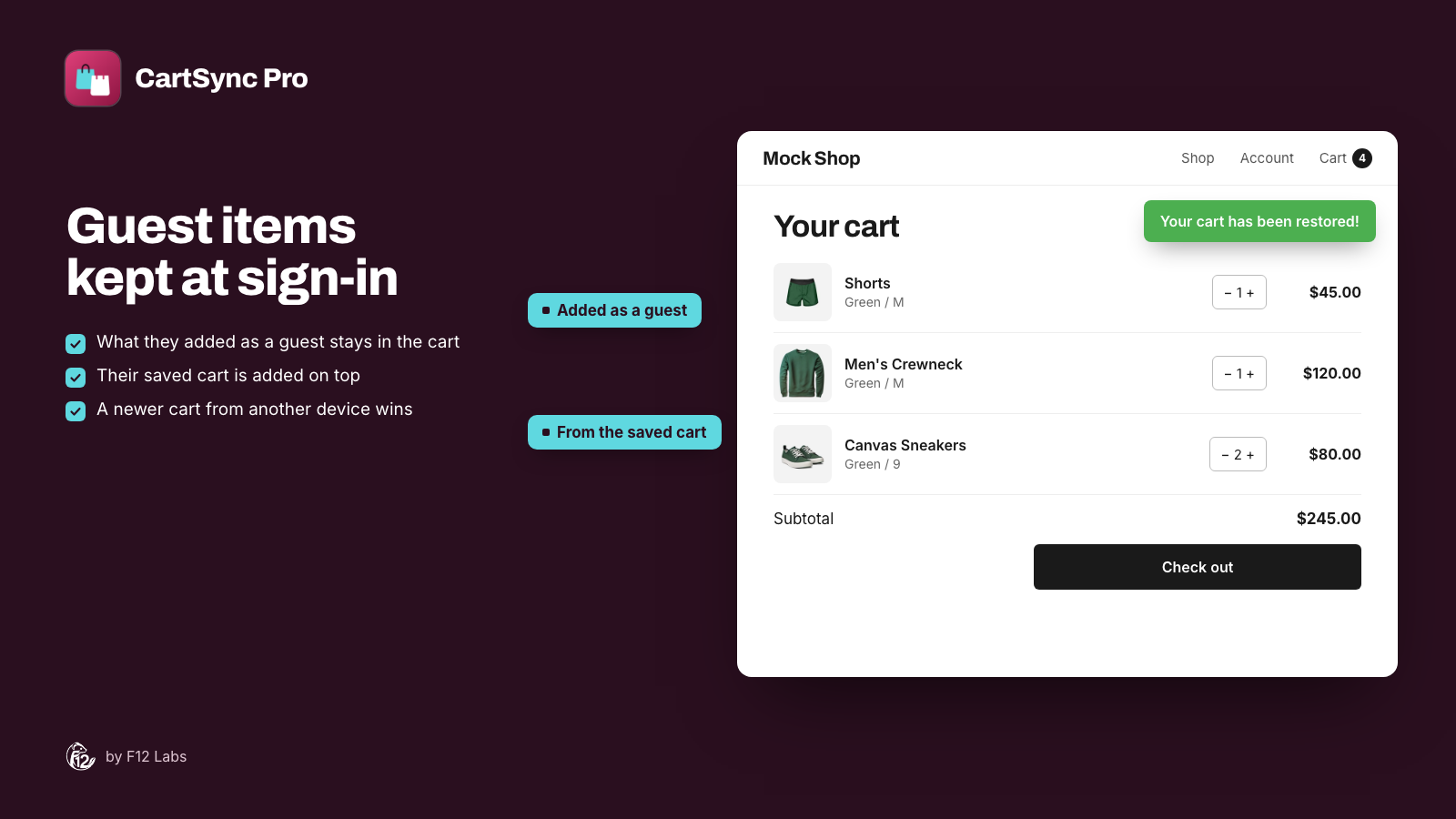
On Sunday a customer browses your store on her laptop, signed in, and puts sneakers and a crewneck in her cart. She doesn't buy. On Wednesday, on her phone, she adds a pair of shorts without signing in, then taps Account to sign in before checking out.
She expects one cart with three things in it. What she has depends on which device she's holding, and on what your store does at sign-in.
A Shopify cart belongs to a browser, not an account
On a Shopify online store, the cart is tied to the browser. Shopify's cookie list has a cart cookie, "Contains information related to the user's cart", that lasts two weeks. That cookie is what links a browser to its cart.
Signing in doesn't change that. Shopify's customer accounts give customers their orders, returns, profile and saved addresses, and fill in their details at checkout. A cart isn't on that list. So for the shopper above:
- On the phone, after signing in, the cart is the one in the phone's browser: the shorts. The sneakers and crewneck are still in the laptop's browser.
- Back on the laptop, the cart is the sneakers and crewneck. The shorts aren't there.
- Two weeks of no visits on either device, and that browser's cart may be gone.
Nothing is merged, because there's no account cart to merge with. The customer sees two different carts and has to rebuild one of them, or give up.
Why sign-in is the moment that matters
Sign-in is when a shopper tells you who they are. It's also often the moment just before checkout: many shoppers browse as guests and sign in when they're ready to pay, or to see their saved address. Shopify's customer accounts keep them signed in for up to 365 days, so on their own devices they're often signed in already.
If what they built earlier, on any device, shows up at that moment, they can check out. If it doesn't, they're back to searching for products they already picked.
Your options
Ask customers to use one device. It's free, and it's what most stores do without saying so. It doesn't hold up: people shop on their phone and buy on their laptop.
Wishlists. A wishlist app saves products to the account, but a wishlist isn't a cart. Variants and quantities often aren't kept, and the shopper has to add everything to the cart again.
Build it with Shopify's APIs. On a headless storefront, Shopify's Storefront API lets a cart carry the customer through its buyer identity, using a customer access token, and you can store the cart ID against the customer yourself. That's developer work, and it's for headless storefronts, not your Online Store theme.
What to look for
- Guest items are kept at sign-in. The shorts shouldn't vanish because the customer signed in.
- The saved cart is added, not swapped in. Sneakers, crewneck and shorts, in one cart.
- Quantities make sense. If a product is in both carts, the customer should end up with a sensible total and be able to see it.
- A newer change wins. If the customer removed something on another device after this visit started, it shouldn't come back.
- It works in your theme, without code changes and with your cart drawer.
How CartSync Pro does it
CartSync Pro saves a signed-in customer's cart to their customer record in Shopify, in a metafield, every time it changes. When the customer opens your store signed in, on any device, the saved cart is put back. At sign-in with a guest cart, it depends on which cart is newer:
- The saved cart is older than this visit (the usual case): the saved items are added on top of the guest cart. A product in both has its quantities added together: 1 in the guest cart and 2 saved makes 3. The combined cart is then saved, so every device ends up with all of it.
- The saved cart changed during this visit, on another device: the saved cart wins, and the cart is set to match it.
The customer sees a short notice, Your cart has been restored! by default, and your theme's cart icon and drawer update. If an item is out of stock, it's left out and the notice says how many couldn't be added.
The details, including what happens after an order, are in How cart sync works.
Setting it up
- Install CartSync Pro from the Shopify App Store.
- From the app's home page, click Turn on in theme editor, turn on the Cart Sync app embed, and click Save.
- Test it: add something on one device signed in, then add something else on another device as a guest and sign in.
Getting started with CartSync Pro walks through it. CartSync Pro is free.
Before you rely on it
- Only signed-in customers. Until a shopper signs in, their cart stays in their browser, as on any Shopify store.
- Products and quantities only. Line item properties (an engraving, say), the cart note, cart attributes and discount codes aren't saved. A personalised item comes back without its personalisation.
- Quantities add up. A customer who added the same product as a guest and before, signed in, gets both. Most want that; some will lower the quantity in the cart.
- It isn't instant on an open tab. A tab that's already open catches up when the customer switches back to it, or after a short idle time, not while they watch.
- Removed items can come back from another browser. If the customer removed something on one device and then opens a new page on another device that still has it, it's kept and saved again. Switching back to an already-open tab matches the saved cart exactly. See When another device catches up.
- Online Store themes only. It's a theme app embed, so headless storefronts don't run it.
- CartSync Pro keeps its own records. Besides the metafield in Shopify, it stores each version of a customer's saved cart (products, quantities, when, and who saved it) on F12 Labs' servers, for cart history and Insights. It's deleted when the customer's data is redacted or 48 hours after you uninstall.
Shopify behavior checked on 5 November 2026 against Shopify's cookie list, the help center's Customer accounts and shopify.dev's Manage a cart with the Storefront API. If Shopify starts keeping a cart on the customer account, we'll update this post.