 F12 Labs
Add $X more: cart progress bars for Shopify discounts
Shopify discounts have minimums but nothing tells shoppers how close they are. What Shopify and its Dawn theme offer, the free-shipping-bar workarounds and where they drift out of step, and a progress bar that reads your discounts for free shipping, tiers and free gifts.
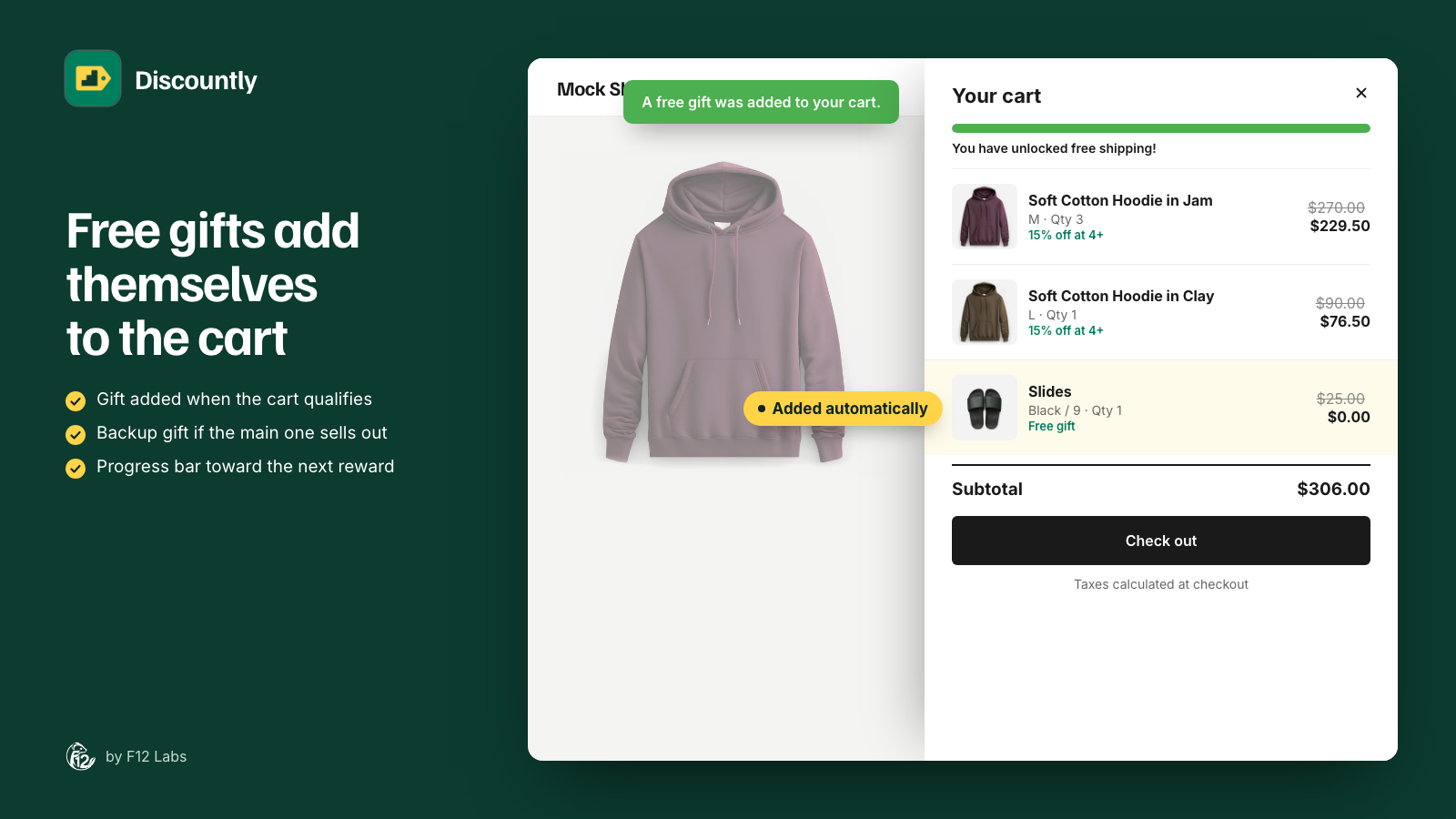
Free shipping starts at $75. A shopper's cart is at $62. They check out, pay for shipping, and never find out that one more pair of socks would have covered it. Same with "15% off at 4": they bought 3.
A minimum only works if shoppers know about it, and the best moment to tell them is in the cart, with the exact amount left: "Add $13.00 more to get Free shipping." Here's what Shopify offers for that, what stores usually add, and what to look for.
What Shopify does: minimums, but no message
Shopify discounts can have a goal. "You can set a minimum purchase amount when you create a free shipping discount," and automatic discounts can use "a Minimum purchase amount or a Minimum quantity of items." (Free shipping discounts) Shopify's help page covers setting the minimum, not telling shoppers how far they are from it.
Gifts work the same way: with Buy X get Y, "The free or discounted 'get' item is never automatically added to the cart." (Buy X get Y discounts) A shopper who doesn't know they're one item away doesn't add it.
Shopify's free Dawn theme doesn't add a progress bar either. Its cart settings are the cart Type (Drawer, Page or Popup notification), Vendor, Cart note, and a Collection "Shown when cart drawer is empty." (Dawn 16.0.0 theme settings, labels in Dawn's English schema). Other themes have their own settings; check yours, but most stores add the bar themselves.
Option 1: A Liquid snippet in the cart drawer
Plenty of tutorials show how: a snippet in the cart drawer compares the cart total with a number, say 75, and draws a bar.
Where it breaks:
- The goal lives in two places. The discount says $75, the snippet says 75. Change the discount to $60 for a weekend and the bar still says $75 unless someone edits the theme too.
- It only knows one goal. A snippet built for free shipping says nothing about volume tiers, a free gift at $100, or "buy 2, get 1".
- It counts the whole cart. If only some products count toward the deal, or the discount is for members only, the snippet doesn't know that and promises shoppers something they won't get.
- It doesn't know when the deal ends. When the promotion is over, the bar is still promising free shipping.
- It's theme code. Updating or switching themes means redoing it.
Option 2: A free shipping bar app
Free shipping bar apps put a bar in the cart without code, often with nicer animations and translations.
Where it breaks:
- It's still a second copy of the goal. You set the threshold in the bar app and again in the discount. They drift apart.
- Usually free shipping only. Your discount app's tiers, gifts and Buy X get Y deals aren't something a shipping bar can read.
- Two apps in the cart. If your discount app also changes the cart, for example by adding free gifts, the two can redraw the cart drawer at different times.
What to look for in a fix
- The goal comes from the discount. Change the minimum, and the bar follows.
- Every kind of goal. A spend amount, an item count, the next volume tier, a free gift, a Buy X get Y deal.
- Counts what the discount counts. Only the products in the deal, at the prices the discount sees, with free items counted as $0.
- Only for shoppers who can get it, and only while the discount is live.
- Not from the first item. A bar saying "Add $74.00 more" on a $1 cart is noise. Show it when the shopper is close enough to care.
- One message at a time, the closest goal, so the cart doesn't fill up with bars.
- Says when it's unlocked, especially for things the cart doesn't show, like free shipping.
How Discountly does it
Discountly's upsell hints are progress bars in the cart drawer and on the cart page. Discountly works out the message from your live discounts each time the cart changes.
- Every Discountly discount with a goal. Free shipping, a shipping add-on on another discount, volume tiers, free gifts and Buy X get Y. Product and order discounts too, when they have a minimum.
- Worded for you. Without a custom message, the bar says things like "Add $13.00 more to get Free shipping.", "Add 2 more Soft Cotton Hoodie to save 15%." or "Add $40.00 more to get Free Slides."
- Or in your words. Each discount can have its own message of up to 150 characters, with
{remaining},{product}and{reward}filled in: "Just {remaining} away from {reward}!" - Shown when it's worth it. Each discount's Show from setting, 50% by default, decides how close the cart must be before its bar appears. At 50%, a $75 goal shows from $37.50.
- The closest goal wins. The cart shows one bar at a time, for the discount the shopper is nearest to.
- An unlocked message, if you want one: "You've unlocked Free shipping!" Useful for shipping, which shoppers otherwise only see at checkout.
- Counts like checkout does. Only the products a discount counts toward its goal, using the subtotal after product discounts, so a free gift adds $0 toward free shipping.
- Respects who and when. Discounts for logged-in customers, customer tags or specific customers only show bars to those shoppers, and only while the discount is live.
- Code discounts name the code. A bar for a code discount adds "Use code SAVE10." until the shopper has entered it, so it never promises a discount they can't get.
The free gift itself is added by the same cart embed: see How to automatically add a free gift to the cart.
Setting it up
Upsell hints are on Discountly's Pro plan. They need two switches, one in the theme and one in each discount.
- In your Shopify admin, open Online Store → Themes → Customize → App embeds, turn on Discountly Cart Embed, and tick Show upsell hints. Choose top or bottom of the cart and the bar's colors, then click Save.
- In Discountly, open a discount with a goal and click Advanced settings.
- Under Upsell hints, tick In the cart. Set Show from, and optionally write a Hint message.
- To tell shoppers when they've made it, tick When the cart qualifies and optionally write an Unlocked message.
- Click Done, then Save rule. Add items to a cart until you pass the Show from point and check the bar.
The cart embed docs list every setting.
Before you rely on it
- The theme editor's help text points to the wrong place. It mentions each discount's "Show upsell hints in cart" and "Settings > Upsell hints" in the app. There's no such Settings page: the controls are in each discount's Advanced settings → Upsell hints, as above.
- An unlocked message takes the bar's place. Unlocked messages come first, so while "You've unlocked Free shipping!" is showing, the hint toward the next goal isn't. Turn unlocked messages on for the goals that matter most.
- Check where your cart opens. Discountly finds the cart drawer and cart page on Dawn-style themes by itself. Dawn's default cart type is Popup notification, and the bar doesn't go in that popup, so shoppers only see it on the cart page. Switch the cart type to Drawer to show it as they shop. For a custom cart drawer, enter its CSS selector in Custom container selector.
- Below Pro, nothing shows. The theme switch can be on, but on the Free and Starter plans the bar stays empty. Free gifts and Buy X get Y also need the Starter plan or higher.
- Staff can get the same hints. On draft orders, staff see hints such as "Add 6 more for the 16+ price" on Discountly's draft order card (Pro). See the draft orders docs.
Shopify behavior checked on 21 October 2026 against Shopify's help center and Shopify's Dawn theme: Free shipping discounts, Buy X get Y discounts and Dawn 16.0.0's theme settings. If Shopify adds a progress bar to its discounts or to Dawn, we'll update this post.