 F12 Labs
Making sure staff apply discounts on Shopify draft orders
Automatic discounts don't apply to Shopify draft orders on their own, so phone and wholesale orders often go out at full price. What Shopify offers, where it relies on staff remembering, and how to check every draft before it's completed.
A customer phones in an order. Your team builds it as a draft order in the Shopify admin, sends the invoice, and the customer pays. A week later they email: on the website, the same cart would have got 15% off for buying four, and a free gift over $250. The draft got neither.
This happens because draft orders don't behave like the online store. Here's what Shopify does with discounts on drafts, where it depends on your staff remembering a step, and how to make the step hard to miss.
What Shopify does: discounts on drafts are a manual step
Shopify's help center is direct about it: "Automatic discounts won't automatically apply to orders created as drafts in your admin." (Adding discounts to draft orders)
On each draft, staff can add discounts by hand:
- Apply all eligible automatic discounts, a checkbox when adding a discount to the draft. It gives the customer "the lowest price they'd receive by default."
- A discount code, up to 5 per order. Shopify lists limits: shipping and Buy X get Y discount codes aren't supported on drafts.
- A custom discount on a line or the whole order, typed in by the staff member.
For one-off orders, that works. The checkbox is the right tool, and staff who know about it use it.
Where it breaks down
It's a step per draft. The checkbox applies to that draft only. Every new draft starts without it, so the result depends on who builds the order and whether they remember.
Nothing says a discount was missed. A draft without its discounts looks like any other draft. The total is just higher. Staff complete it or send the invoice, and nobody notices until the customer compares.
Staff can't see what the customer qualifies for. A volume tier, a members' price for a tagged customer, a free gift over a threshold: the draft doesn't list them. To know whether a discount should be there, staff need to know your promotions.
Edits change the answer. Add two more items and the order may reach a new tier. Remove one and a discount may no longer apply. Shopify notes that a discount that becomes invalid before the order is complete "will prevent you and your customer from completing the order," so staff have to go back and fix it.
The "don't complete until" rule needs an app. Shopify can block checkouts with checkout rules, which come from apps. "These rules also apply by default to draft orders," and staff "can override all validation rules on a draft order before completing it." (Checkout customization: add a checkout rule). So a rule can stop a draft from being completed by mistake, but only if an app provides one, and staff can still choose to override it.
What to look for in a fix
- The draft shows what the customer qualifies for, while it's being built, with the customer's tags taken into account.
- One click applies them, and staff can choose some, all, or none.
- Skipping is a decision, not an accident. If staff leave a discount off, they say so, and it's recorded.
- Completion is checked. A draft with unreviewed discounts can't be completed, or paid from its invoice, without someone noticing.
- Edits are caught. If the order changes after the discounts were applied, staff are told to re-apply.
- Only the right people can do it. Support staff who build drafts shouldn't also be able to edit your discounts.
How Discountly does it
Discountly's draft order tools are on the Pro plan. They work with every Discountly discount type, including volume tiers, tag-based pricing and free gifts.
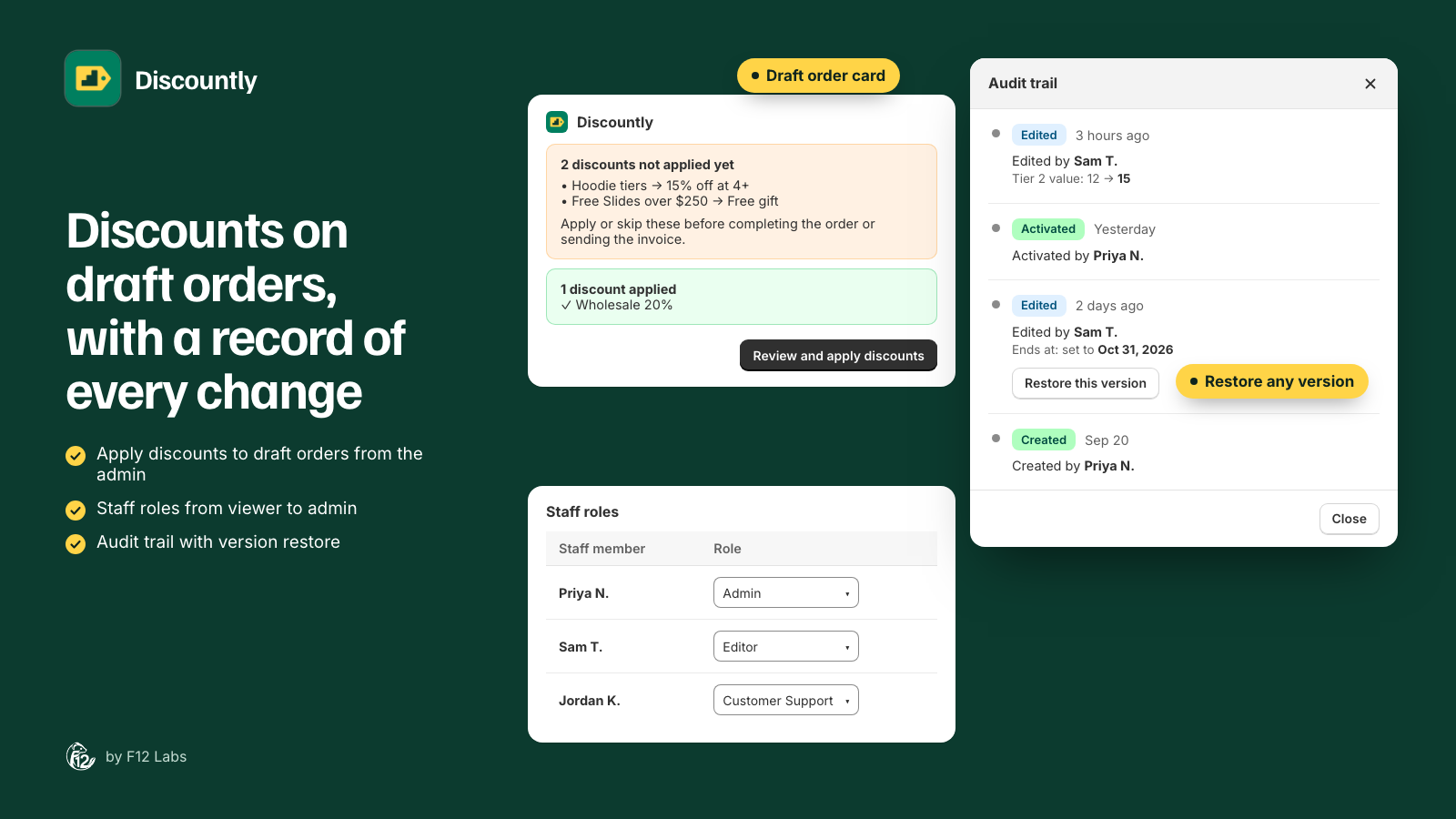
A card on the draft order page. Pin the Discountly card to the draft order page and it checks the order as staff build it:
- 1 eligible discount to review, with the discounts listed and a note to apply or skip them "before completing the order or sending the invoice."
- No discounts available yet. Some discounts are only for customers. Select a customer on this order to check again. when a discount depends on who the customer is.
- 2 discounts applied, with a tick next to each, once they're on.
- A discount changed because the order was edited. when the order changed after applying, with a button to re-apply.
Review and apply. Review and apply discounts on the card, or More actions → Apply all discounts on the draft, opens a list of the eligible discounts. Staff tick the ones to apply, or choose Skip the unapplied discounts or Don't apply any discounts. Applying also adds the store's native Shopify automatic discounts. Skipping is saved, and skipped discounts don't hold up the order.
A completion check. Discountly includes a checkout rule, Discountly draft order validation. Once you turn it on, a draft with unreviewed discounts can't be completed, and the customer can't pay its invoice, until staff apply or skip them. Your online store's checkout isn't affected. You write the two messages it shows: one for the customer paying the invoice ("This order is missing a discount and can't be completed yet. Please contact the store to finalize your order.") and one for staff ("Staff: Open More actions → Apply all discounts.").
A role for it. Discountly's Customer Support role can use the draft order tools without opening the app, so support staff can apply discounts but not change them.
Setting it up
- On the Pro plan, open a draft order in Shopify and pin the Discountly card to the page.
- Turn on the completion check: in Shopify, go to Settings → Checkout, click Checkout rules, then Add rule, choose Discountly draft order validation, and click Save and Turn on. Discountly can't turn it on for you, so this step is easy to skip; without it, the card still lists discounts but doesn't block completion.
- On the rule's page, set the customer and staff messages. Add a phone number to the customer message if invoices go out by email.
- In Discountly, give staff who build drafts the Customer Support role (from Access on the Discounts page).
- Test it: build a draft that qualifies for a discount, try to complete it, then apply the discount and complete it.
The draft order docs cover every card state, the messages and what happens when an order is edited or duplicated.
Before you rely on it
- Staff can still override. Shopify lets staff override checkout rules on a draft. The check makes skipping a discount deliberate, not impossible. Tell your team when overriding is fine.
- Pick a customer first. Tag-based and logged-in-only discounts depend on the customer, so add the customer before reviewing discounts.
- Re-apply after edits. If you change quantities after applying, the card asks you to re-apply. Do it before sending the invoice.
- Duplicated drafts start fresh. Discounts and free gifts don't carry over to a copy; apply them again on the new draft.
- Decide on hand-entered discounts. If a line already has a discount typed in by staff, Discountly leaves its own discount off that line and says so. Remove the manual one if you want Discountly's instead.
Shopify behavior checked on 17 October 2026 against Shopify's help center: Adding discounts to draft orders, Creating draft orders and Checkout customization: add a checkout rule. If Shopify starts applying automatic discounts to drafts by default, we'll update this post.