 F12 Labs
How to duplicate, back up and copy discounts in Shopify
Shopify can duplicate a discount and export your discounts to CSV, but it can't import them. What that means for backing up a promotion before a big change, copying discounts to another store, and app discounts whose settings live in the app, and what to look for in a discount app.
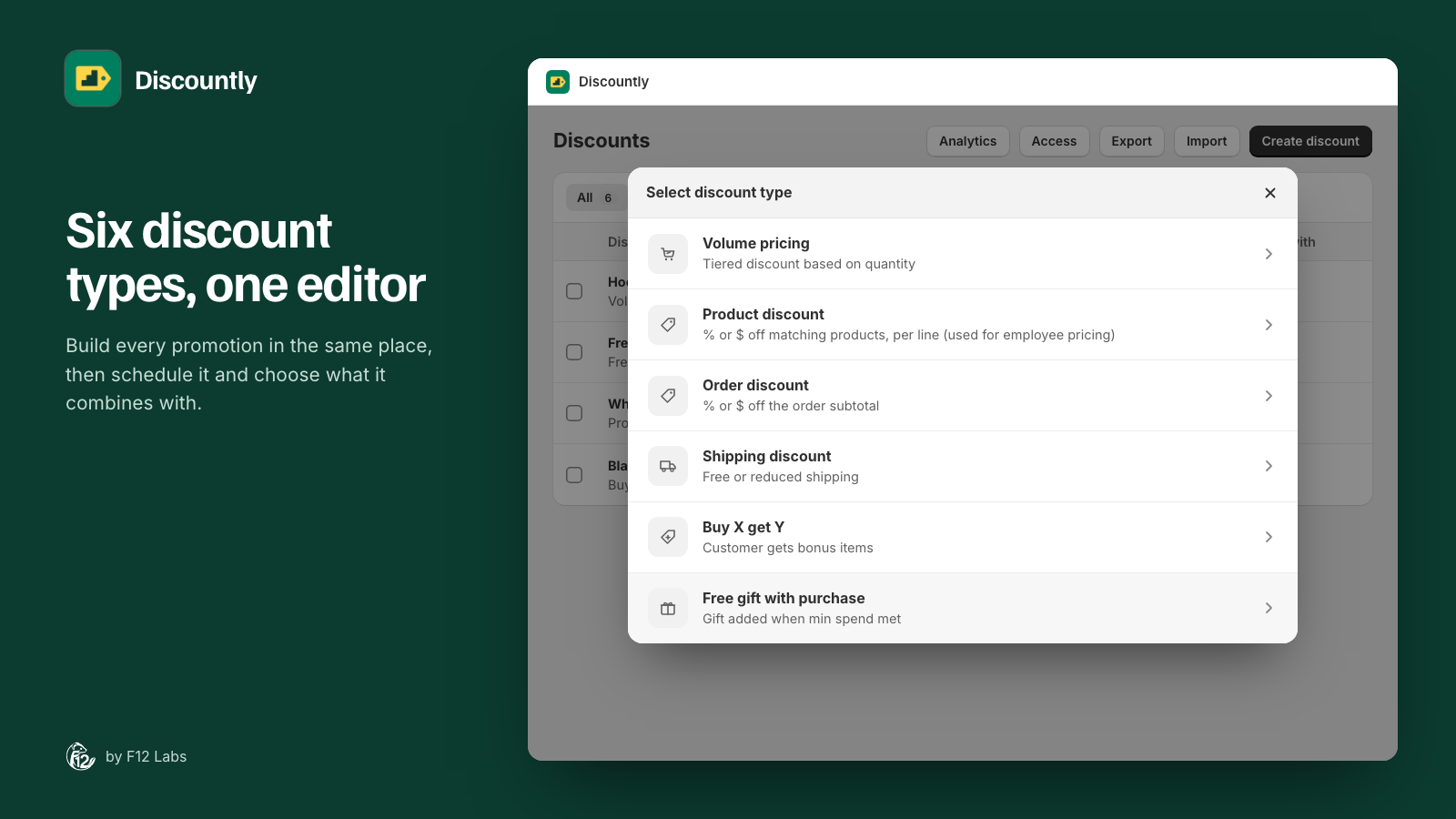
Black Friday is three weeks out. Last year's promotion worked: volume tiers on hoodies, a free tote over $75, free shipping for members. You'd like the same thing again, with new dates and one more brand. Or you're about to rework every tier and want a copy of the current setup in case it goes wrong. Or you run a second store for another region and want the same discounts there.
All three come down to the same need: get a discount out of one place and back in somewhere else. Here's what Shopify gives you for that, where it stops, and what to look for in an app.
What Shopify does
Duplicate. "You can duplicate an existing discount from your Shopify admin." Open the discount from Discounts, click Duplicate, change what you need, and click Save. (Managing discounts)
Export. From Discounts, click Export and choose the current page, all discounts, selected discounts or the current search. "Discounts can be exported only to a CSV file." Shopify describes the export as "a broad overview of your discount code history". (Exporting discounts)
Import. There isn't one. "You can't import discount codes to your store using CSV files." (same page)
For one discount, Duplicate covers it: open last year's, duplicate it, change the dates.
Where it stops
- A backup you can't restore. The export is a CSV you can read, not a file you can load back. If a rework goes wrong, you rebuild the old discount by hand from the spreadsheet.
- No copying between stores. Without an import, a staging store or a second regional store gets its discounts typed in again, one by one.
- One at a time. Duplicate copies one discount. Five variations of the same tiers, one per brand, is five duplicates and five edits.
- App discounts keep their settings in the app. Tiers, targeting rules and gifts of a discount made in an app are stored and edited by that app. Shopify's help doesn't say what Duplicate or the CSV does with them, so check with the app before relying on either.
What to look for in a discount app
If your discounts live in an app, these are the questions to ask:
- Can it copy a discount with all its settings: tiers, targeting, exclusions, customers, combinations?
- Can it export the full setup, not just a summary, to a file it can read back?
- What does an import do? Creating new discounts is safe. Overwriting existing ones isn't something you want by surprise.
- Do imports go live straight away? Better if they land as drafts you review first, so a file from last year doesn't start discounting today.
- What happens to products and customers chosen by ID when the file goes to another store, where the IDs differ?
- Who can do it? Exporting is harmless; importing creates discounts, so it should need edit rights.
How Discountly does it
Discountly's Discounts page has Export and Import buttons.
- Export saves the discounts you tick, or all of them, to a JSON file: every setting in the editor, including each logic block, targeting and exclusions, sale-item handling, minimums, eligibility, combinations, product page offers and upsell hints.
- Import reads that file and creates new discounts. It never changes the ones you have.
- Everything imports as a draft. "Rules are created as drafts so you can review them before activating." Drafts don't apply at checkout and don't count toward your plan. You open each one, check it, and click Save rule to put it live.
- Each copy is its own discount, with its own audit trail starting at Imported.
- Exporting needs any access to the app; importing needs the Editor role.
That covers the three jobs from the start:
- Duplicate: tick the discount, export, import the file. Rename the copy, give it a new code if it uses one, and change its dates.
- Back up: export all discounts before a big change. If it goes wrong, import the file, deactivate the reworked discounts and activate the old versions. For a single discount, its audit trail can also restore an earlier version.
- Copy to another store: export from one, import into the other. Tags, product types, vendors, metafields and amounts carry over as they are. Collections, hand-picked products, gift variants and specific customers are saved by ID, so you pick them again in the new store.
The full steps are in Import, export and duplicating discounts. Import and export are on every Discountly plan.
Before you rely on it
- Make copies in the app, not in Shopify's Discounts list. Discountly manages the discounts it created, and their settings live in Discountly.
- Change the title and code of a copy. Customers see the title in the cart and at checkout. Two discounts can't share a code.
- Check the dates. A copy keeps the original's start and end dates, so last year's Black Friday copy needs this year's.
- Treat the file as a snapshot. It's a copy of your settings on the day you exported, not a live sync between stores.
Shopify behavior checked on 25 October 2026 against Shopify's help center: Managing discounts and Exporting discounts. If Shopify adds a discount import, we'll update this post.