 F12 Labs
How to automatically add a free gift to the cart on Shopify
Shopify's Buy X Get Y discount makes a gift free, but never puts it in the cart. Here are three ways to fix that, what each one costs you, and what to check before you launch.
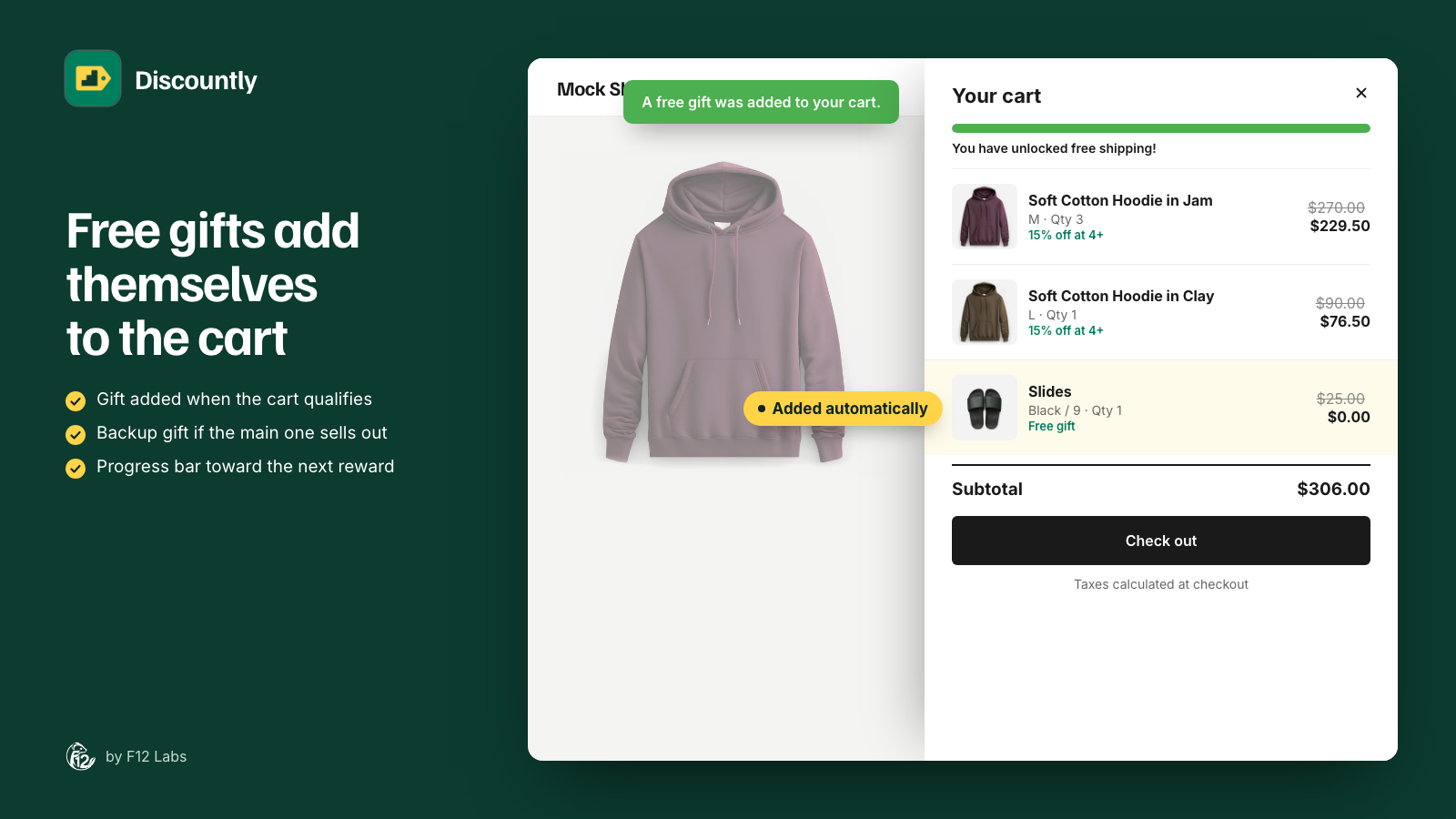
"Spend $75, get a free tote" is one of the simplest promotions to explain and one of the most reliable at lifting order value. On Shopify it has a catch that most merchants only find after launch: the free item doesn't go into the cart by itself.
Shopify's own help center is direct about it. For Buy X Get Y discounts, "the free or discounted 'get' item is never automatically added to the cart." The customer has to find the gift and add it themselves. Only then does the discount make it free.
So you end up with shoppers who qualified but never claimed the gift, and support emails asking where it went. Below are three ways to deal with it, from free and manual to fully automatic.
What Shopify does out of the box
Shopify's Buy X Get Y discount (in Discounts → Create discount) covers the pricing side well:
- Customer buys: a minimum quantity of items, or a minimum purchase amount. Shipping and taxes never count toward the amount.
- Customer gets: the gift product, at a percentage off or Free.
- It can be automatic or a discount code, and you choose which other discounts it combines with.
What it doesn't do is touch the cart. When a shopper reaches $75, nothing happens on screen. If they add the tote themselves, it drops to $0. If they don't know about it, they check out without it.
Option 1: Native Buy X Get Y, plus clear messaging
If you want to stay with what Shopify gives you, the job is to make the gift impossible to miss.
- Create an automatic Buy X Get Y discount. Under Customer buys, choose Minimum purchase amount and enter your threshold. Under Customer gets, pick the gift and set it to Free.
- Say it everywhere: an announcement bar ("Free tote on orders over $75"), a line on product pages, and a note in the cart.
- Link straight to the gift from that cart note, so adding it takes one click.
Good for: small catalogs, gifts that are an obvious product in their own right, and stores that don't want to add code or apps.
The cost: it still depends on the shopper doing something. Every qualifying order that checks out without the gift is a promotion that didn't land, and you won't see those in any report.
Option 2: Theme code that adds the gift
Shopify's Cart AJAX API lets your theme read the cart and add or remove lines. A script can watch the cart total, add the gift when it crosses the threshold, and take it out when it drops back below.
Here's the core of it. It's illustrative, not production-ready:
// Add a gift once the cart reaches $75; remove it if it drops below.
const GIFT_VARIANT_ID = 1234567890;
const THRESHOLD = 7500; // cents

async function syncGift() {
  const cart = await fetch("/cart.js").then((r) => r.json());
  const gift = cart.items.find((item) => item.variant_id === GIFT_VARIANT_ID);
  const subtotal = cart.items_subtotal_price - (gift ? gift.final_line_price : 0);

  if (subtotal >= THRESHOLD && !gift) {
    await fetch("/cart/add.js", {
      method: "POST",
      headers: { "Content-Type": "application/json" },
      body: JSON.stringify({ items: [{ id: GIFT_VARIANT_ID, quantity: 1 }] }),
    });
  } else if (subtotal < THRESHOLD && gift) {
    await fetch("/cart/change.js", {
      method: "POST",
      headers: { "Content-Type": "application/json" },
      body: JSON.stringify({ id: gift.key, quantity: 0 }),
    });
  }
}
Adding the item is the easy part. The script doesn't change the price, so you still need the Buy X Get Y discount from option 1 to make the gift free at checkout. Then the real work starts:
- Knowing when to run. Every theme updates its cart drawer differently. You need to call the script after every add, quantity change and removal, and then refresh the drawer so the gift appears.
- Customers who remove the gift. If someone deletes the tote, a naive script adds it straight back on the next cart change. You need to remember that they said no.
- Stock. When the gift sells out, adding it fails. Ideally you'd swap in a second gift instead.
- Two rules that must agree. Your script's threshold and the discount's minimum purchase amount live in two places. Test that the gift's own price can't push a cart over the line, and that both still agree after the next sale changes one of them.
- Theme updates. Custom code in theme files has to be carried over by hand whenever you update or switch themes.
- Other channels. The script only runs in your online store theme. It does nothing for orders you create in the admin.
Good for: stores with a developer on hand and one long-running offer.
Option 3: An app that adds the gift and makes it free
A free gift app does both halves for you: it adds the item in the storefront and discounts it at checkout. They're not all built the same way, so here's what to check before you pick one.
- The price is set at checkout by Shopify. Look for apps built on Shopify Functions. Avoid ones that work by changing product prices or sending customers through draft orders.
- The gift comes out again when the cart stops qualifying, for example after the customer removes an item.
- It respects a "no thanks". A gift the customer removed shouldn't come back, and support should have a way to reset that.
- There's a backup gift for when the main one sells out.
- Qualifying is flexible. You might want the threshold to count only certain products or a collection, or offer the gift only to logged-in or tagged customers.
- It works with your theme's cart drawer without code edits.
- You control combinations with your other discounts.
How Discountly does it
Discountly's Free gift with purchase discount type works like this:
- Discountly's cart embed adds the gift as soon as the cart reaches your minimum subtotal. It removes the gift if the cart stops qualifying, and refreshes your theme's cart drawer.
- Shopify makes it $0. Discountly runs on Shopify Functions, so the gift is free in the cart and at checkout, calculated by Shopify itself.
- A removed gift stays removed. If a shopper takes it out, it isn't added back. For support, there's a reset link (
?reset_free_rewards=1on your store URL) that clears that choice. - Backup gift. Pick a second variant to use when the main gift is out of stock.
- Qualifying products and customers. Count the whole cart toward the minimum, or only products that match tags, types, vendors, collections or metafields. Offer the gift to everyone, or only to logged-in, tagged or specific customers, or a segment.
- Optional notification. A small "A free gift was added to your cart" message, with your own wording and colors.
Setting it up takes a few minutes:
- In Discountly, click Create discount and choose Free gift with purchase.
- Give it a title. Customers see it in the cart and at checkout.
- Under Free gift, select the gift variant. Optionally, turn on Add a backup gift if the main is out of stock.
- Set the Minimum order subtotal, and choose which products count toward it.
- Click Save rule.
- In Store setup at the bottom of the Discounts page, click Turn on next to Cart embed, then save in the theme editor.
Free gifts are on the Starter and Pro plans. The getting started guide walks through installing Discountly and creating your first discount.
Before you launch any free gift offer
Whichever option you choose:
- Track inventory on the gift. A gift with stock tracking turned off can oversell during a busy sale.
- Decide how the gift appears on its own. If you don't want people buying the gift product separately, keep it out of your collections and search, or give it a clear "free with orders over $75" description.
- Check how it combines with other discounts. Decide whether a shopper using a 10%-off code still gets the gift, and set combinations to match.
- Write it into your returns policy. Say what happens to the gift when the rest of the order is returned.
- Test it on a phone. Add items until the cart qualifies, remove one so it doesn't, and remove the gift to make sure it stays gone.
Shopify behavior checked on 11 October 2026 against Shopify's help center: Buy X Get Y discounts. Shopify adds features regularly; if native auto-add arrives, we'll update this post.