 F12 Labs
Which bundles is this product in? Seeing bundles on the Shopify product page
Before you change a product's price, retire a size or run out of stock, you need to know which bundles it's part of. What the Shopify admin shows on its own, where it leaves you searching, and how to see a product's bundles and a bundle's contents right on the product page.
You're about to raise the price of your sweatpants. Or drop the XXL. Or you've just been told the next delivery is three weeks late. Each of those changes every bundle the sweatpants are in: their price, the sizes they offer, whether they can be sold at all.
So which bundles are they in? On a store with a handful of bundles, you remember. With forty, you open each bundle and look.
Here's what the Shopify admin shows on its own, where it leaves you checking by hand, and what to look for in an app.
What Shopify shows on its own
Shopify's bundles are products whose contents are other products. Shopify works out the bundle's stock from the products inside it: "The product with the lowest inventory level determines how many bundles can be sold." (Eligibility and considerations for product bundles)
In the admin, Shopify's help center describes two places to see bundles (Shopify Bundles):
- On the bundle's own page, a Bundled products section lists what's inside, with a way into the bundle app to edit it.
- In the Products list, a filter shows or hides bundle products.
Both answer "what's in this bundle?". Neither answers the other question: "which bundles is this product in?" The help center doesn't describe a list of bundles on a product's own page. To find them, you filter Products to bundles and open each one.
Where it costs you
Price changes. Shopify is clear that bundle prices don't follow their products: when a product's price changes, "the bundle price doesn't update. You need to manually update the bundle price in your Shopify admin." (Shopify Bundles) If you don't know which bundles contain the product, you don't know which prices to fix. The bundle keeps selling at the old price, or at a discount you didn't mean to give.
Discontinuing a variant. Drop a size and every bundle that included it loses that option. Customers who wanted it in the bundle can't find it.
Stock problems. When a product sells out, every bundle built on it sells out too. Knowing which ones tells you which promotions, emails or collection pages are now showing something people can't buy.
SKU changes. Shopify notes: "If a component's SKU changes, then you need to delete and recreate the entire bundle." (Eligibility and considerations) That's a lot of work if you first have to find the bundles.
Hand-offs. The person updating product data often isn't the person who built the bundles. Without a list on the product page, they have to ask.
What to look for
- On the product's page, a list of the bundles it's in. With each bundle's price and status, and a link to it.
- On the bundle's page, what's inside. Products, quantities and which variants, and for each bundle variant, the exact product variants it's made of, because that's what gets picked and packed.
- One click to edit. Shopify lets only the app that made a bundle change its contents: "After an app has assigned components to a bundle, only that app can manage the components of the bundle." (Add a product fixed bundle) So the card should take you straight to the right screen in that app.
- No setup per product. You shouldn't have to tag products or keep a spreadsheet.
How Bundles Pro does it
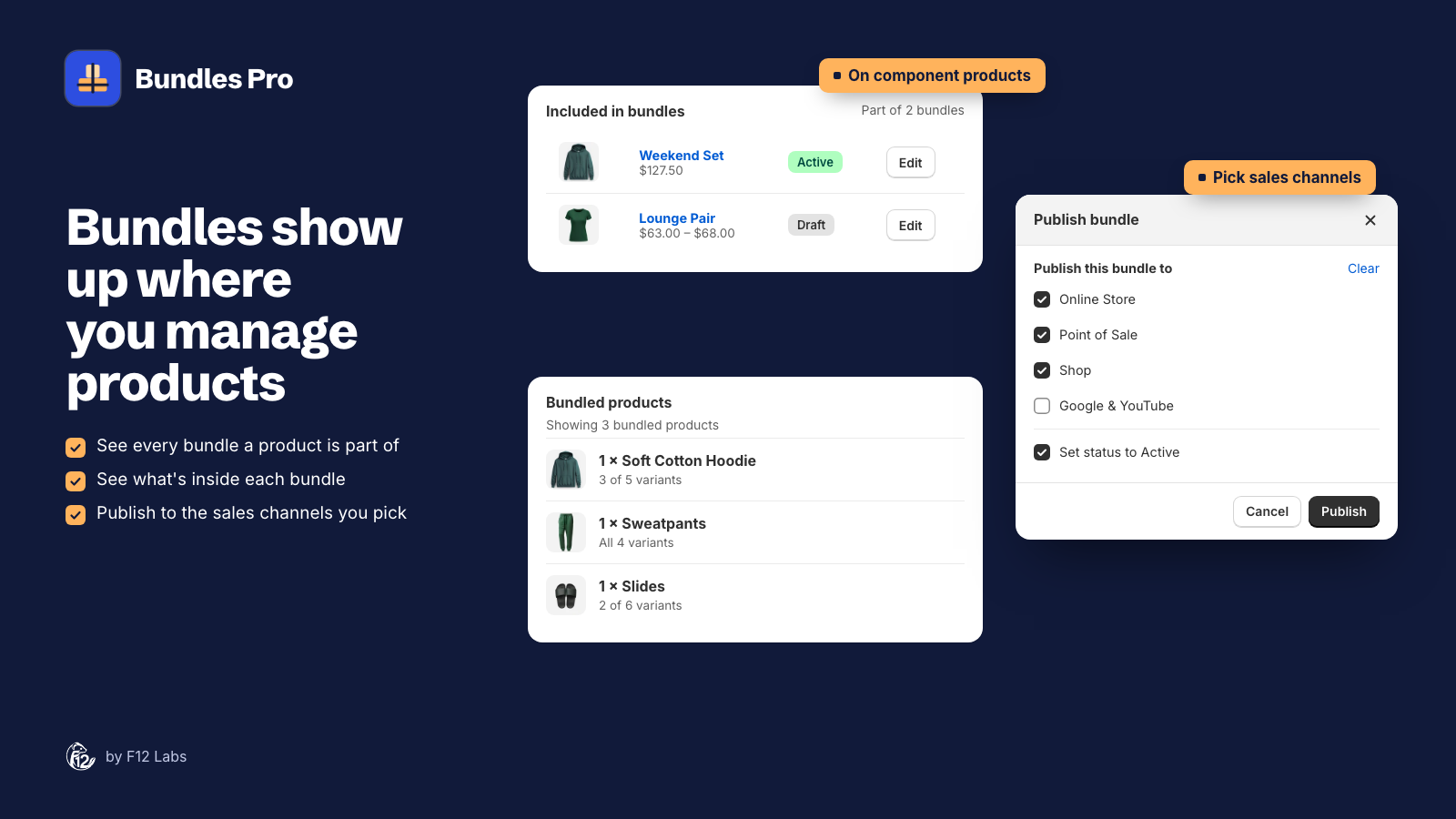
Bundles Pro builds native Shopify bundles and adds two cards to product pages in your Shopify admin.
Included in bundles, on any product. Open the sweatpants and it lists every Bundles Pro bundle they're part of: Part of 2 bundles, then each bundle with its image, title, price or price range, and an Edit link that opens it in Bundles Pro. If the product isn't in any bundle, it says so and offers Create a bundle.
Bundled products, on each bundle. It lists the products inside, with quantities (2 × Sweatpants) and how many of each product's variants are included (3 of 5 variants). Open one of the bundle's variants and it lists the exact variant of each product that goes into it. Shopify adds the card's edit link, which opens the bundle in Bundles Pro.
Edit there, and the price follows: Bundles Pro prices each bundle from the products inside it, as their total, a percentage off, or a fixed price with the total as the compare-at price. After a product's price changes, open each bundle the card lists and click Save.
Setting it up
- Install Bundles Pro and create a bundle (see Getting started).
- Open the bundle's product page in Shopify. Bundled products is already there.
- Open one of the products inside the bundle. Add the Included in bundles app block from the page's apps area. You do this once; it then shows on every product.
Before you rely on it
- It lists bundles on sale online. Included in bundles shows bundles that are Active and published to the Online Store, the same list shoppers see in the storefront block. Drafts and bundles only on Point of Sale don't appear. View in Products in the app lists every Bundles Pro bundle.
- Only Bundles Pro bundles. Bundles made in Shopify Bundles or another app aren't listed.
- Prices still need a save. Bundle prices are worked out when the bundle is saved, not when a product's price changes. The card tells you which bundles to open.
- Refresh to update. The cards load when the product page opens.
The Bundles on the Shopify product page guide covers both cards in detail.
Shopify behavior checked on 20 October 2026 against Shopify's help center (Shopify Bundles, Eligibility and considerations for product bundles) and developer docs (Add a product fixed bundle). If Shopify adds a list of a product's bundles to the product page, we'll update this post.