 F12 Labs
Selling a Shopify bundle with only some sizes or colors
You want a bundle in three of five hoodie sizes, or only the colors that match. How Shopify's native bundles handle variants, why picking two variants can give you four, the limits on options and variants, and how to price each combination.
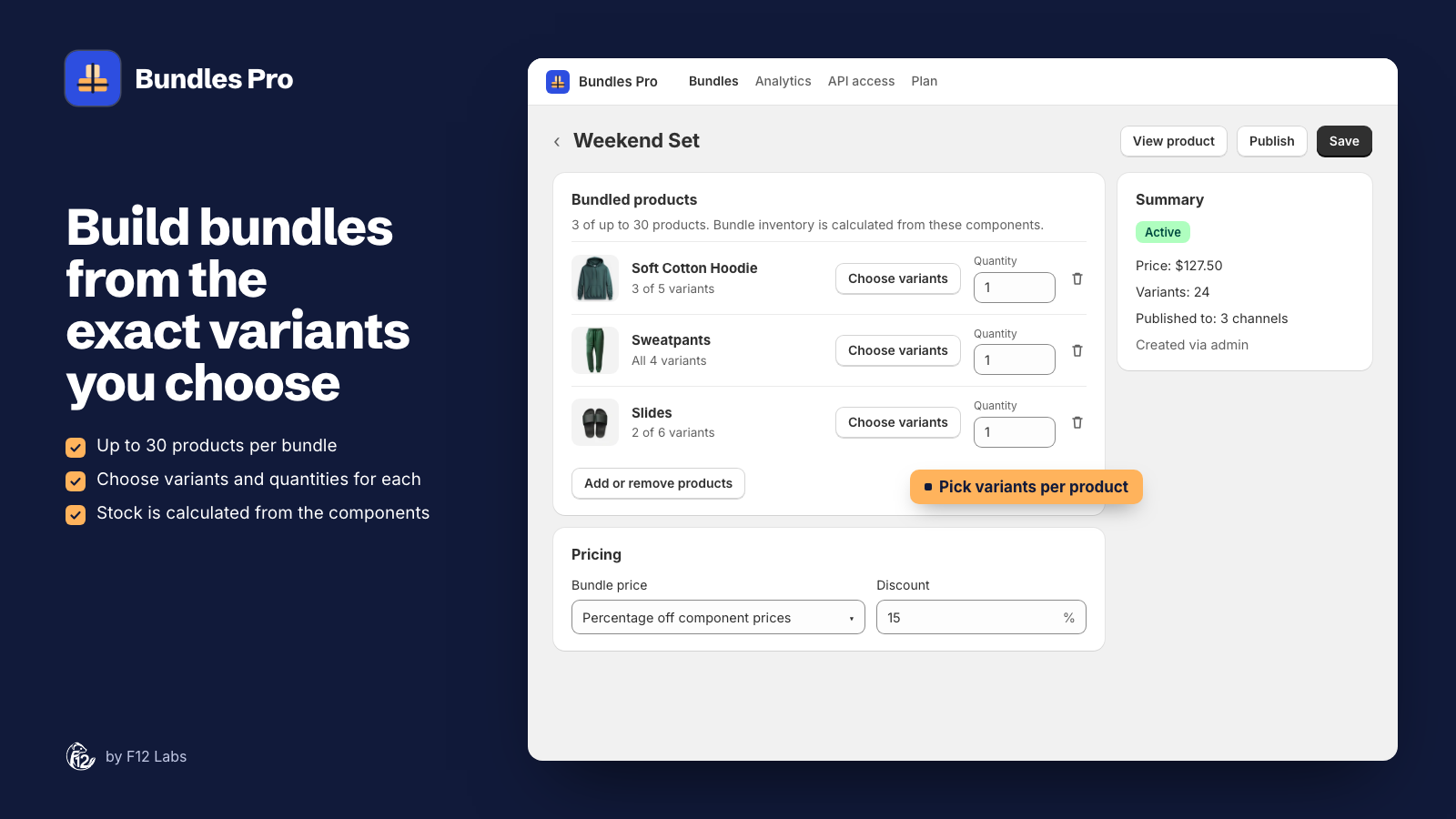
A bundle is easy when every product comes in one version. It gets harder when they don't. Your Weekend Set has a hoodie in five sizes, sweatpants in four and slides in six. You don't want the XXS hoodie in it, because you have six left. The slides only make sense in the two neutral colors. And the shopper has to be able to pick their own sizes.
So the bundle needs some variants of each product, not all of them, and a price for every combination. Here's how Shopify's native bundles handle that, the one rule that surprises people, and what to check before you publish.
How a native Shopify bundle handles variants
A Shopify bundle is a product whose contents are other products. Shopify works out its stock from theirs: "The product with the lowest inventory level determines how many bundles can be sold." (Eligibility and considerations for product bundles)
When products in the bundle have variants, the shopper chooses: "If any products in the bundle have more than one variant, then your customer can choose from the associated variants." (same page) Each choice is a variant of the bundle, made of one variant of each product. Pick 3 hoodie sizes, 4 sweatpants sizes and 2 slides, and the bundle has 3 × 4 × 2 = 24 variants.
In Shopify's own Shopify Bundles app, you choose which variants go in by clicking "the variant name to select or deselect the variant." (Shopify Bundles)
The surprise: bundles choose option values
Under the hood, a bundle doesn't store a list of variants for each product. It stores the option values chosen for each of the product's options: for a shampoo, the option "Shampoo scent" with the values "Lavender" and "Mint" (Add a product fixed bundle). The bundle then offers every combination of those values.
For a product with one option, such as size, that's exactly what you picked. With two options, it isn't always. Pick Red / S and Blue / M of a T-shirt, and the values chosen are Red, Blue, S and M. Every combination of those is four variants:
| You picked | The bundle offers |
|---|---|
| Red / S | Red / S |
| Blue / M | Red / M |
| Blue / S | |
| Blue / M |
That's fine if Red / M and Blue / S are just more choices. It's a problem if you left them out on purpose: the size you're short of, or the color that clashes with the rest of the set.
The fix is to pick in whole rows or columns. All sizes in Red, or size M in every color, never expands. If you need exactly two odd variants, make two bundles.
The limits
These are the limits Shopify documents for bundles made by apps (Add a product fixed bundle):
- Up to 30 products in a bundle.
- Up to three options. "Bundles can have up to three options. Combined options are considered one option."
- No bundles inside bundles.
Options add up fast. A hoodie with Size and Color plus sweatpants with Size is three already. Add slides with a Size and you're over. You can combine options with the same name into one selector, but in Shopify Bundles "the option values need to match" (Shopify Bundles), so a hoodie in XS–XL and slides in 38–45 can't share a Size.
Shopify Bundles itself allows a "Maximum of 3 options and 100 variants total per bundle" (same page). With three products of five sizes each, that's already 125, so choosing fewer variants isn't only about stock: it can be what makes the bundle possible.
Pricing every combination
Once a bundle has 24 variants, it needs 24 prices. They don't have to be equal: an XL hoodie can cost more than an S, and the bundle with it should too.
Shopify's developer docs say "The bundle parent variant's price determines the price" (Add a product fixed bundle): each bundle variant has its own price, set like any product's. And it doesn't follow the products inside. When one of them changes price, "the bundle price doesn't update. You need to manually update the bundle price in your Shopify admin." (Shopify Bundles)
So decide on a rule, and know how you'll reapply it:
- The total of what's inside. No discount; the bundle is a convenience.
- A percentage off the total. Each variant is priced from its own contents, and the total is the compare-at price, so the saving shows.
- One fixed price. Simple to advertise, but the saving differs by variant.
What to check before you publish
- Count the variants. Multiply the picks per product. Is it under the limit?
- Count the options. Three at most, across all products.
- Look for expansion. On any product with two or more options, check that the combinations the bundle offers are the ones you meant.
- Check the names. Two products with a Size option need to be told apart, or combined.
- Price each variant, and note which products' price changes should trigger a re-price.
- Order a test bundle and check that the order shows the right variant of each product, because that's what gets picked and packed.
How Bundles Pro does it
Bundles Pro creates native Shopify bundles, so the rules above apply. It handles the bookkeeping:
- Choose variants per product, or leave a product on all its variants. Each shows "3 of 5 variants" so you can see the selection at a glance.
- It warns about expansion. After saving, a Check the variant selection banner says "T-shirt: the 2 selected variants expand to 4 because bundles select option values, not individual variants." New bundles start as drafts, so nobody can buy the extra combinations before you've seen it.
- It names clashing options. When two products both have Size, the bundle shows Soft Cotton Hoodie Size and Sweatpants Size. It doesn't combine them into one selector.
- It caps a bundle at 250 variants and won't save a larger one: "This bundle would have 300 variants (max 250). Select fewer variants."
- It prices every variant from the exact variants inside: the total, a percentage off it, or a fixed price, with the total as the compare-at price when there's a saving. Prices are set when you save, so after a product's price changes you open the bundle and click Save. The Included in bundles card on the product's page lists which bundles to open.
Bundle variants and pricing covers the details, and Getting started walks through a first bundle.
Shopify behavior checked on 30 October 2026 against Shopify's help center (Shopify Bundles, Eligibility and considerations for product bundles) and developer docs (Add a product fixed bundle). Shopify's limits change; we'll update this post when they do.