 F12 Labs
How to build a custom landing page on Shopify without editing your theme
Shopify gives you two ways to build a page, the page editor and theme templates, and each stops short in a different place. Here's what each can do, where it runs out, and how to get a real layout without touching code.
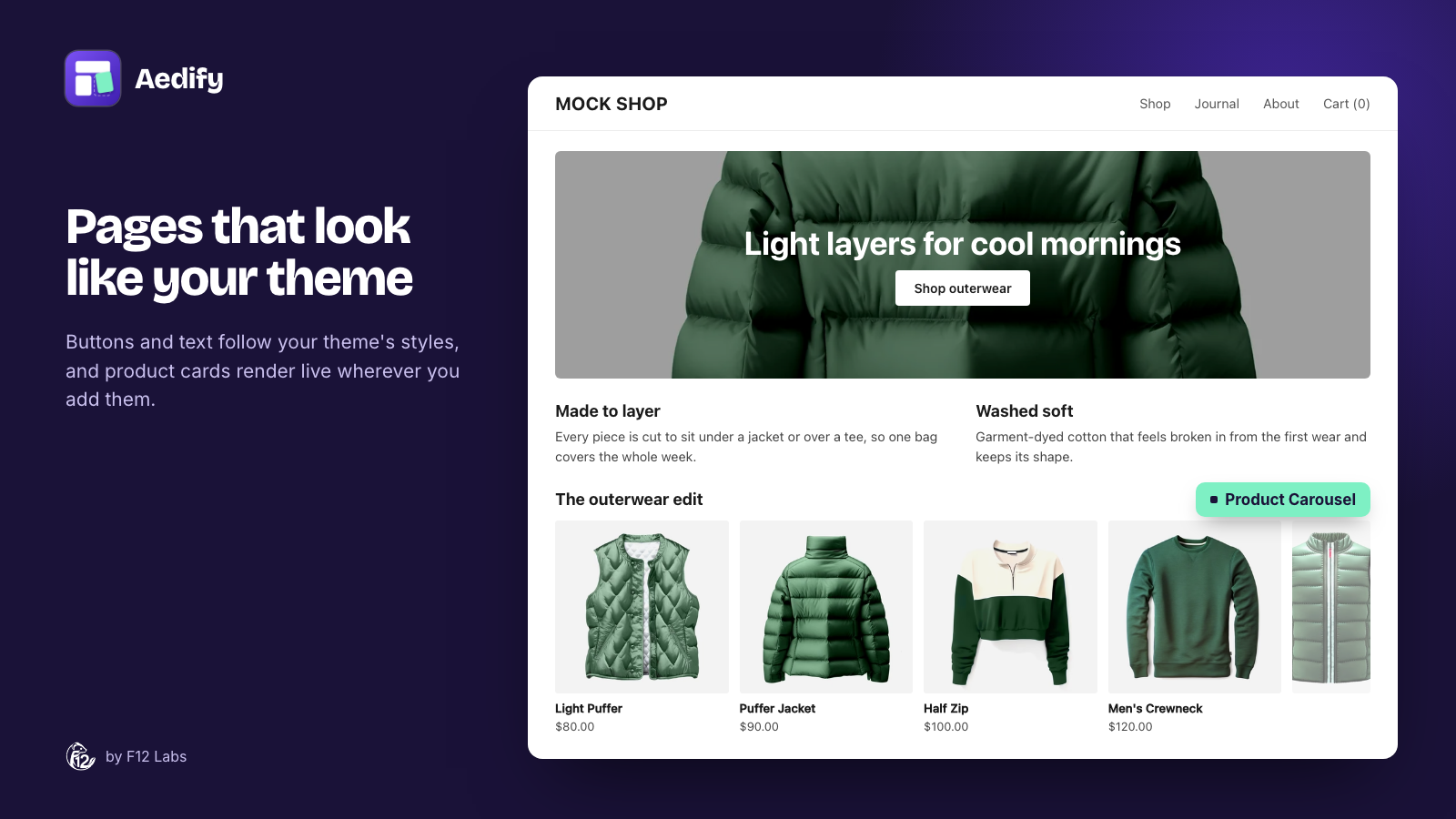
Sooner or later every store needs a page that isn't a product: a seasonal campaign, an About us page with some personality, a size guide, a wholesale page. On Shopify, building one that looks designed (columns, a banner, a few products) is harder than it should be.
Shopify gives you two tools for it, the page editor and theme templates, and each runs out in a different place. Here's what each does well, where it stops, and the options beyond them.
Option 1: Shopify's page editor
Every Shopify page has a content area with Shopify's rich text editor. It handles the basics well: headings, bold and italic, lists, links, text color, images, tables and embedded video. A Show HTML button lets you edit the code underneath.
What it doesn't have is layout. Content runs in one column from top to bottom. There's no way to put text beside an image, build a grid of cards, or add a full-width banner. People get around it by pasting HTML through Show HTML, but then the layout depends on CSS your theme may not have, and anyone who edits the page later has to work in code.
Good for: text-first pages such as policies, FAQs and simple About us pages.
Option 2: A theme template per page
Online Store 2.0 themes let you build pages from sections in the theme editor: image banners, multicolumn blocks, featured collections and more. To give one page its own layout, you create a new page template, add sections to it, and assign it to the page from the page's Theme template setting in the Shopify admin.
It looks great, because the sections are your theme's own. But it comes with trade-offs Shopify itself spells out:
- A template is shared. "When you edit a template, your changes apply to every page that uses the template." Two landing pages with different content need two templates, and that's true for every page with a unique layout.
- The content lives in the theme. What you type into those sections is saved in the theme's template files, not in the page. Switch to a new theme and the layout and the words in it stay behind with the old one.
- It's edited in the theme editor. Whoever updates the campaign page works in the theme editor and needs access to the theme, not just to Pages.
- There's a ceiling. A theme can hold up to 1,000 templates. That's plenty for most stores, but every campaign page adds to the pile, and they're rarely cleaned up.
Good for: a handful of important pages that change rarely, such as the About us page or a brand story.
Option 3: A page builder app
Page builder apps add drag-and-drop layout on top of Shopify. They're not all built the same way, and the differences matter most a year later. Before you pick one, ask:
- Where is the page saved? In the page's own content in Shopify, or on the app's servers? If it's on theirs, your pages depend on the app staying installed, and paid for.
- What happens if you uninstall it? Do the pages keep their content, or do they go blank?
- Does it use your theme's styles? Pages should pick up your fonts, colors and buttons, not arrive with their own look that you then have to match.
- Can it show live products? Product grids should show today's prices and stock, not a copy saved when the page was built.
- Does it help with accessibility? Missing alt text and skipped heading levels are easy to miss on a long page.
- What does it load? Heavy scripts on every page cost you speed on mobile.
How Aedify does it
Aedify is a drag-and-drop builder for Shopify pages, blog posts, and product and collection descriptions. It was built around those questions:
- Saved in the page itself. The layout is written into the page's own content in Shopify, as HTML. It's a normal Shopify page with a normal address, in the admin's Pages list like any other.
- Styled by your theme. Text, headings and buttons use your theme's fonts and button styles unless you choose otherwise. A small stylesheet, turned on as an app embed, handles the layout itself: rows, columns, cards.
- Live commerce elements. Products, Collections and Blog posts elements are filled in by Shopify when the page loads, so prices, sale badges and stock are always current.
- Reusable templates. Save rows once and place them on as many pages as you like. Edit the template and every page using it updates. Templates are saved in your store, as metaobjects.
- An accessibility check in the builder flags missing alt text, empty headings, vague link text, low-contrast text on banners and skipped heading levels, and takes you to each one.
And if you uninstall it, your pages keep their content, because it's in the page. Layouts lose Aedify's stylesheet once the app is removed, and live product, collection and blog post lists stop showing, since those need the app's theme block. The words and images stay where they are.
The getting started guide walks through installing Aedify, setting up your theme and publishing your first page.
Before you publish any landing page
Whichever way you build it:
- Check it at phone size. Most store traffic is on phones. Columns should stack, and text over images should stay readable.
- Use one H1. Your theme already prints the page title as the main heading, so start the page's own headings at H2.
- Write alt text for every image that carries meaning, and mark purely decorative images as decorative.
- Fill in the search listing. In the page's Search engine listing section in Shopify, write a title and description for search results.
- Link to it. A page nobody can navigate to only gets visits from ads. Add it to a menu, a banner or a related product page.
Shopify behavior checked on 11 October 2026 against Shopify's help center: Templates and Using the rich text editor.