 F12 Labs
Does your Shopify page builder slow down your store?
Page builders can add scripts, styles and requests to every page of your store. Here's where the weight comes from, how to measure a builder's cost yourself, and what Aedify loads on your storefront.
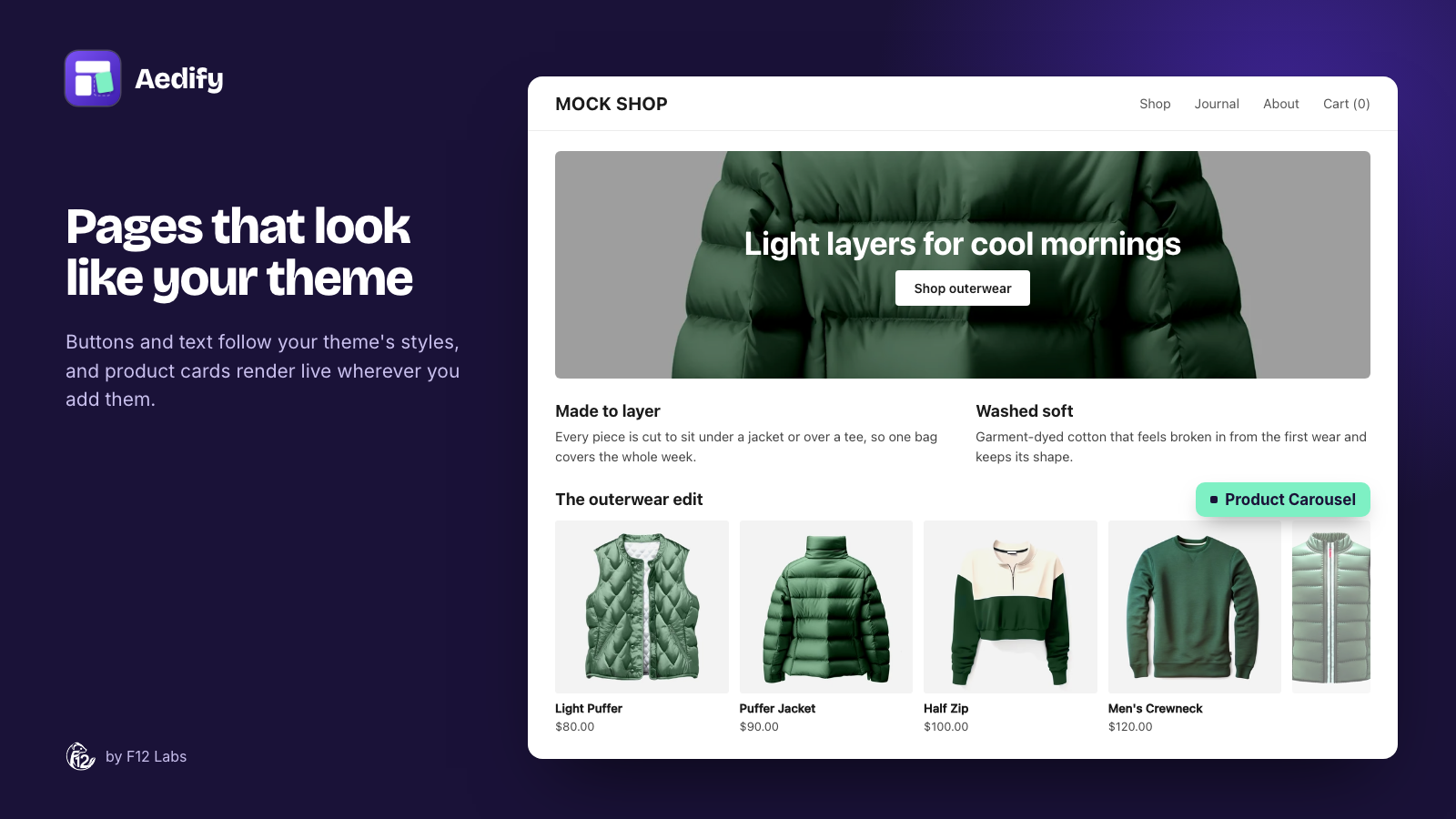
A page builder makes a landing page easy. What's harder to see is what it adds to your store along the way: scripts and styles that load on every page, and content that only appears after JavaScript runs. Shoppers on a phone feel that weight even when your own pages look fine.
This post covers where that weight usually comes from, how to measure it on your store, and what Aedify, our page builder, puts on your storefront.
Where a page builder's weight comes from
Builders differ, but the cost usually comes from a few places:
- Scripts on every page. Many builders load a JavaScript file, often several, on the whole store, not only on the pages you built. Sliders, tabs, animations, popups and product grids each tend to need some.
- Content drawn by JavaScript. Some builders send an empty placeholder and fill it in from the app's servers once a script runs. Shoppers see the page only after that round trip.
- Render-blocking styles and scripts. A stylesheet, or a script without
asyncordefer, in the page's<head>stops the browser from drawing anything until it has downloaded. - Images at the wrong size. One full-size image for every screen, with no width and height set, is slow on phones and makes the page jump as it loads.
- Embeds that load straight away. A video or map near the bottom of the page still downloads its player when the page opens, unless it's set to wait.
Shopify's theme guide puts the cost of third-party code plainly: apps that add render-blocking JavaScript or CSS "can significantly delay page rendering". One of its essential practices is to "render essential content in Liquid and HTML, not JavaScript", because Liquid is rendered on Shopify's servers before the browser does anything.
What Shopify asks of apps
Shopify measures this too. To be listed in the Shopify App Store, an app "must not reduce storefront Lighthouse performance scores by more than 10 points". Shopify tests that by running Lighthouse on a store before and after the app is installed, weighting the home page 17%, product pages 40% and collection pages 43%.
Ten points is a lot of room. A builder can pass and still cost your store a noticeable amount of speed, so it's worth measuring on your own store.
How to measure a builder on your store
You don't need special tools. On a development store, or a copy of your theme:
- Run Lighthouse before installing. In Chrome, open DevTools → Lighthouse, pick Mobile, and run it on your home page, a product page, a collection page and a normal page. Run each a few times: scores vary between runs.
- Install the builder and build a real page. Use what you'd actually use: a banner, a slider, a product grid.
- Run Lighthouse again, on the same pages and on the page you built. Compare the performance scores and the Largest Contentful Paint (LCP) time.
- Look at what it loads. In DevTools → Network, reload a page you didn't build with the builder, and filter by JS. Every script from the app is something your shoppers download on that page for nothing.
- Turn JavaScript off. In DevTools, open the command menu (Ctrl+Shift+P or Cmd+Shift+P), run Disable JavaScript and reload your built page. Whatever disappears depends on scripts to show.
What Aedify loads on your storefront
We built Aedify so your pages are plain HTML and CSS, rendered by Shopify. Here's everything it adds:
- No JavaScript. Aedify's theme extension has no script files. Nothing from Aedify runs in your shoppers' browsers.
- One stylesheet. Aedify's styles are a single CSS file, about 24 KB, or about 6.5 KB compressed, served from Shopify's CDN. It loads on every page once you turn on the Aedify styles app embed, so it's the one thing every shopper downloads.
- Your page is in the page. When you save, Aedify writes the page into Shopify's own page, blog post or description as HTML. Shopify sends it with the rest of the page; nothing is fetched from our servers when a shopper visits.
- Live elements are rendered by Shopify. Products, Collections and Blog posts grids are filled in by the Aedify content theme block in Liquid, from your current catalog, before the page reaches the browser.
- Interactive parts are CSS. Tabs, accordions and carousels work without JavaScript: accordions are the browser's built-in show-and-hide element, and carousels are a scroller that snaps to each card. Parallax backgrounds use CSS scroll-driven animations. Browsers without them, and shoppers who prefer reduced motion, see a still background.
- Images come in the right size. Images from your Shopify Files get a set of sizes from Shopify's CDN, so phones download a small one. They're saved with their width and height, so the page doesn't jump as they load.
- Embeds wait. YouTube and Vimeo videos and Google Maps load only when a shopper scrolls near them. Videos you upload to Shopify load only their first details until someone presses play.
- No extra fonts. Text uses your theme's fonts. Icons are small images written into the page, not an icon font or a script.
Two things to know
- Every image waits to load, including the first one. Aedify marks all images to load only when they're near the screen. That's right for most of the page, but Shopify's guide says to never lazy-load the image a shopper sees first, usually the largest one at the top, because it delays when the page looks ready. If your page starts with a big banner image, check its LCP in Lighthouse.
- The HTML code element runs what you put in it. If you paste a script into an HTML code element, it runs on your storefront like any other script. Use it sparingly.
Before you pick a page builder
- Measure on your store. A before-and-after Lighthouse run on a development store tells you more than any listing.
- Check pages you didn't build. A builder's cost on your home and product pages matters as much as on its own pages.
- Prefer HTML to scripts. Content that's in the page shows sooner, and search engines read it without running anything.
- Use your theme's fonts. Each extra font is another download before text looks right.
To try it, get started with Aedify, or see how Aedify keeps your pages in Shopify.
Shopify guidance checked on 5 November 2026 against Shopify's documentation: Storefront performance, Performance best practices for themes and Remove or optimize apps causing render-blocking issues.