 F12 Labs
How to see what's in a customer's Shopify cart when they ask for help
A customer emails support about their cart, and your team can't see it. Why an online store cart isn't on the customer record your team opens, what abandoned checkouts and draft orders cover, and how to let support see, fix and rebuild a signed-in customer's cart.
A customer writes in: "I had six things in my cart for the party and now I can't check out. Can you help?" Your support agent opens the customer in Shopify. They can see her orders, her addresses, her tags. They can't see her cart.
So the conversation turns into twenty questions. Which products? Which sizes? How many? Is it the blue one or the navy one? By the time the cart is rebuilt, the customer has spent ten minutes on something that should have taken one, and some don't wait that long.
Here's why the cart is invisible to your team on Shopify, what Shopify gives you instead, and how to let support see and fix the cart itself.
Why support can't see the cart
Shopify keeps an online store cart in the shopper's browser. Shopify's cookie policy lists a cart cookie that "contains information related to the user's cart," kept for two weeks. The cart lives on that device, in that browser, not on the customer record your team opens in the admin.
What does reach the admin is abandoned checkouts. Shopify's help center defines one as "a checkout process that remains incomplete, even though the customer has provided their email information," and only once it "remains incomplete for more than ten minutes after the customer has provided their email information." (Abandoned checkouts)
That leaves a gap. A cart the customer filled but never took to checkout, or took to checkout without giving an email, has no record in the admin. That's often exactly the cart they're writing to you about.
What support can do today
Ask, and rebuild it by hand. Get the products and variants from the customer, then rebuild the order as a draft order. Shopify suggests drafts for this: "when you need to process orders through phone, email, or in-person sales," and they let you "send invoices with secure checkout links for customers to complete payment online." When a draft is paid, "it becomes a regular order on your Orders page." (Draft orders and invoices)
Use the abandoned checkout, if there is one. If the customer reached checkout and entered an email, you'll find it under abandoned checkouts and can send them its link. Shopify warns that "anyone who opens the abandoned checkout link can continue that checkout," so send it only to that customer.
Ask for a screenshot. Quick, but it only shows what fits on the screen, and someone still has to find each variant.
Where that breaks down
- Rebuilding costs time on both sides. Every product, variant and quantity has to be described, found and re-entered. Mistakes (the wrong size, the wrong colour) turn into returns.
- The customer's own cart doesn't change. A draft order is separate from their online cart. If they'd rather finish on the website, support can't put anything into the cart for them.
- Most carts never reach checkout. Abandoned checkouts only cover the ones that did, with an email entered.
- No history. If the customer says "it was there yesterday," there's nothing to compare against.
- Automatic discounts don't follow. "Automatic discounts won't automatically apply to orders created as drafts in your admin," so a rebuilt draft can come out more expensive than the cart was. (Adding discounts to draft orders)
What to look for in a fix
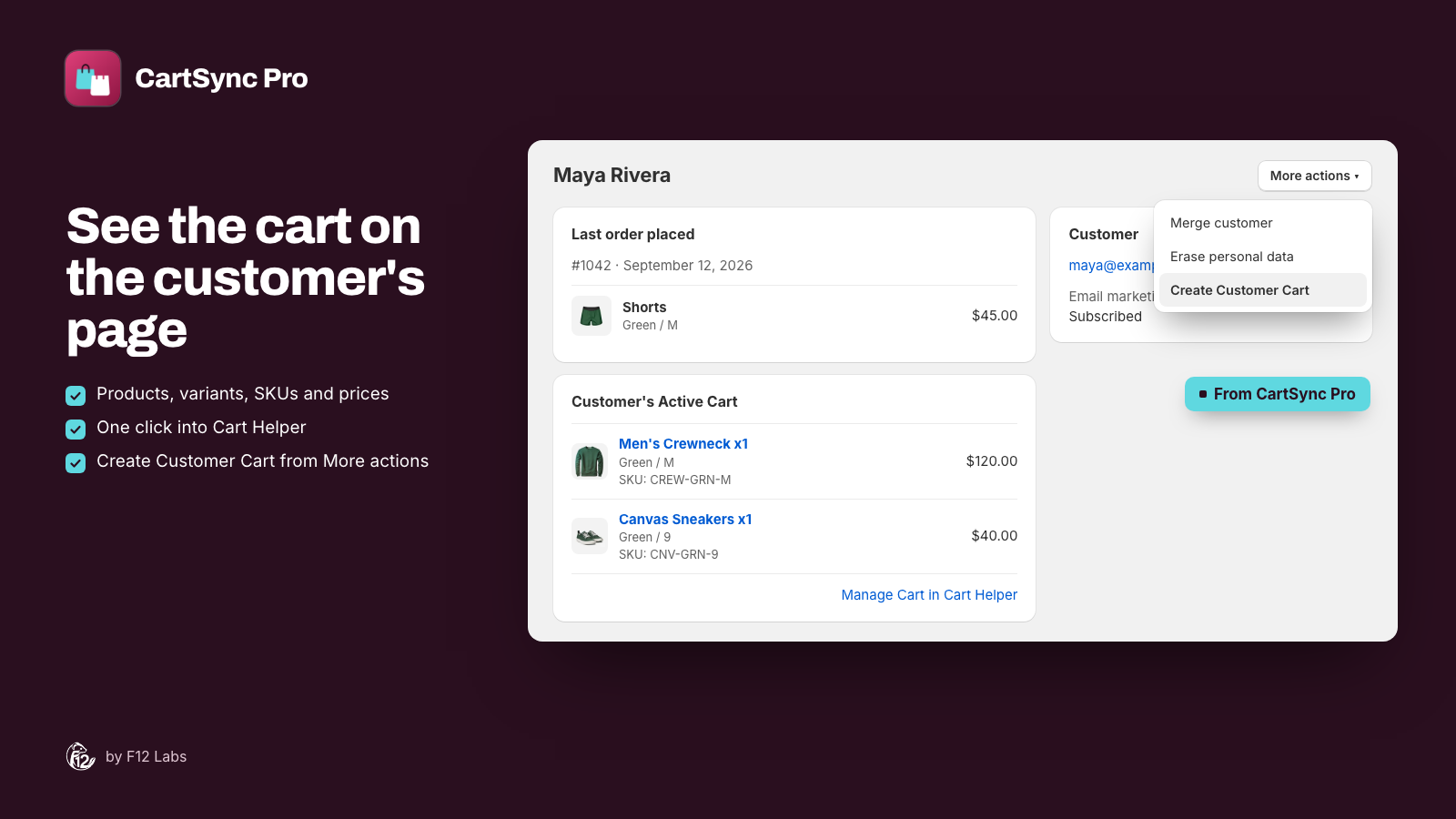
- The cart on the customer's page. Support opens the customer and sees the products, variants, quantities and SKUs.
- Edit it for them. Add products, change quantities, remove items, or clear it, and have the changes show up in the customer's own cart.
- Stock checked at the right places. Only locations your online store sells from, so support doesn't add something the website can't sell.
- A history, with names. Each version of the cart, who saved it (the customer or which staff member), and a way to put an earlier one back.
- A way to take payment. Turn the cart into a draft order and send the invoice, without retyping it.
How CartSync Pro does it
CartSync Pro saves a signed-in customer's cart to their customer record in Shopify, and keeps it the same on every device they shop from. Because the cart is on the customer record, your team can see it and work on it from the admin. It's free.
See the cart on the customer's page. A Customer's Active Cart block on each customer's page in your admin lists what's in their cart right now: products, variants, SKUs and quantities, and whether the customer or a staff member saved it last.
Build and fix it in Cart Helper. From the customer's page (More actions → Create Customer Cart) or the app, support can:
- Add products, picked with Shopify's product picker. Each variant shows its stock at the locations your online store sells from; out of stock, draft and archived products are left out.
- Merge or skip when a product is already in the cart: add the quantities together, or leave what's there.
- Change quantities, remove items, or clear the cart.
- Give a free gift, free at checkout for that customer only, with your own label such as "Thanks for your patience".
The customer finds the changes in their cart the next time they open your store, signed in, on any device.
Go back to an earlier cart. Cart history lists every version of the customer's cart: who saved it, when, what was in it. Restore this version puts an earlier one back. The history is kept in CartSync Pro's database until you erase the customer's data in Shopify, or until 48 hours after you uninstall the app.
Turn it into a draft order. Create draft order makes a Shopify draft from the saved cart, with the customer and their default address, and can email the invoice straight away. Free gifts go in at 100% off.
To see which waiting carts are worth a follow-up, see Shopify abandoned carts that never reach checkout.
Setting it up
- Install CartSync Pro from the Shopify App Store.
- From the app's home page, open your theme editor, turn on the Cart Sync app embed, and click Save.
- Open any customer's page in the Shopify admin and add the Customer's Active Cart app block. Like any app block there, you add it once and it shows on every customer.
- Show your support team Cart Helper, and More actions → Create Customer Cart on the customer page.
Getting started with CartSync Pro covers the setup, and Building a customer's cart in Cart Helper covers what support can do.
Before you rely on it
- It needs a signed-in customer. CartSync Pro saves carts for customers who are signed in to their account on your store. A guest's cart stays in their browser, and support can't see it. Encourage customers to sign in, and the carts support needs will be there.
- Carts are saved from the moment it's on. Carts filled before you turned on the app embed aren't there until the customer visits again, signed in.
- Only variants and quantities. Cart notes, line item properties (such as engraving text) and discount codes aren't saved.
- Changes arrive on the next visit, not live. If the customer has your store open, it catches up when they switch back to the tab or open a page.
- Removals aren't always final. If support removes an item that's still in the cart on one of the customer's devices, opening a page there can bring it back. Clear Cart empties the browser cart too, on their next visit. Check the cart again after the customer's next visit.
- Draft orders still need your discounts. Like any draft, a draft from Cart Helper doesn't get your automatic discounts on its own. Apply them on the draft in Shopify.
Shopify behavior checked on 20 October 2026 against Shopify's help center: Abandoned checkouts, Draft orders and invoices and Adding discounts to draft orders, and Shopify's cookie policy (the cart cookie). If Shopify adds a view of a customer's cart to the admin, we'll update this post.