 F12 Labs
 CartSync Pro
CartSync Pro documentation / Get started
How cart sync works
What CartSync Pro saves from a signed-in customer's cart, when it saves, when another device catches up, how a guest cart is merged at sign-in, and what happens after an order.
This page explains what CartSync Pro does on your storefront, step by step: what it saves, when, and how a cart on one device ends up on another. It's useful when a customer asks why their cart looks the way it does.
Where the cart is saved
Each signed-in customer's cart is saved in a metafield on their customer record in Shopify: custom.custom_cart, a JSON metafield. You can see it on the customer's page under Metafields.
The cart itself lives in Shopify. CartSync Pro's own database keeps a history of each saved version, so your team can see and restore earlier versions in Cart Helper, and the records behind the home page Insights.
What's saved
| Saved | Not saved |
|---|---|
| Each variant in the cart | Cart notes and cart attributes |
| Its quantity | Line item properties, such as engraving text or a gift message the shopper typed |
| When the cart was saved | Discount codes entered in the cart |
| Free gifts your team added in Cart Helper | Subscription (selling plan) choices |
Items that aren't saved stay in the browser where the shopper added them. On another device, the same variant comes back without them.
Who it works for
Cart sync runs only for signed-in customers. For a guest, the app embed does nothing: their cart stays in their browser, the way Shopify always keeps it. When the guest signs in, the cart they built is merged with their saved cart (see Signing in with a guest cart).
When the cart is saved
The app embed watches the cart and saves it to the customer record:
- When the cart changes: adding, removing or changing a quantity, from the product page, the cart page or a cart drawer. It saves about a second after the last change, so tapping + five times saves once.
- When the shopper leaves the page, so a change made just before closing the tab isn't lost.
Removals are saved too: the saved cart is always the cart as it is now, not a list of everything ever added.
When another device catches up
The saved cart is put back into the cart on:
| When | What happens |
|---|---|
| Opening any page of your store | Saved items missing from the cart are added and quantities are brought up to date. Items in this browser's cart that aren't in the saved cart are usually kept and saved, the same as a guest cart at sign-in |
| Switching back to your store's tab or window | The latest saved cart is fetched and the cart is set to match it exactly, removals included |
| Coming back after being idle | After no mouse, keyboard, scroll or touch activity for the Idle Timeout (30 seconds by default, 15 to 120), the next activity fetches the latest saved cart and the cart is set to match it, as above |
When items are put back, the shopper sees the restore notice (Your cart has been restored! by default) and the theme's cart icon and cart drawer update. If some items couldn't be added, usually because they're out of stock, the notice adds a line saying how many.
Because opening a page keeps items that are only in this browser's cart, an item removed on one device can come back from another device that still has it, if the shopper opens a page there before switching back to an open tab. Switching back to a tab that was already open always matches the saved cart.
Signing in with a guest cart
A shopper often adds items before signing in. CartSync Pro keeps them.
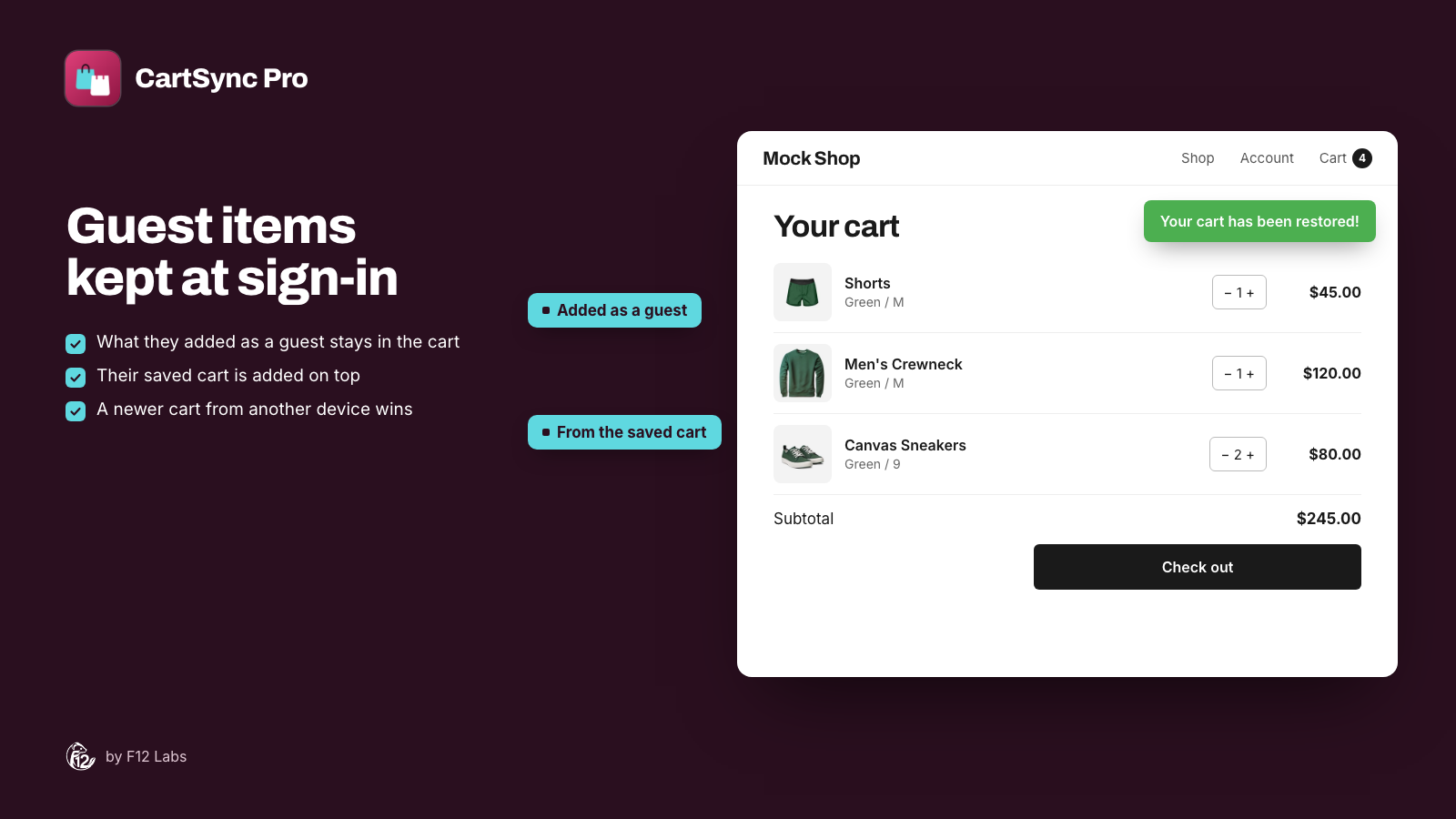
What happens at sign-in depends on which cart is newer:
- The saved cart is older than this visit (the usual case): the saved items are added on top of what's in the cart. If a product is in both, the quantities are added together: 1 in the cart plus 2 saved makes 3. The combined cart is then saved, so every device ends up with all of it.
- The saved cart changed since this visit started, because the customer changed it on another device: the saved cart wins. The cart is set to match it, and items that aren't in it are removed.
- The cart already has some of the saved items plus others: the saved items are brought up to their saved quantities, and the other items are kept.
After an order
When a signed-in customer places an order, Shopify tells CartSync Pro and the customer's saved cart is emptied, so items they bought aren't put back on their next visit.
A free gift from Cart Helper that wasn't in the order stays in the saved cart for next time.
When your team changes the cart
Changes made in Cart Helper are saved to the same metafield:
- Products your team adds show as Pending in Cart Helper until the customer's next visit, when they're added to the cart.
- Clear Cart in Cart Helper empties the saved cart and the cart in the customer's browser on their next visit.
- Restore this version in Cart Helper's Cart history puts an earlier version back. Missing items and quantities follow on the customer's next visit; an item that's only in their browser can stay. See Cart history and restore.
Free gifts
Staff can tick Free gift on a product in Cart Helper. The gift goes into the customer's cart as its own line, labelled with your gift message (Free gift by default), and is free at checkout.
Only gifts your team gave in Cart Helper are free. A shopper can't make a line free from the storefront. CartSync Pro creates an automatic discount called CartSync Pro free gifts the first time you save a gift, and it combines with your other product, order and shipping discounts. See Free gifts and draft orders.
Privacy and data
- The storefront talks to CartSync Pro through Shopify's app proxy, on your store's own domain. Shopify signs each request and says which customer is signed in, so one customer can't read or change another's cart.
- Saves are limited to 30 a minute per customer.
- If a customer asks to be deleted, Shopify deletes the customer and their metafields, and CartSync Pro deletes that customer's cart history.
- Cart history and restore lists what CartSync Pro stores for each cart version, and for how long.
Troubleshooting
The cart doesn't follow the customer. Check, in order:
- The CartSync Pro home page shows Cart sync across devices as On. If not, see Getting started.
- The customer is signed in on both devices, to the same account.
- On the second device, open a new page or switch away from the tab and back. An already-open page catches up on tab focus or after the idle timeout, not instantly.
- Open Cart Helper, select the customer, and check Current Cart. If it's right there but not on the storefront, turn on Enable Debug Logging in the embed settings and look at the browser console.
An item didn't come back. It's out of stock, or the variant was deleted or unpublished. The restore notice says how many items couldn't be added.
A personalised item came back without its personalisation. Line item properties aren't saved. See What's saved.
Quantities doubled after signing in. The customer had the same product in their guest cart and in their saved cart, and the quantities were added together. See Signing in with a guest cart.