 F12 Labs
A Shopify page builder that doesn't lock your content in
Before you build your store's pages with an app, find out where it keeps them. Here's what happens to your pages when you change or remove a page builder, the questions to ask first, and how Aedify keeps your content in Shopify.
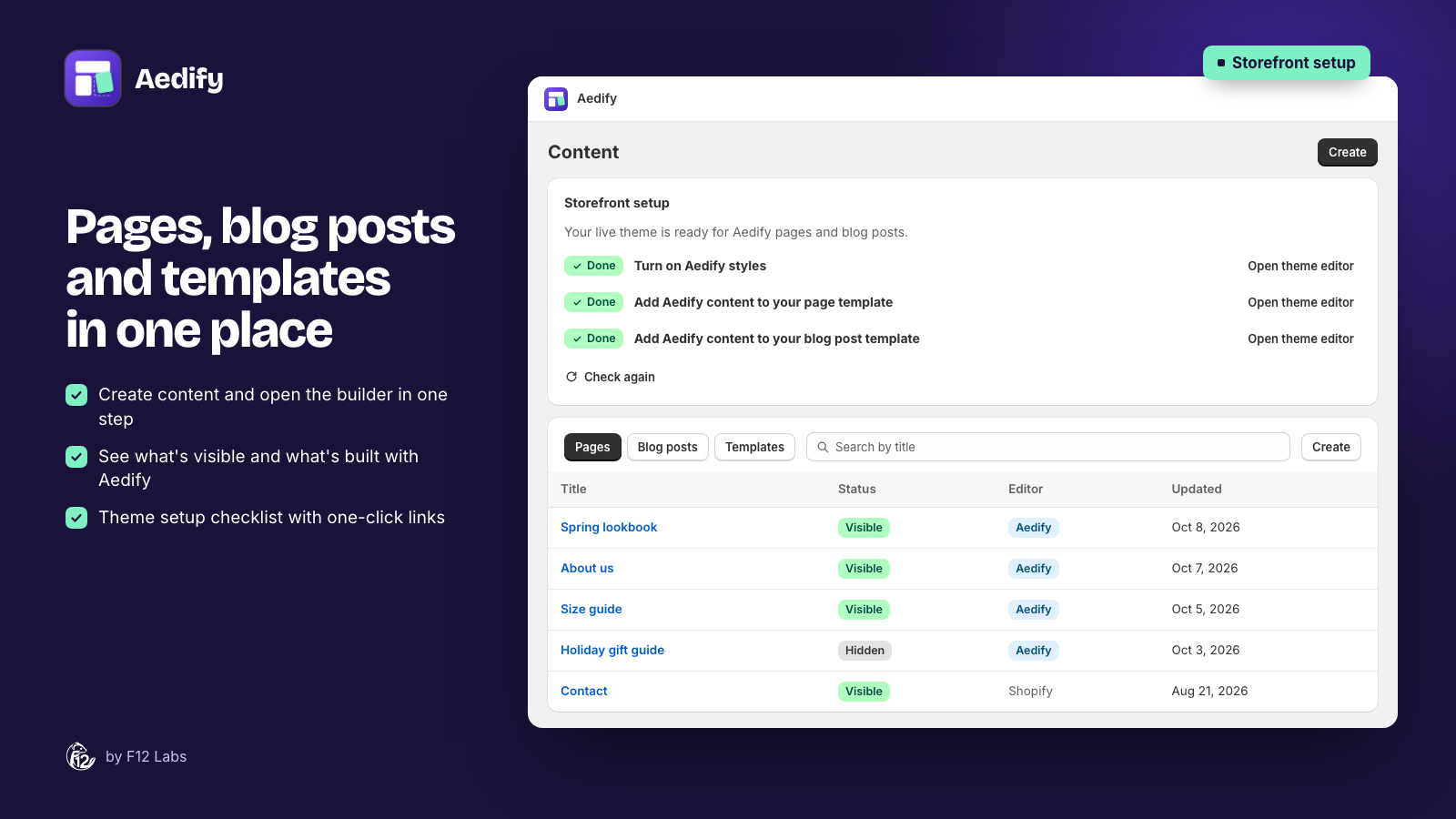
A page builder is easy to start with and hard to leave. You build your About page, a few landing pages and a size guide, and a year later you want to change apps, or stop paying for one. Then you find out where your pages actually live.
With some builders, the answer is "in the app". Uninstall it and the pages go blank, or leave code behind in your theme. Here's what to check before you build, so changing your mind later is cheap.
Where page builders keep your pages
There are three common places:
- In the app's own servers. Your store shows the page by loading it from the app. Remove the app and there's nothing to show.
- In your theme's files. The app writes templates and sections into your theme. The pages work without the app's servers, but they're tied to that theme, and the code stays behind when you uninstall.
- In Shopify's own content. The app saves the page as a normal Shopify page or blog post, with its text, images and links in the page itself. Shopify's editor can open it like any other page.
Only the third survives the app being removed with your content readable.
What Shopify says about leftover code
Shopify's help center warns that some apps add code to your theme, and "that isn't automatically removed when you uninstall the app." It suggests checking the app's listing, or asking the developer, for cleanup steps before you uninstall.
Shopify's newer way for apps to add things to a theme, theme app extensions, avoids that: apps built with them "don't edit theme code". You add their blocks in the theme editor, and you can remove them there too.
Questions to ask before you build
- Where is the page saved? In Shopify's Pages and Blog posts, in theme files, or on the app's servers?
- What do I see after uninstalling? Your text and images, the full layout, or a blank page?
- Does it edit my theme's code? Or does it use theme app extensions you add in the theme editor?
- Can I still edit the page in Shopify? If you fix a typo in Shopify's editor, does the builder notice, or overwrite your fix next time?
- Can it open the pages I already have? Starting a new tool shouldn't mean rebuilding your old pages by hand.
How Aedify does it
Aedify, our page builder, is built on the third approach.
- Pages are Shopify pages. When you save, Aedify writes the page into the page or blog post itself, as normal HTML: headings, paragraphs, images, links, columns. Product and collection descriptions are saved into the description.
- Images go in your Files. Images you upload are saved in Content → Files in Shopify, not on our servers.
- Templates are in your store too. Saved templates, the rows you reuse on many pages, are Shopify metaobjects, listed under Content → Metaobjects.
- No theme code is edited. Aedify's styles and its content block are theme app extensions. You turn them on in the theme editor, and the setup checklist links straight to each step.
- Edits in Shopify are respected. If someone changes an Aedify page in Shopify's editor, Aedify says so the next time you open it ("This content was changed in Shopify since Aedify last saved it"), instead of quietly overwriting it.
- It opens your existing pages. Open a page made outside Aedify and you can keep it as one HTML block, or convert it to elements you can edit.
Our database keeps only your login session and a log of saves. Your pages don't depend on it.
If you uninstall Aedify
Here's what happens, so there are no surprises:
- Your pages, blog posts and descriptions stay, with their text, images and links, and you can edit them in Shopify.
- The layout loses Aedify's styling. Columns, spacing and banners are styled by Aedify's theme extension, which Shopify removes with the app. Content shows in your theme's plain styles, one block under another.
- Live elements disappear. Products, Collections and Blog posts grids are filled in by the theme block from your current catalog, so they stop showing.
- Templates stay as copies. Each page keeps the last saved copy of the templates placed on it.
Step by step, see Uninstalling Aedify.
That's the trade we chose: your words and images are always yours, in Shopify, and only the live parts need the app.
Before you pick a page builder
- Test the exit. On a development store, build a page, uninstall the app, and look at the page and your theme code.
- Keep important text out of images. Words in a banner image can't be edited, searched or read by screen readers. Put them in text.
- Prefer theme app extensions. Blocks you add in the theme editor can be removed there, without editing code.
- Note what's live. Product grids and other live sections need the app. Know which pages use them.
To try it, get started with Aedify.
Shopify behavior checked on 14 October 2026 against Shopify's documentation: Uninstalling apps and About theme app extensions.