 F12 Labs
 CartSync Pro
CartSync Pro documentation / Cart Helper
Building a customer's cart in Cart Helper
Use CartSync Pro's Cart Helper to find a customer, see their saved cart, add products for them, change quantities, remove items or clear the cart. What the customer sees on their next visit, and what to watch for.
Cart Helper is the CartSync Pro page for your support and sales team. Find a customer, see what's in their saved cart, and add, change or remove products for them. The customer finds the changes in their cart the next time they visit your store, on any device.
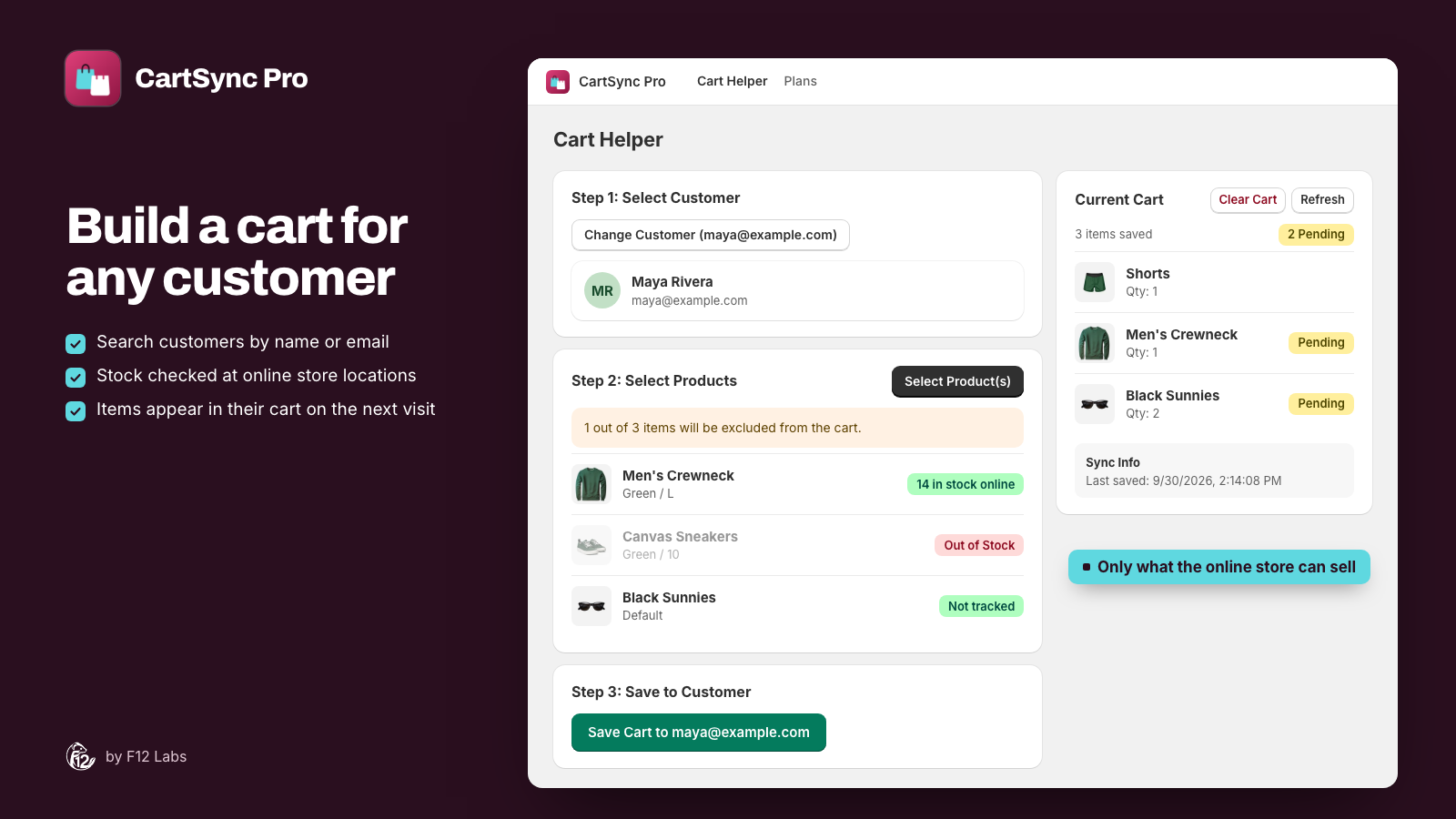
Cart Helper works with the cart CartSync Pro saves for signed-in customers. A customer who has never signed in on your store has no saved cart yet, but you can still build one for them. It's put in their cart the first time they sign in.
Open Cart Helper
- In CartSync Pro, click Cart Helper in the app's navigation, or Open Cart Helper on the home page.
- From a customer's page in the Shopify admin, click More actions → Create Customer Cart. Cart Helper opens with that customer already selected.
- From the Customer's Active Cart block on a customer's page, click Open Cart Helper or Manage cart in Cart Helper.
Every staff member who can open CartSync Pro can use Cart Helper. There are no roles. Your team's changes are recorded with the staff member's name.
Step 1: Select Customer
- Click Select Customer.
- Type at least 3 characters of the customer's name or email.
- Click the customer in the results.
The customer's card shows their name, email and customer ID, with buttons to view the customer in Shopify or remove them from Cart Helper. To work on someone else, click Change Customer.
Step 2: Select Products
- Click Select Product(s) and pick products or individual variants in Shopify's product picker.
- Set a quantity for each variant in the Selected Variants table.
- Optionally tick Free gift on a line. See Free gifts and draft orders.
Each variant shows its SKU, price and a stock badge:
| Badge | Meaning |
|---|---|
| N in stock online | Available at the locations your online store sells from. With several locations, the count for each is listed underneath |
| Not tracked | Shopify doesn't track inventory for this variant, so it can always be added |
| Out of Stock | Nothing available at the locations your online store sells from. Variants set to keep selling when out of stock aren't counted as out of stock |
| Draft or Archived | The product isn't active, so the online store can't sell it |
| Stock unknown | The stock check failed. Remove the variant and pick it again to retry |
Stock counts only locations that fulfil online orders. A variant in stock only at a warehouse your online store doesn't sell from shows as out of stock.
Out of stock, draft and archived variants are greyed out and won't be saved. A banner says how many will be left out, for example "1 out of 3 items will be excluded from the cart."
Step 3: Save to Customer
Click Save Cart to followed by the customer's email. Products are added to the customer's saved cart. Nothing already in it is removed.
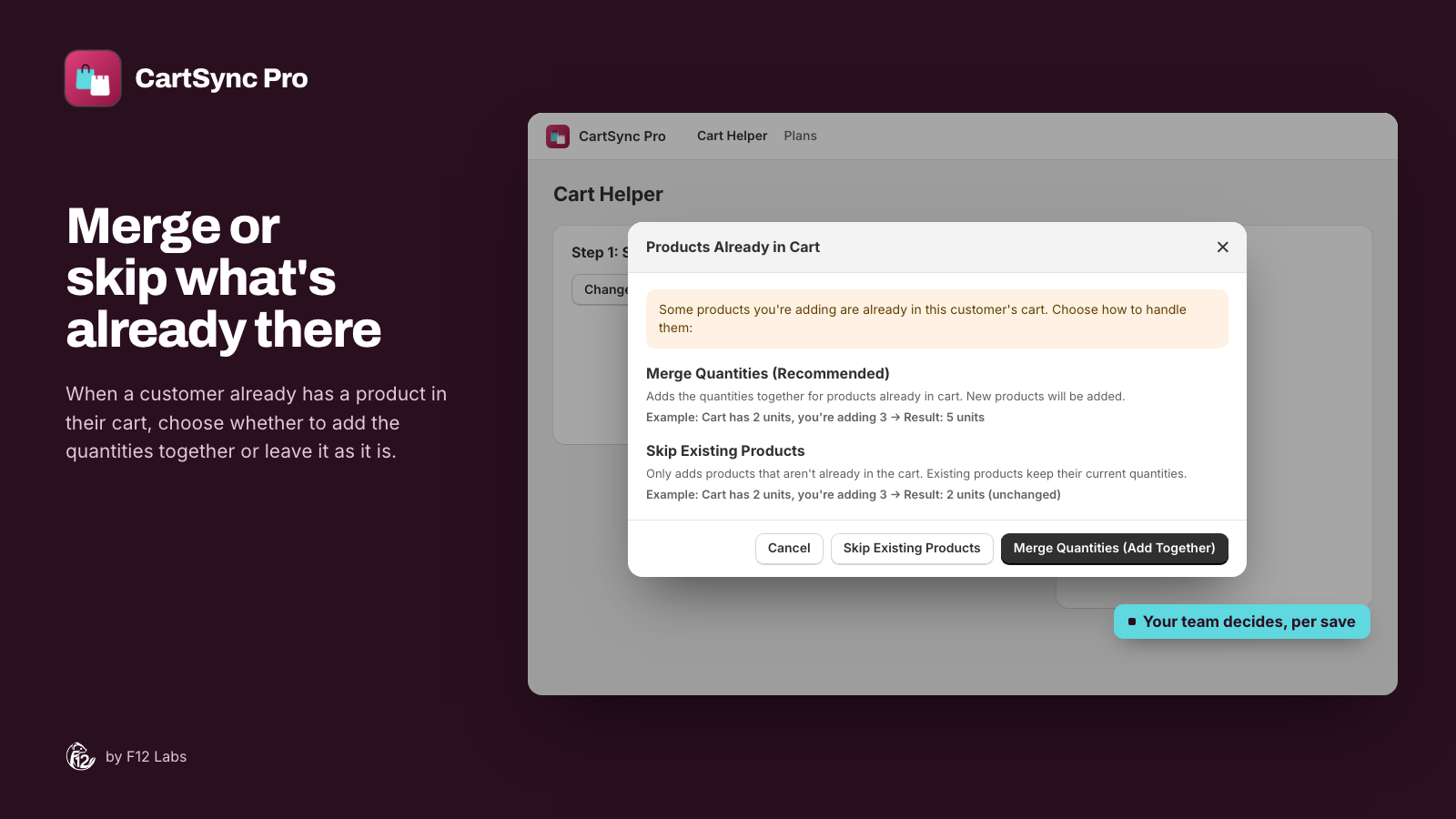
If a product you picked is already in the cart, Cart Helper asks what to do in Products Already in Cart:
| Option | What happens | Example: cart has 2, you add 3 |
|---|---|---|
| Merge Quantities (Add Together) | The quantities are added together. Recommended | 5 |
| Skip Existing Products | Products already in the cart keep their quantity. Only new products are added | 2 |
| Cancel | Nothing is saved | 2 |
When the cart is saved, Cart Helper shows Cart data successfully saved to and the customer's email, with a View Customer button.
The customer's current cart
Current Cart, on the right, is the customer's saved cart as it is now.
- A badge says who saved it last: Built by and a staff member's name (or Built by staff), or Saved by customer.
- N items saved counts the lines. Products your team added that aren't in the customer's browser cart yet are marked Pending, with a count at the top.
- Sync Info shows when the cart was last saved.
- Refresh loads the cart again, for example while the customer is shopping.
Change or remove items
- Change a line's Qty, or click the bin icon to remove it.
- Click Save Changes.
Pending lines and free gifts can be removed but their quantity can't be changed. Remove the line and add it again in Step 2 instead.
Clear the cart
Clear Cart empties the saved cart after you confirm. On the customer's next visit, CartSync Pro also empties the cart in their browser, not just the saved copy.
Every save, change and clear is kept in Cart history, under the cart, so you can undo it. See Cart history and restore.
What the customer sees
Your changes are saved to the customer's record straight away. Their storefront cart picks them up:
- The next time they open a page of your store, signed in, on any device. Items you added are put in their cart and the restore notice shows (Your cart has been restored! by default). You can change its wording in the app embed settings.
- On a page they already have open, when they switch back to its tab or come back after the idle timeout.
Once the items are in their cart, the Pending marks go away the next time you refresh Cart Helper.
Items that are out of stock by then aren't added. The restore notice says how many couldn't be.
Lowering a quantity reaches the customer either way.
Good to know
- Only variants and quantities are saved, not line item properties, cart notes or discount codes. See What's saved.
- The customer has to sign in to see the cart you built. Guests' carts aren't connected to a customer record.
- Prices show with a $ sign, whatever your store's currency. The amounts are your prices in your store currency.
- If the customer is shopping at the same moment, a change they make on a page that hasn't caught up with yours yet can overwrite your products. Free gifts are kept. Click Refresh to check, and save again if needed.
- An order empties the saved cart. If the customer places an order, Current Cart shows an empty cart, and Cart history shows Cleared after order with the order number.
Troubleshooting
The customer doesn't see the products. Check that they're signed in to the account you saved to, and that the CartSync Pro home page shows cart sync as On. Then ask them to open a new page of your store. If the lines still show Pending after they've visited, the variants may be out of stock or unpublished.
A product I picked wasn't saved. It was out of stock, draft or archived when you saved. Those are left out.
A quantity doubled. The product was already in the cart and you chose Merge Quantities (Add Together). Change the Qty in Current Cart and click Save Changes.
A product I removed came back. It was still in the cart on one of the customer's devices. See the warning in What the customer sees.
The customer search finds no one. Type at least 3 characters. Search matches the customer's first name, last name and email.