 F12 Labs
 Bundles Pro
Bundles Pro documentation / Get started
Getting started with Bundles Pro
Install Bundles Pro, build your first native Shopify bundle from the exact variants you choose, set its price, publish it, and add the storefront blocks. About ten minutes.
Bundles Pro builds native Shopify bundles: a bundle is a product in your store, made of other products, and Shopify works out its stock from theirs. This guide takes you from installing the app to a live bundle on your store.
Before you start
- Your store needs Shopify's bundles feature. Bundles Pro creates bundles with Shopify's own bundle tools, so the same rules apply. Stores using
checkout.liquidcustomizations can't sell bundles, and bundles can't be sold with subscriptions, pre-orders or try-before-you-buy. Shopify lists the rules in Eligibility and considerations for product bundles. - Free covers everything but the API. The bundle builder, the admin cards, both storefront blocks and sales analytics are on the Free plan, with no limit on bundles. Pro adds the API for creating bundles from an ERP, PIM or script. See Create and update bundles with the API.
- You need permission to install apps on the store.
Install Bundles Pro
- Open Bundles Pro on the Shopify App Store and click Install.
- Shopify lists the permissions Bundles Pro asks for. Review them and approve.
- Shopify opens Bundles Pro in your admin. Next time, you'll find it under Apps in the admin sidebar.
What each permission is for:
| Permission | Why Bundles Pro needs it |
|---|---|
| Products | To create and update bundles, and to save which bundles each product is in, for the storefront blocks and the admin card |
| Orders (read only) | For bundle sales analytics. No customer details are read |
| Publications | To list your sales channels and publish bundles to the ones you pick |
| Themes (read only) | To show whether the storefront blocks are on your live theme. Bundles Pro never edits your theme |
Create your first bundle
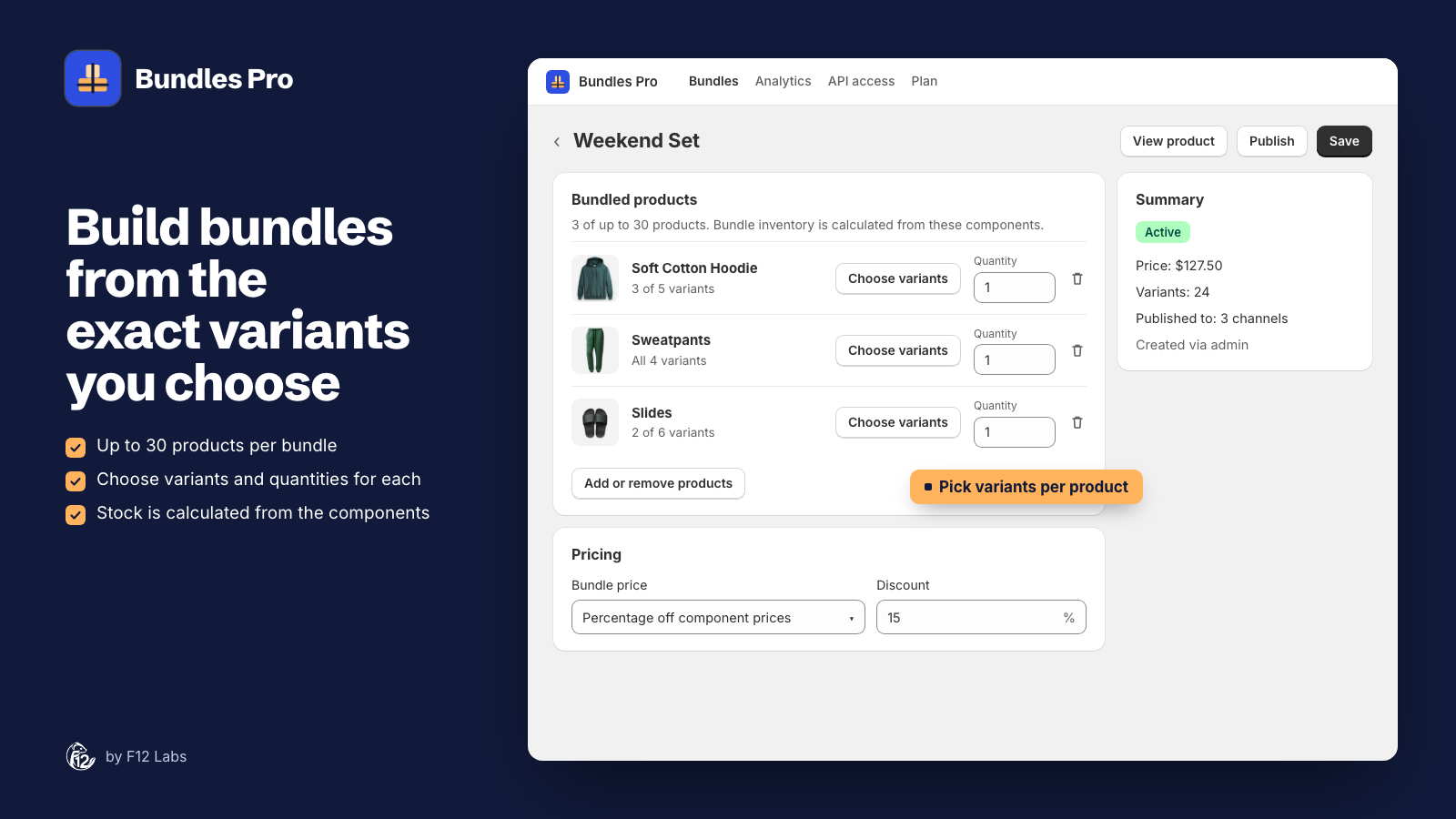
Here's a "Weekend Set" made of a hoodie, sweatpants and slides, at 15% off the price of the three.
- In Bundles Pro, click Create bundle.
- Enter a Title. Shoppers see it as the product name.
- Leave Status on Draft for now.
- Under Bundled products, click Add products and pick the products. A bundle can have up to 30.
- For each product, choose what goes in the box:
- Choose variants picks which sizes and colors are included. Leave it alone to include all of them.
- Quantity is how many of that product are in one bundle, from 1 to 2,000.
- Under Pricing, set Bundle price to Percentage off component prices and enter 15 in Discount.
- Click Save.
A banner says Shopify is building your bundle. Shopify builds bundles in the background, which usually takes a few seconds. When it's done, Bundles Pro opens the bundle and confirms Bundle created.
How the price is set
| Bundle price | What the bundle costs | Compare-at price |
|---|---|---|
| Sum of component prices | The total of its products' prices × quantities | None |
| Percentage off component prices | That total, minus the percentage | The total |
| Fixed price | The amount you enter, for every bundle variant | The total, when it's higher |
Each bundle variant is priced from the exact variants inside it, so a bundle with a larger size can cost more. Prices are worked out when you save. If a product's price changes later, open the bundle and click Save to update it.
Add images and publish
The bundle is a product in your store, so you finish it like any product.
- On the bundle's page in Bundles Pro, click View product. Add images, a description and SEO details there, and save.
- Back in Bundles Pro, click Publish. Tick the sales channels the bundle should be on, keep Set status to Active ticked, and click Publish.
Bundles you create in the app start out on your Online Store and on every channel set to publish new products automatically. Publish changes that at any time: unticked channels are removed.
Check it on your store
- Open the bundle on your online store. It shows the bundle price, with the total of its products struck through.
- Pick a variant and add it to the cart. The cart and checkout show one bundle line. Once the order comes in, your team sees each product in it, ready to pick and pack.
- Set one of the products to 0 in stock. The bundle variants that use it show as sold out, because Shopify works out how many bundles you can sell from the stock of each product inside.
Add the storefront blocks
Two optional blocks help shoppers find and understand bundles. You add them to your product template in the theme editor, and they take your theme's fonts.
| Block | Goes on | Shows |
|---|---|---|
| What's in this bundle | A bundle's product page | Every product inside, with quantities and links, and "You save $22.50 with this bundle" when the bundle is discounted |
| Buy the bundle instead | The product pages of the products inside a bundle | Up to 3 bundles that include the product, with the saving and an Add bundle button |
At the bottom of the Bundles page, Store setup shows whether each block is on your live theme. Click Add to product page, then Save in the theme editor. Back in Bundles Pro, the block shows On.
What's in the app
| Page | What it's for |
|---|---|
| Bundles | Every bundle made in Bundles Pro, with status, number of products, price and whether it was made in the admin or through the API; a 30-day sales summary; and Store setup |
| Analytics | Revenue, bundles sold and orders with bundles over 7, 30 or 90 days, a daily chart and a table per bundle. Import last 60 days brings in orders from before you installed |
| API access | API keys for the Pro plan |
| Plan | Your plan, and upgrading or managing it through Shopify |
In the Shopify admin, products also get two cards: Bundled products on a bundle's page, and Included in bundles on the products inside one. Bundles on the Shopify product page covers both.
Deleting a bundle
Bundles Pro has no delete button. Delete the bundle's product in Shopify (Products, open the bundle, Delete product). Bundles Pro notices, removes it from its list, and stops offering it on the products that were inside. View in Products on the Bundles page lists just your Bundles Pro bundles.
Next steps
- See and edit bundles from the product page: Bundles on the Shopify product page.
- Create bundles from your ERP, PIM or scripts on the Pro plan: Create and update bundles with the API.
The Bundles Pro page gives an overview of every feature, and compares it with Shopify Bundles.