 F12 Labs
 Discountly
Discountly documentation / Get started
Getting started with Discountly
Install Discountly, pick a plan, turn on the storefront pieces your discounts need, and put your first volume discount live in about ten minutes.
This guide takes you from installing Discountly to a live discount your customers can use. By the end you'll have a "buy more, save more" volume discount running on your store and know where everything else lives.
Before you start
- Any Shopify plan works. Discounts run as Shopify Functions, so Shopify itself calculates the price in the cart and at checkout.
- The theme pieces need the Online Store sales channel. The cart embed and product page blocks are theme app extensions you turn on in the theme editor. No code edits.
- Shopify Plus adds two checkout extensions: a volume price display on each checkout line, and a free-gift code field. They're optional, and they come with every Discountly plan.
- You need permission to install apps on the store. The person who installs Discountly can give other staff access afterwards.
Install Discountly
- Open Discountly on the Shopify App Store and click Install.
- Shopify lists the permissions Discountly asks for. Review them and approve.
- Shopify opens Discountly in your admin. Next time, you'll find it under Apps in the admin sidebar.
What each permission is for:
| Permission | Why Discountly needs it |
|---|---|
| Products | To find the products a discount applies to and preview them |
| Discounts | To create each discount in Shopify, so it runs at checkout |
| Draft orders | For the draft order tools on the Pro plan |
| Themes (read only) | To show which storefront pieces are turned on in your live theme |
| Metaobjects | To store the draft order message settings and to target products by metaobject |
| Customers (read only) | To limit a discount to tagged, logged-in or specific customers |
| Orders (read only) | For sales analytics: what each discount brought in |
Choose a plan
Billing goes through Shopify, on your regular Shopify bill. You can start on Free and change plans whenever you like, from the plan button at the top of the Discounts page (it shows your current plan, for example Free plan).
| Free | Starter | Pro | |
|---|---|---|---|
| Live discounts at once | 5 | 20 | No limit |
| Volume, product, order and shipping discounts | ✓ | ✓ | ✓ |
| Customer eligibility, product targeting, staff roles, audit trail, analytics, import and export | ✓ | ✓ | ✓ |
| Buy X get Y and free gifts | ✓ | ✓ | |
| Draft order discounts | ✓ | ||
| Upsell hints in the cart and on draft orders | ✓ |
Two things worth knowing:
- Drafts are unlimited on every plan. Only live and scheduled discounts count toward the limit.
- Downgrading never switches anything off. Live discounts keep running and stay editable. You just can't put more live, or add a feature the new plan doesn't include, until you're within the limits.
Current prices are on the App Store listing.
The first time you open it
Discountly opens on the Discounts page. Everything starts from here: the list of discounts, Create discount, Analytics, Settings, Import and Export are all at the top of this page.
The store owner becomes the app's Owner automatically. If someone else installs it and no roles exist yet, the first person to open the app becomes Owner. Other staff start with No access until the Owner gives them a role from Access at the top of the Discounts page:
| Role | Can do |
|---|---|
| Viewer | See discounts and export them |
| Customer Support | Use the draft order tools only; can't open the app |
| Editor | Create, edit, import and activate discounts |
| Admin | Everything an Editor can, plus delete |
Turn on the storefront pieces
At the bottom of the Discounts page, Store setup shows what's turned on in your live theme. You only need a piece when a discount uses it, and Store setup marks a piece Needs attention as soon as a live discount depends on something that's off.
| Piece | Where | What it does | Needed for |
|---|---|---|---|
| Cart embed | App embed | Adds free gifts and Buy X get Y rewards to the cart automatically, storefront-wide | Automatic free gift and Buy X get Y discounts |
| Volume pricing table | Product page block | Shows the quantity tiers and the price at each one next to Add to cart | Showing volume tiers to shoppers |
| Available offers | Product page block | Lists the offers a product qualifies for | Promoting discounts on product pages |
| Mix & match | Product page block | Explains that quantities combine across products in a mix & match discount | Mix & match volume discounts |
To turn one on:
- Click Turn on (for the cart embed) or Add to product page (for a block). The theme editor opens with the piece ready.
- Click Save in the theme editor.
- Come back to Discountly. The piece now shows On.
If your store is on Shopify Plus, the Checkout group lists the two checkout extensions. Discountly can't read whether they've been placed, so they show Not tracked. Open checkout editor takes you to where you add them.
Store setup and theme blocks covers each piece in detail, adding them by hand, stores with several product templates, and troubleshooting.
Create your first discount
Here's a volume discount that gives 5% off when a customer buys 2 or more of a product, and 10% off at 5 or more.
On the Discounts page, click Create discount. In Select discount type, choose Volume pricing.
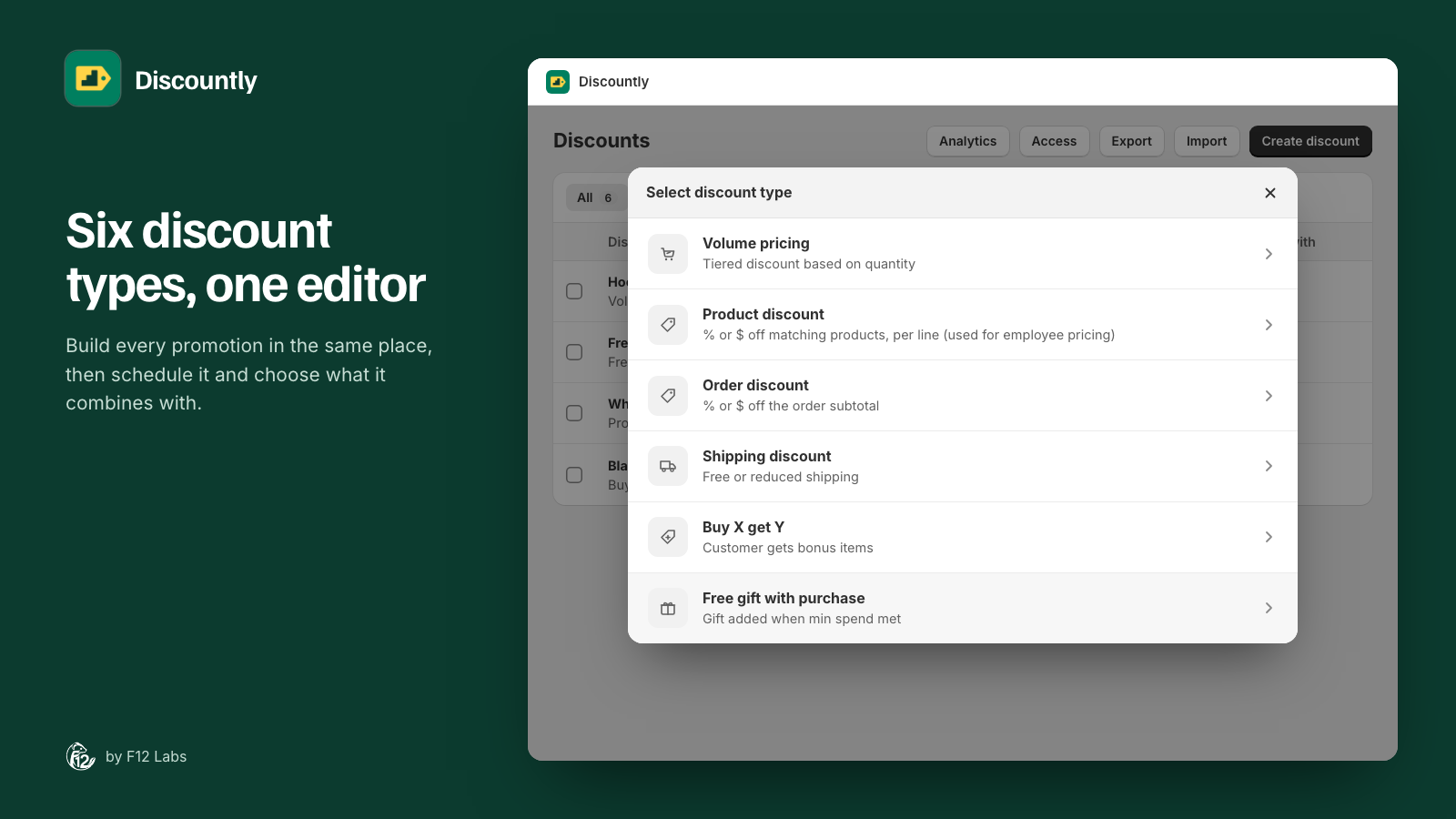
The six discount types. The type can't be changed once the discount is created. Enter a Title, for example "Buy more, save more". Customers see it in the cart and at checkout when they unlock the discount.
Leave the method on Automatic discount, so it applies without a code.
Under Discount logic, click Add logic. The Logic 1 window opens with two sides:
- The offer: there's already a tier for 2 or more at 5% off. Click + Add tier, set its minimum quantity to 5, keep % off, and enter 10.
- Who it applies to: leave it on All products for now.
Click Save to close the window.
Leave Schedule on Activate now (no end date).
Click Save rule.
Discountly creates the discount in Shopify and confirms that your changes are live. If you'd rather review it first, Save as draft keeps it in Discountly without making it live, and drafts don't count toward your plan.
Check it on your store
- Open your online store and add 2 of any product to the cart. The cart and checkout show the discount under the title you chose.
- Change the quantity to 5. The discount rises to 10%.
- Back in Discountly, Store setup now shows the Volume pricing table as Needs attention, because a live volume discount would benefit from it. Click Add to product page and save, and product pages show the tiers right next to Add to cart.
The discount also appears in Shopify's own Discounts list. Clicking it there opens it in Discountly.
Next steps
- Narrow Who it applies to from all products to the ones you mean: by tag, type, vendor, collection, specific products, or product and variant metafields.
- Limit a discount to logged-in customers, customers with a tag, specific customers or a customer segment.
- Try the other types: product and order discounts, free or reduced shipping, Buy X get Y, and free gifts that add themselves to the cart.
- Open Analytics after a few orders to see the revenue that came with a Discountly discount.
The Discountly page gives an overview of every discount type and targeting option.