 F12 Labs
How to lay out Shopify product descriptions beyond the rich text editor
Shopify's product description editor handles text, images, tables and video, but not columns, tabs or a size guide that's the same on fifty products. What the rich text editor and metafields can do, where they stop, and how to design descriptions without editing theme code.
The product description is where a shopper decides. It's where the fabric, the fit, the care instructions and the reasons to buy go. On most Shopify stores it's also one long column of text, because that's what the description editor makes easy.
You can picture something better: the photo of the detail next to the paragraph about it, the size guide and the care instructions in tabs, a few matching products underneath. Here's what Shopify gives you for that, where it stops, and how to get there without touching theme code.
What the rich text editor does
Product and collection descriptions use Shopify's rich text editor, the same one as pages and blog posts. Shopify's help center lists what it does (Rich text editor):
- Paragraphs, six heading levels and block quotes, from the Formatting button.
- Bold, italic, underline, bulleted and numbered lists, indents, alignment, and text and background colour.
- Links, images, video and audio.
- Tables, with buttons to insert and delete rows and columns.
That covers a well-written description. What it doesn't do is layout: there's no way to put an image beside a paragraph and have it stack neatly on a phone, no tabs, no accordion, no button styled like your theme's.
The HTML view
For more, the editor has an HTML view. Shopify says that in it "you can add images, videos, or tables using HTML, and you can debug or fine-tune the layout and content style" (Rich text editor).
So with enough HTML and CSS, anything is possible. In practice there are three catches:
- Someone has to write it. A two-column layout that stacks on phones needs CSS, and a description has nowhere good to keep it.
- The editor rewrites it. Shopify's editor uses TinyMCE, which "automatically corrects HTML formatting to prevent storefront malfunctions and security risks". Shopify recommends you "work with these automated changes" rather than fighting them (Rich text editor). Hand-written layout can come back changed.
- It's copy and paste. The size guide you hand-coded for one product has to be pasted into the next fifty, and edited fifty times when it changes.
Shopify's own advice: "For more complex page layouts, consider using page builder apps."
Metafields and theme sections
The other native route is to move parts of the description out of it. With metafields, you add fields to products (a care guide, a materials list, a size chart) and connect them to your theme. Shopify says "you can connect metafields to your theme by adding sections or blocks that support dynamic sources", such as the Product info section (Displaying metafields).
It's a good way to get tidy tabs of facts on every product. It has limits:
- The layout belongs to the theme. The theme decides what the blocks look like and where they can go. Something it doesn't offer means theme code.
- Each field needs setting up, and filling in on every product.
- It's per template. Every product on the template gets the same blocks, so a different look for one product line means another template.
Where each one stops
| You want | Rich text editor | HTML view | Metafields in the theme |
|---|---|---|---|
| Formatted text, images, tables | ✓ | ✓ | |
| Image beside text, stacking on phones | ✓ with CSS | Theme-dependent | |
| Tabs or accordion for details | ✓ with CSS | ✓ if the theme has the block | |
| Different layout per product | ✓ | ✓ | One template per layout |
| Same block on many products, edited once | ✓ | ||
| No code | ✓ | Setup per field |
What's missing is a visual builder for the description itself: columns, tabs and live product grids, edited per product, with shared parts you change once.
Building descriptions in Aedify
That's what Aedify, our page builder, does for product and collection descriptions, as well as pages and blog posts.
- Open it from the product. In your Shopify admin, open a product, click More actions and choose Design description in Aedify. The description opens in the builder.
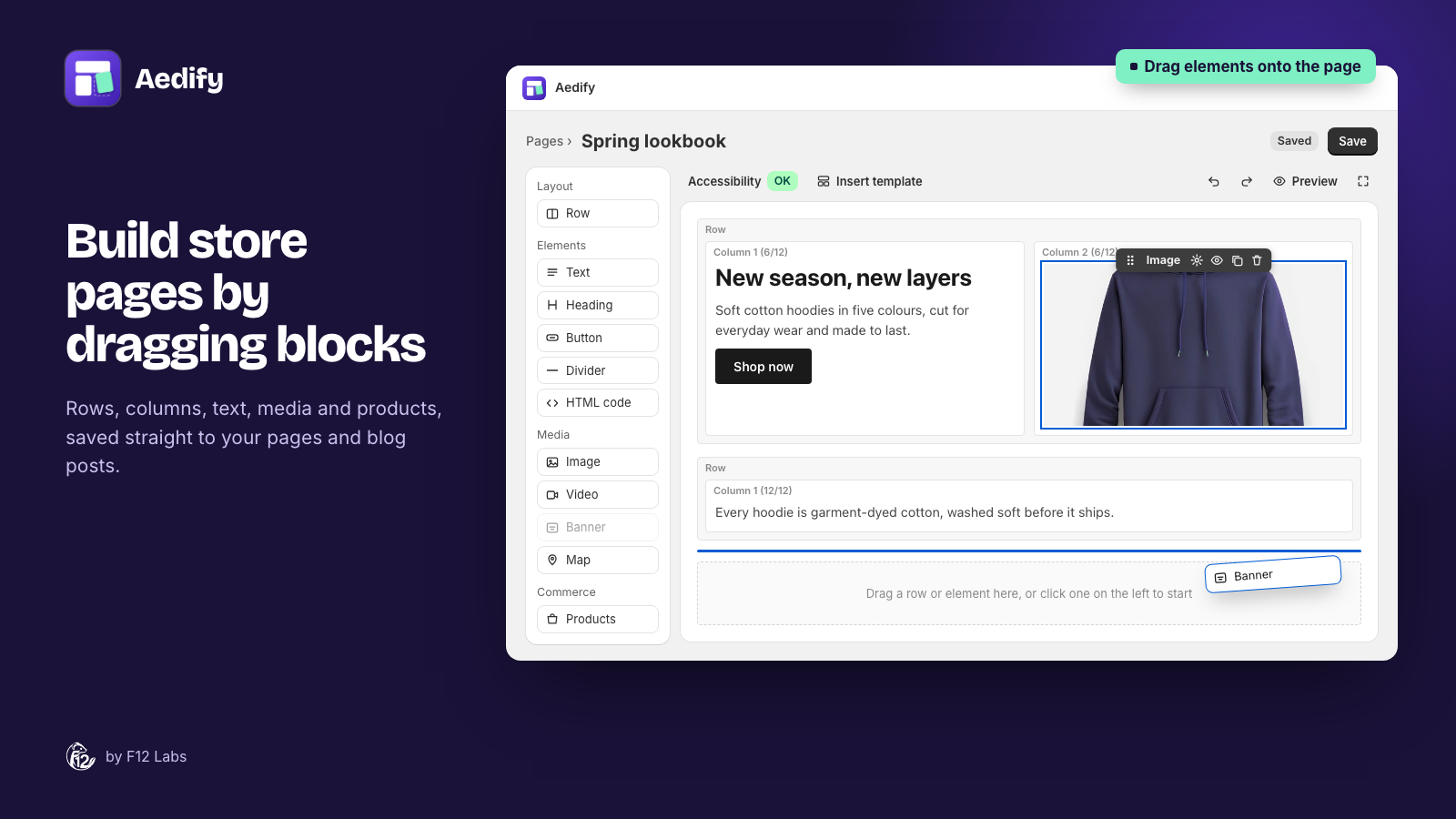
- Lay it out visually. Drag in rows and columns, text, images, video, banners, icons, tabs and accordions. Columns stack on phones on their own.
- Show live products. A Products element shows matching items, "Complete the look" or "Also in this collection", with prices and stock from your store when the page loads.
- Reuse with templates. Build the size guide once as a template, place it in every description that needs it, and edit it once to update them all.
- Only the description changes. Aedify never touches the product's title, price, variants or status.
- It stays in Shopify. The layout is saved as the product's description, so if you remove the app, the text and images stay.
Descriptions you already have open as they are: keep them as one HTML block, or convert them into elements you can edit.
Setting it up
- Install Aedify and run through Storefront setup on its home page. That turns on Aedify's styles, which cover product and collection pages too.
- Open a product, click More actions → Design description in Aedify, build the description and save.
- If you add a Products, Collections or Blog posts element, the builder asks you to add the Aedify content block to your product template. Its link opens the theme editor with the block ready; click Save.
The product and collection descriptions guide covers every step, including alternate product templates.
Tips for better product descriptions
- Lead with the answer. The first lines should say what it is and why it's worth buying. Shopify may show your description in places that don't use your theme's styles, so keep the essentials in plain text near the top.
- Put the details in tabs. Size, materials, care, shipping: one click away instead of a long scroll.
- Pair images with the words they explain. A close-up next to the paragraph about the stitching does more than either alone.
- Share what repeats. Anything that's the same on many products, such as a size guide or a returns summary, should be edited in one place.
- Write alt text. Description images are often the detail shots shoppers need. Describe what they show.
Shopify behavior checked on 25 October 2026 against Shopify's documentation: Rich text editor and Displaying metafields on your online store.