 F12 Labs
 Bundles Pro
Bundles Pro documentation / Storefront
Storefront blocks
The two Bundles Pro theme blocks. What's in this bundle lists a bundle's products and the saving on its product page; Buy the bundle instead offers bundles on the pages of the products inside them. Adding them, every setting and default, and which bundles they show.
Bundles Pro has two blocks for your product pages. They're optional: bundles sell without them, like any product. They help shoppers see what a bundle holds, and find the bundle from the products in it.
| Block | Goes on | Shows |
|---|---|---|
| What's in this bundle | A bundle's product page | Each product inside, with its quantity and a link, and the saving when the bundle is discounted |
| Buy the bundle instead | The product pages of the products inside a bundle | The bundles that include this product, with price, saving and a button |
Both blocks use your theme's fonts. You set the heading text and an accent color.
Add the blocks
Both blocks go on your product template. A product page shows only the block that applies to it: What's in this bundle stays hidden on products that aren't bundles, and Buy the bundle instead stays hidden on products that aren't in a bundle. So you can add both to the same template, once, and they work for every product that uses it.
The quickest way is from Bundles Pro:
- Open Bundles and scroll to Store setup. It shows each block's status on your live theme.
- Click Add to product page next to a block. The theme editor opens with the block added to your default product template.
- Drag the block where you want it, for example under the price, and click Save.
- Do the same for the other block.
Back in Bundles Pro, refresh the page. The block shows On, and its button changes to Open in theme editor.
To add them by hand: in Shopify, go to Online Store → Themes → Customize, open a product page, click Add block in the product information section, and pick the block under Apps. Shopify's help center covers this in Adding app blocks. App blocks need a theme and section that support them.
What Store setup tells you
| Status | Meaning |
|---|---|
| On | The block is on your live theme's product templates. The line underneath says which: "On the default product template.", "On all 3 product templates." or "On 1 of 3 product templates (…)" |
| Not added | The block isn't on any product template of your live theme |
| Can't check | Bundles Pro couldn't read the theme. If a banner asks you to accept the app's updated permissions, do that and refresh |
Bundles Pro only reads your live theme to check this. It never edits your theme.
What's in this bundle
On a bundle's product page, this block lists every product in the bundle, in the order you added them, with × 1, × 2 and so on for the quantity. When the bundle is discounted, it adds a line such as You save $22.50 with this bundle.
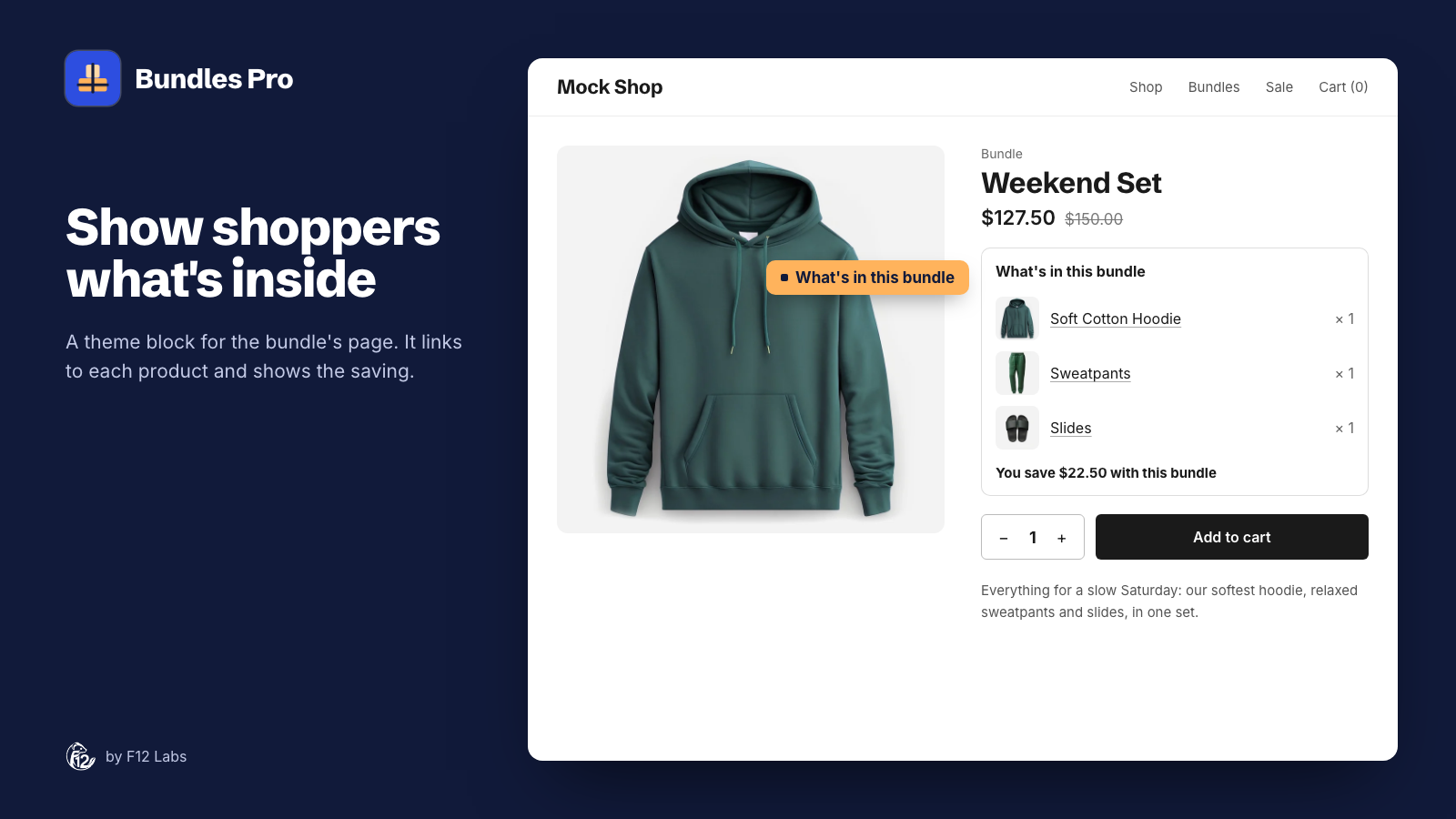
| Setting | Default | What it does |
|---|---|---|
| Heading | What's in this bundle | Shown above the list. Leave it empty for no heading |
| Show product images | On | A small image of each product |
| Link to component products | On | Each product title links to its product page |
| Show savings when discounted | On | The "You save" line |
| Accent color | #1f1f1f | Color of the block's accents |
How it works:
- It lists products, not variants. It shows the Soft Cotton Hoodie, not the size the shopper picked. The bundle's own variant selector shows that.
- The saving is the bundle variant's compare-at price minus its price. Bundles Pro sets a compare-at price when the bundle is priced as a percentage off or a fixed price below the total, so a bundle at Sum of component prices shows no saving line. See Bundle variants and pricing.
- The saving is for the variant selected when the page loads, the first one in stock unless the link names a variant. Variants of a percentage-off bundle can have different savings.
- Products shoppers can't see are left out. A product that's been deleted, or isn't on your online store, isn't listed. If none of the bundle's products can be shown, the block is hidden.
Buy the bundle instead
On the page of a product that's inside a bundle, this block lists the bundles it's in, so a shopper looking at the sweatpants sees the Weekend Set.
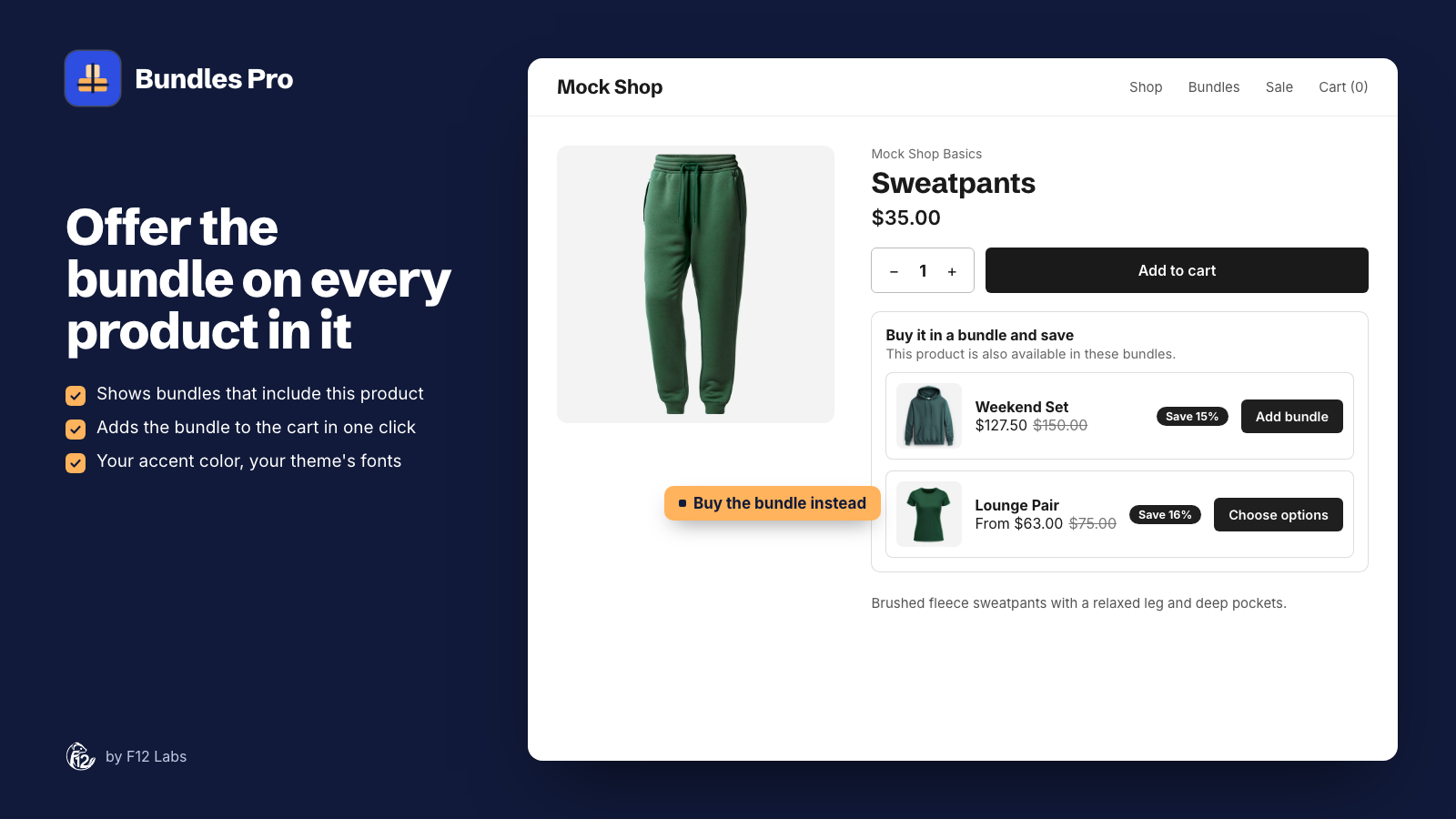
| Setting | Default | What it does |
|---|---|---|
| Heading | Buy it in a bundle and save | Shown above the bundles. Leave it empty for no heading |
| Subheading | This product is also available in these bundles. | A line under the heading. Leave it empty to hide it |
| Maximum bundles to show | 3 | 1 to 10 |
| Hide sold-out bundles | Off | When on, sold-out bundles aren't listed, and the block is hidden if none are left |
| Accent color | #1f1f1f | Color of the button and badge |
Each bundle shows its image, title (linking to the bundle), price, and when the bundle is discounted the compare-at price struck through and a Save 15% badge. When the bundle's variants have different prices, the price reads From $63.00. The price, compare-at and badge are for the bundle's first variant in stock.
The button depends on the bundle:
| The bundle | Button |
|---|---|
| Has one variant, with no options to choose | Add bundle adds one to the cart and opens the cart page |
| Has options to choose | Choose options opens the bundle's page |
| Is sold out | Sold out, disabled |
Most bundles have options, because they include products that come in sizes or colors, so expect Choose options.
Which bundles it shows
The block lists bundles that are:
- made in Bundles Pro (not in Shopify Bundles or another app),
- Active, and
- published to the Online Store.
A draft bundle, or one only on Point of Sale, doesn't appear. When you publish it to the Online Store and set it to Active with Publish in Bundles Pro, it's added within a few seconds. The bundles show in the order Bundles Pro stores them; you can't reorder them.
In the theme editor, a product with no bundles to show gets a note that only you can see: "No bundles to show for this product. This block lists active bundles that include this product and are published to the Online Store…". Shoppers see nothing.
Languages
The headings are settings, so you can write them in any language. The other text, Add bundle, Choose options, Sold out, From, Save 15% and You save … with this bundle, is in English only for now.
Removing the blocks
Remove a block in the theme editor: select it, click Remove block, and Save. When you uninstall Bundles Pro, Shopify removes the app's blocks, so both stop showing on your store.
Next steps
- How bundle variants are made and priced: Bundle variants and pricing.
- See a product's bundles in your Shopify admin: Bundles on the Shopify product page.