 F12 Labs
 CartSync Pro
CartSync Pro documentation / Cart Helper
The customer's cart on their Shopify admin page
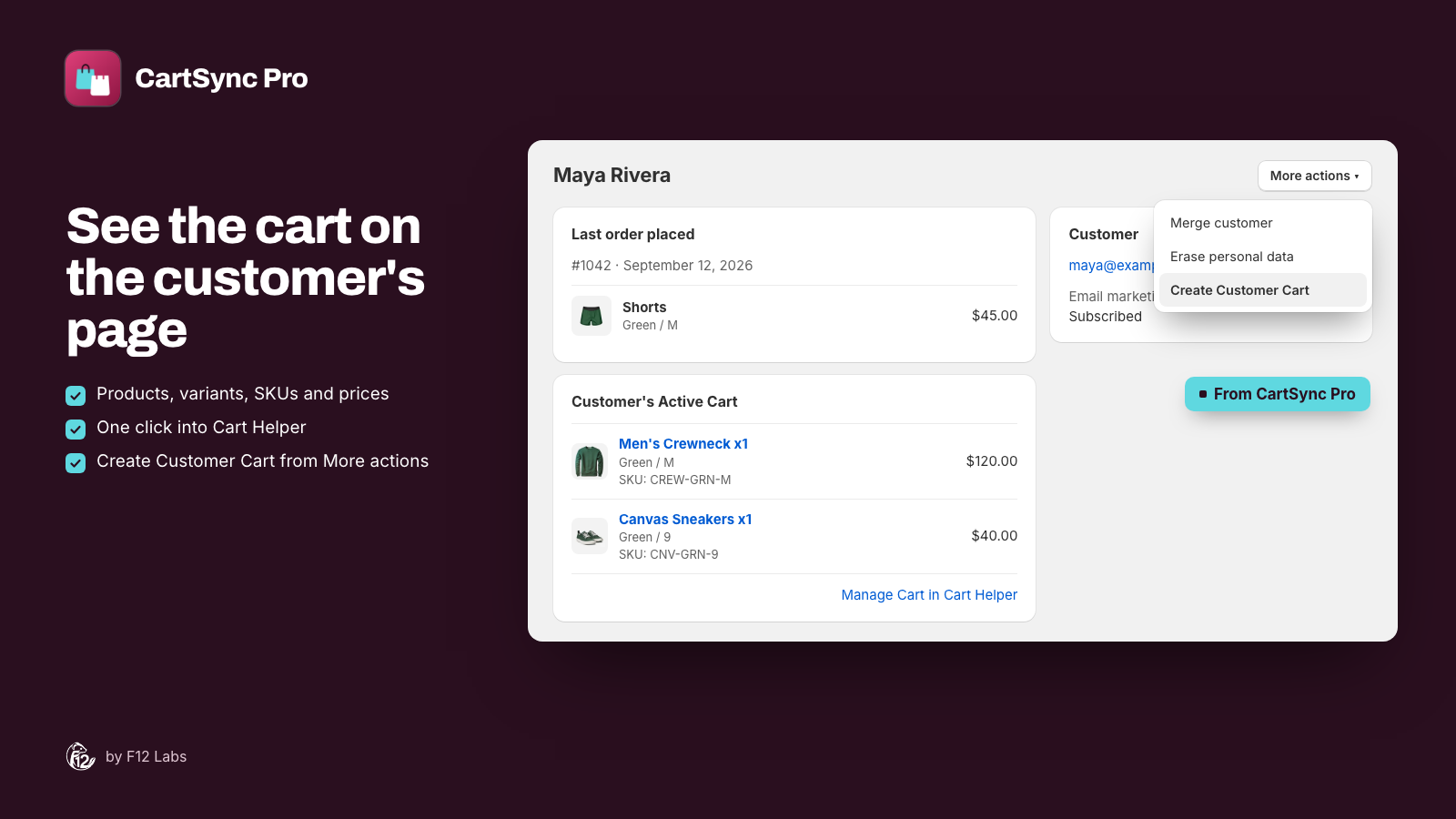
The two CartSync Pro tools on a customer's page in the Shopify admin. The Customer's Active Cart block shows their saved cart with variants, SKUs and prices; Create Customer Cart under More actions opens Cart Helper for them. How to add the block, what it shows, and what it leaves out.
CartSync Pro puts a customer's saved cart on their page in the Shopify admin, so your team can see it while they look at the customer's orders and details, without opening the app.
| Tool | Where | What it does |
|---|---|---|
| Customer's Active Cart | A block on the customer's page | Shows the customer's saved cart: products, variants, SKUs, quantities and who saved it last |
| Create Customer Cart | More actions on the customer's page | Opens Cart Helper with that customer already selected |
Both work with the cart CartSync Pro saves for signed-in customers. A guest's cart stays in their browser, so there's nothing to show for it.
Add the Customer's Active Cart block
Shopify doesn't show an app's block on admin pages until someone adds it. You do this once, and pinning it shows it on every customer's page for all staff.
- In your Shopify admin, go to Customers and open any customer.
- In the Blocks section, click + Block.
- Click Customer's Active Cart. The block shows on the page as a preview.
- Click the Pin icon next to the block, so it stays on the page for all staff.
If you skip the last step, the block disappears when you leave the page. These are Shopify's steps; see Blocks on Shopify admin pages. Shopify shows admin blocks on desktop only.
What the block shows
The block is headed Customer's Active Cart. While it loads, it says Loading cart data….
- Who saved it last: Built by and a staff member's name (or Built by staff) when your team saved it in Cart Helper, or Saved by customer when it was saved from your store. After an order empties the cart, there's no badge.
- One row per line: the product image, the product title with the quantity (for example Men's Crewneck x1), the variant (left out for products without variants), and SKU: if the variant has one. The product title links to the product in your admin, in a new tab.
- The price: the variant's current price for one unit, not the line total, and before any discounts.
- Manage cart in Cart Helper, at the bottom, opens Cart Helper for this customer in a new tab.
When the block is collapsed, its summary says how many lines are in the cart, such as 2 items in cart. It counts lines, not units: one product with quantity 3 is one item.
When the customer has no saved cart, the block says No saved cart items. with an Open Cart Helper link, so you can build one for them.
The block's text is shown in the staff member's admin language: English, French, German, Italian, Japanese or Spanish.
What it doesn't show
The block is a quick look. Open Cart Helper for the full picture:
- Pending lines. Products your team added that aren't in the customer's browser cart yet look like any other line. Cart Helper marks them Pending.
- Free gifts. A gift your team gave shows at its full price, with no gift label. In the customer's cart and at checkout it's free. See Free gifts and draft orders.
- The cart total, and when it was saved. Cart Helper's Sync Info has the time of the last save.
- Cart history. Earlier versions are in Cart Helper's Cart history.
The block reads the saved cart when the page opens. If the customer is shopping right now, reload the page to see their latest cart.
Create Customer Cart
On a customer's page, click More actions → Create Customer Cart. Cart Helper opens with that customer already selected, and their current saved cart on the right.
Despite the name, nothing is created until you save in Cart Helper. Use it to add products, change or clear the cart, give a free gift, restore an earlier version, or create a draft order. Building a customer's cart in Cart Helper walks through it.
Who can see it
Every staff member who can open the customer's page sees the block once it's pinned. Opening Cart Helper from it needs access to CartSync Pro, like any app. CartSync Pro has no roles of its own.
Troubleshooting
There's no Blocks section on the customer page. Shopify shows it only on desktop, and only when an installed app has a block for that page. Check that CartSync Pro is installed and open the customer on a computer.
The block was there, then it was gone. It was added but not pinned. Add it again and click the Pin icon.
The block says No saved cart items, but the customer says they have a cart. CartSync Pro saves carts only while the customer is signed in, and only once the Cart Sync app embed is on. Ask them to sign in and open a page of your store, then reload the customer page. If the embed is off, the CartSync Pro home page says Cart sync across devices is off.
A line says Unknown product. The variant was deleted from your store after it was saved, so it can't go back in the customer's cart. Remove it in Cart Helper.
A product shows at full price, but it's a free gift. The block doesn't mark gifts. Cart Helper does, and the customer gets it free at checkout.