 F12 Labs
Who changed this discount? Staff permissions and change history in Shopify
Shopify has one staff permission for discounts, covering viewing, creating and deleting, and its store activity log keeps recent admin actions. What that means when several people run promotions, what a discount's change history should show, and what to look for in a discount app.
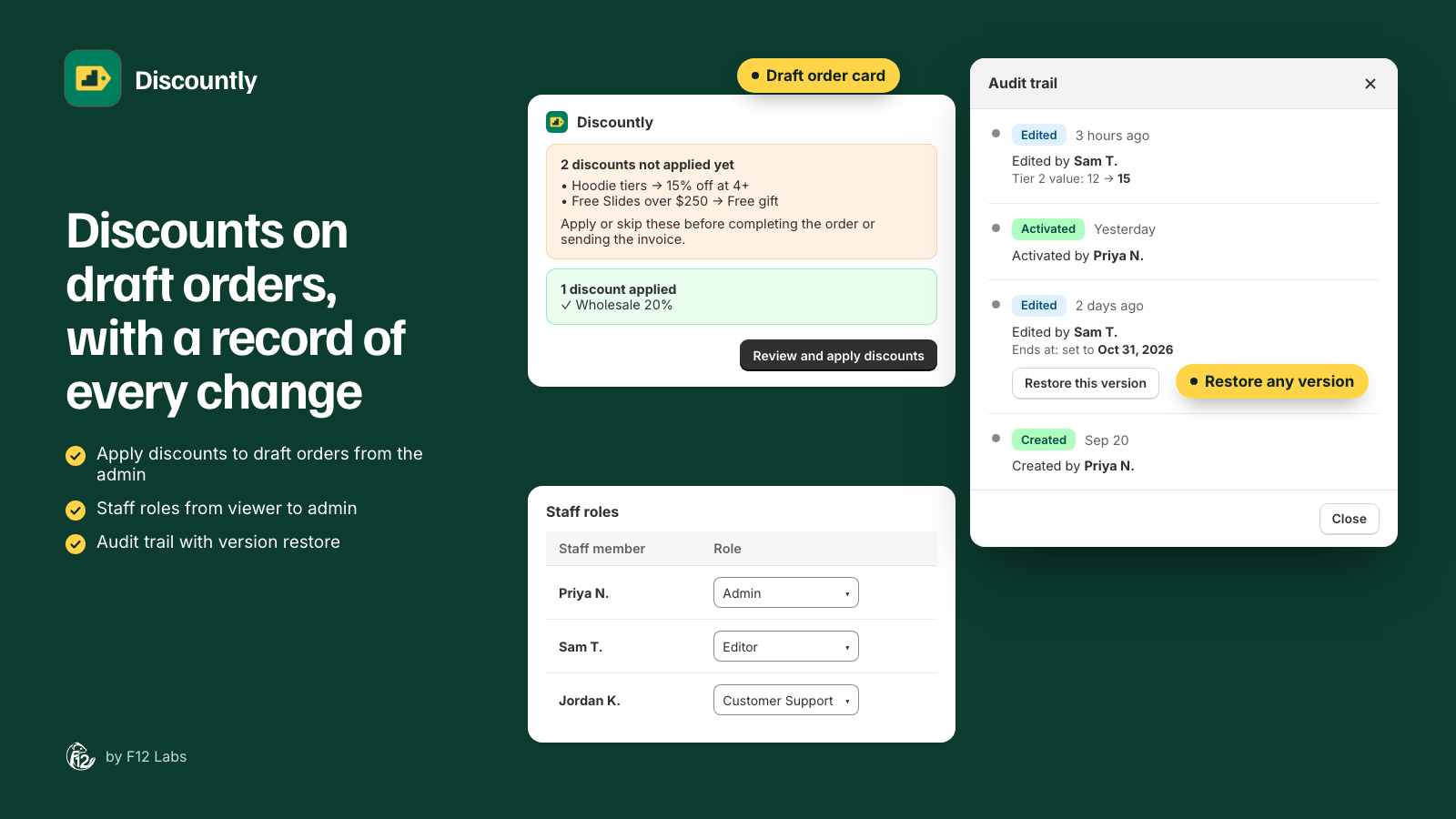
Monday morning, the hoodie promotion is giving 15% at four items instead of 10%. Nobody remembers changing it. Three people work on promotions, one of them part-time, and a support rep builds draft orders for wholesale customers.
Two questions come up in every store with more than one person in the admin: who can change our discounts, and who did change this one. Here's what Shopify gives you for each, where it stops, and what to look for.
What Shopify does
One permission for discounts. Shopify's staff permissions have a single entry for the Discounts section, View, create, and delete: "This permission allows users to view and create discount codes and automatic discounts." (Store permissions) Someone either has the Discounts page or doesn't.
App access by role. When you create a role under Settings → Users → Roles, you can "select any apps the role can access" (Managing user roles). A staff member can open an app or not. What they can do inside it is up to the app.
The store activity log. Shopify's log "displays the date and time of recent actions that are taken by the store owner or a user", such as deleting a product or changing a store setting (Activity logs). In Shopify's newer version of the log, you can click an entry for details, which include "the fields that changed" when that information is available. The log is view-only, and "the information can't be exported". Viewing it needs the Manage settings permission, or an administrator role for the newer log.
Where it stops
- No "look but don't touch". With one permission for viewing, creating and deleting, there's no way to let an agency, a finance person or a new hire see your promotions without letting them change or delete them.
- No "edit but don't delete". The person who adjusts tiers every week can also remove the promotion entirely.
- No "apply but don't edit". Staff who build draft orders for customers need discounts applied correctly, not the power to change them.
- History is store-wide and recent. The activity log covers the whole admin, so the discount you care about is one entry among product edits and settings changes. And it doesn't restore anything: once you know what changed, you change it back by hand.
- App discounts keep their settings in the app. A discount made by an app has its tiers, targeting and gifts stored in that app. Shopify's log records actions in the Shopify admin; changes made inside an app's own screens are the app's to record. Check whether your discount app keeps its own history.
What to look for
- Roles that split viewing, editing and deleting. At least: look only; create and edit; delete. Deleting a live promotion should be for few people.
- A role for staff who only apply discounts, such as support or sales staff on draft orders, without access to the discount settings.
- Access off by default. New staff should start with nothing until someone gives them a role, not with everything.
- A history on each discount, not only a store-wide log: who did what, when, and each setting from its old value to its new one, such as a tier going from 10% off to 15% off.
- Restore. One click to put an earlier version back, recorded in the history like any other change.
- Honesty about gaps. Bulk actions and changes made outside the app may not be in the history. The app should say so.
How Discountly does it
Discountly has its own roles, on every plan, on top of Shopify's app access:
| Role | Can do |
|---|---|
| Viewer | See every discount and Analytics, and export |
| Customer Support | Apply and skip discounts on draft orders only; can't open the app |
| Editor | Create, edit, import, activate and deactivate, see the audit trail, restore |
| Admin | Everything an Editor can, plus delete |
| Owner | Gives staff their roles. Set automatically for the store owner |
Access is invite-only: staff who open Discountly start with No access until the Owner gives them a role. See Staff access and roles.
Every discount has an Audit trail in its sidebar: Created, Edited, Activated, Deactivated, Imported and Restored, each with the staff member's name and each changed setting from → to. Restore this version puts an earlier version back, as a draft, so you check it before it goes live again. See Audit trail and restoring a version.
Setting it up
- In Shopify, give staff access to Discountly in their role's app permissions.
- Ask each of them to open Discountly once. They'll see "You don't have access yet". That puts them on Discountly's list.
- As the store owner, open Discountly and click Access on the Discounts page.
- Pick a role for each person. It saves straight away.
From then on, open any discount and check its Audit trail card to see who changed what.
Before you rely on it
- Shopify's own Discounts page still counts. Anyone with Shopify's discounts permission can deactivate or delete a Discountly discount from Shopify's Discounts page. Discountly notices and pauses the discount with a banner, but its roles don't apply there. Keep that permission for the people you'd trust with Admin.
- Bulk actions aren't in the trail. Activating, deactivating or deleting several discounts at once from the list doesn't add history entries. For a record, use the buttons on the discount itself.
- Deleted is deleted. There's no restore for a deleted discount. Export it first if you might want it back. See Import, export and duplicating.
- Restoring makes a draft. A live discount you restore stops applying until you activate it again. That's on purpose, but plan for it mid-sale.
Shopify behavior checked on 30 October 2026 against Shopify's help center: Store permissions, Managing user roles and Activity logs. If Shopify adds finer discount permissions, we'll update this post.