 F12 Labs
 Discountly
Discountly documentation / Manage discounts
Audit trail and restoring a version
See who created, edited, activated, deactivated or imported a Discountly discount, and exactly which settings changed from what to what. Restore an earlier version, what restoring does to a live discount, and which changes the trail doesn't record.
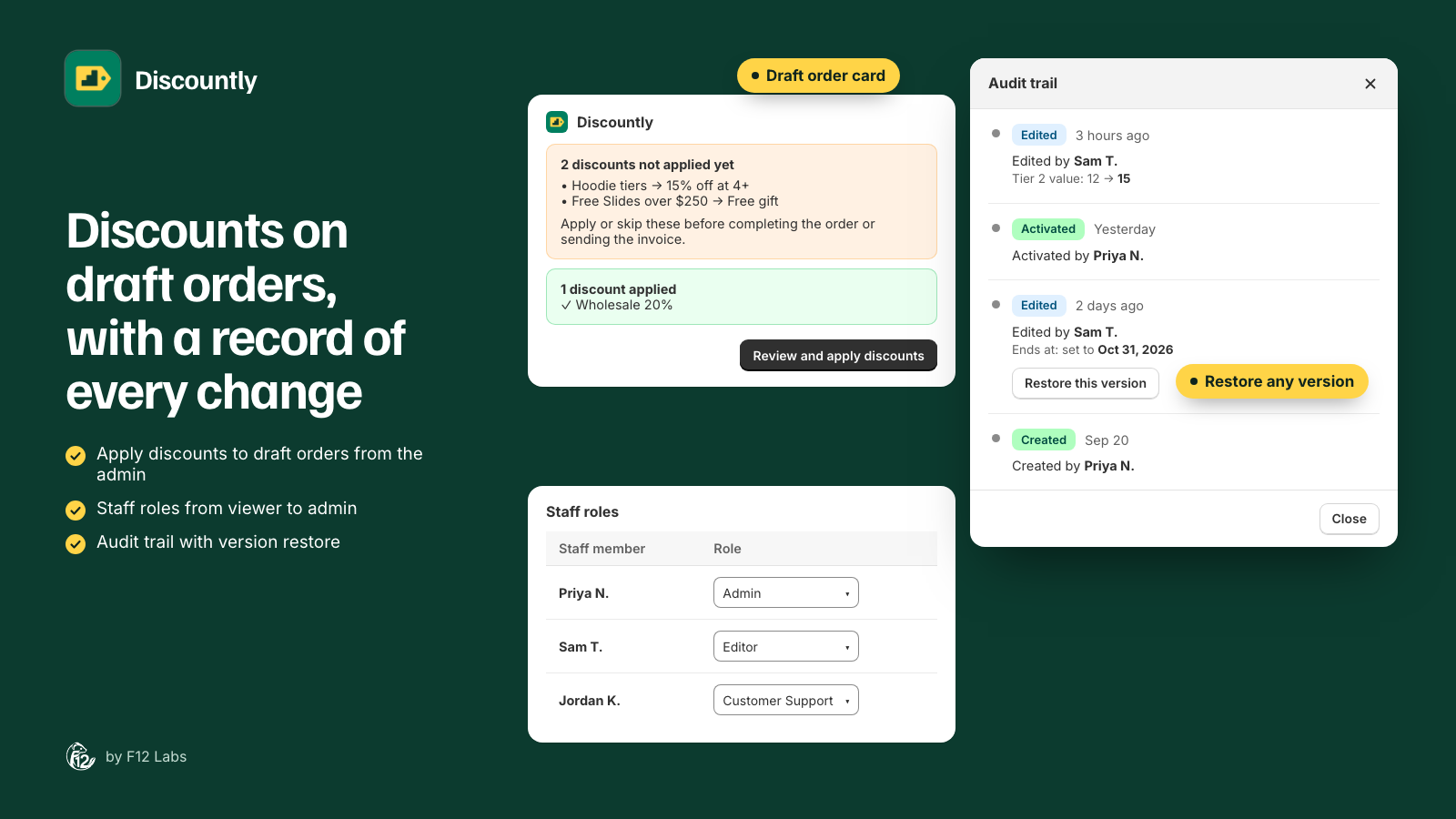
Every Discountly discount keeps a history: who created it, who changed it, and what each change was, setting by setting. If a promotion stops working the way it did yesterday, the trail tells you what changed and lets you put the earlier version back.
The audit trail is on every plan. Recording starts the moment a discount is created or imported.
Where to find it
- On Discountly's Discounts page, open a discount.
- In the sidebar, the Audit trail card shows the latest change: what it was, who made it and when, such as "Edited by Sam T." and "Edited 2 fields", and how many events are recorded.
- Click View all for the full timeline, newest first.
You need the Editor role or higher to see it. Viewers don't see the card. See Staff access and roles.
A brand-new discount shows "No changes recorded yet. Edits, activations, and deletions will appear here." until it's saved.
What each entry shows
| Entry | When | Details |
|---|---|---|
| Created | The discount was first saved, live or as a draft | Every setting it started with |
| Edited | A save changed at least one setting | Each setting that changed, from → to |
| Activated / Deactivated | Activate rule or Deactivate rule at the top of the discount | Status, from → to |
| Imported | The discount came in from an import | Every setting it came in with |
| Restored | Someone restored an earlier version | "Restored the version from" and the date, plus what changed |
| Deleted | The discount was deleted from its own page | Every setting it had |
Each entry names the staff member, by name, or by email if Shopify didn't give a name. If neither is available, it shows "Staff member #" and their Shopify user ID.
Saving without changing anything doesn't add an entry.
How changes read
Changes are listed by the setting's name, in the order of the editor:
- Title, Internal name, Method, Discount code, Status, Schedule
- Sale handling (Items already on sale), Usage limit, Once per customer, Minimum spend, Eligibility, Combines with
- Each logic block as Logic 1, Logic 2 and so on: Logic 1 · Tiers, Logic 1 · Targets, Logic 1 · Targeted items, Logic 1 · Excludes, Logic 1 · Paused, Logic 1 · Reward, Logic 1 · Free gift, messages
- Advanced · settings: available offers and upsell hints
A value that was added shows the new value. A value that was removed shows "removed (was …)".
Schedule times are recorded to the minute in UTC, with a Z at the end, for example 2026-10-31 23:00Z. Convert to your store's time zone when reading them.
Restore an earlier version
- Open the discount, then View all in the Audit trail card.
- Find the version you want. Restore this version appears on earlier entries that have a restore point.
- Click it. It asks "Overwrite the current rule with this version?"
- Click Restore.
The discount's settings go back to exactly what they were after that change, and a Restored entry records it, with who did it and what changed.
Restore needs the Editor role or higher.
When there's no restore button
- On the newest entry. That's the current version.
- On Deleted entries. See below.
- On entries from before restore points were added. The timeline says "versions saved before restore was enabled have no restore point. Save another change to create one."
- When the version no longer saves. If an old version breaks a rule the editor now enforces, restoring stops with "That version is no longer valid:" and the reason. Nothing changes.
If Shopify refuses the restored discount, nothing changes and the banner gives Shopify's reason.
Deleted discounts
Deleting a discount removes it from Discountly's list, so you can't open it to restore it. Its Deleted entry, with every setting it had, is kept in Discountly's records, but there's no screen to bring it back.
To be able to undo a deletion, export the discount first. Importing the file creates it again as a draft. Only Admins and the Owner can delete; see Staff access and roles.
What the trail doesn't record
- Bulk actions from the Discounts list. Ticking several discounts and clicking Activate, Deactivate or Delete doesn't add entries. To keep a record, activate or deactivate from the discount's own page.
- Changes in Shopify's Discounts list. If someone deactivates or deletes a Discountly discount on Shopify's own Discounts page, the discount shows a banner instead, such as "Deactivated in Shopify's Discounts list" with the date. See Staff access and roles.
- A discount ending on its schedule. That's the discount working as set, not a change.
- Settings and staff roles. Only changes to discounts are recorded.
The timeline shows the latest 100 entries.
Troubleshooting
I can't see the Audit trail card. Your role is Viewer. Ask the Owner for Editor.
A change I made isn't there. It was a bulk action from the list, a change on Shopify's Discounts page, or a save that changed nothing. See What the trail doesn't record.
The discount stopped working after I restored a version. Restoring makes it a draft. Open it and click Activate rule or Save rule. See Restore an earlier version.
An entry says "Staff member #" and a number. Discountly couldn't get that person's name from Shopify at the time. The number is their Shopify user ID.