 F12 Labs
 Discountly
Discountly documentation / Manage discounts
Staff access and roles
Choose which staff can see, change or delete your Discountly discounts. The five roles and what each can do, who becomes Owner, how to give someone a role, the Customer Support role for draft orders, and what staff see without access.
Discountly has its own roles, on top of Shopify's staff permissions. Shopify decides who can open the app. Discountly decides what they can do once they're in: look only, change discounts, delete them, or only apply discounts to draft orders.
Access is invite-only. A staff member who opens Discountly for the first time has No access until the store's Owner gives them a role.
Staff roles are on every plan, Free included.
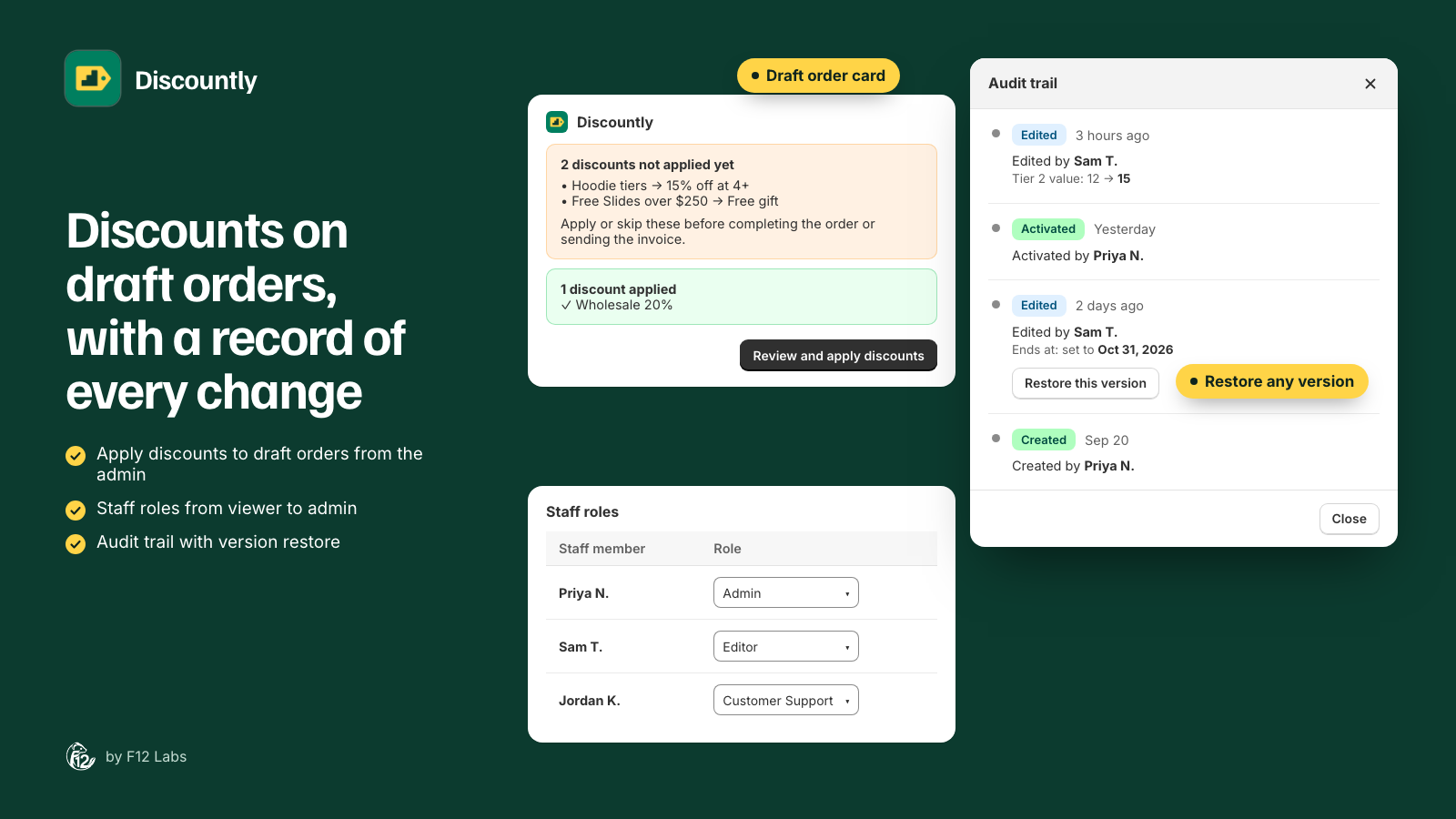
The roles
| Role | Can do |
|---|---|
| No access | Nothing. The default for every staff member until they're given a role |
| Viewer | Open Discountly, see every discount and its settings, see Analytics, export discounts |
| Customer Support | Apply and skip Discountly discounts on draft orders, from the draft order page in Shopify. Can't open the app |
| Editor | Everything a Viewer can, plus create, edit, import, activate and deactivate discounts, see each discount's audit trail and restore earlier versions, and use the draft order tools |
| Admin | Everything an Editor can, plus delete discounts |
| Owner | Everything an Admin can, plus give staff their roles. Set automatically, never picked |
In more detail:
| Viewer | Customer Support | Editor | Admin | Owner | |
|---|---|---|---|---|---|
| Open Discountly | ✓ | ✓ | ✓ | ✓ | |
| See discounts, Analytics, Store setup | ✓ | ✓ | ✓ | ✓ | |
| Export | ✓ | ✓ | ✓ | ✓ | |
| Create, edit, import, activate, deactivate | ✓ | ✓ | ✓ | ||
| Audit trail and restore | ✓ | ✓ | ✓ | ||
| Delete discounts | ✓ | ✓ | |||
| Draft order tools (Pro plan) | ✓ | ✓ | ✓ | ✓ | |
| Give staff roles | ✓ |
An Admin manages discounts, not people. Only the Owner sees Access.
Who becomes Owner
Nobody picks the Owner. Discountly grants it:
- To the store owner (the Shopify account owner), the first time they open the app.
- If someone else installs Discountly and no one has a role yet, to the first staff member who opens it, usually whoever installed it. That way a new install always has someone who can hand out roles.
So a store can have two Owners: the person who installed the app, and the store owner once they open it.
The Owner role can't be changed from the Access page, by anyone, and nobody can change their own role.
Give someone a role
- In Shopify, give them access to the app. Discountly's roles only apply to staff who can open Discountly in the first place. A Shopify role controls which apps someone can use: in Shopify's admin, go to Settings → Users → Roles, and under App permissions select Discountly (Shopify: managing user roles). Staff who only need the draft order tools need this too, since the tools are part of the app.
- Ask them to open Discountly once. Discountly can only list staff who have opened it. They'll see "You don't have access yet", which is expected.
- As the Owner, open Access. On Discountly's Discounts page, click Access at the top. A banner says how many staff are waiting, for example "1 staff member has no access yet. Assign a role below to let them in."
- Pick their role in the Role column. It saves straight away, and a message confirms "Role updated to Editor".
To take someone's access away, set their role to No access. The message reads "Access removed". They keep their place in the list, so you can give them a role again later.
The Access page is also linked from Settings (the gear at the top of the Discounts page), under Access control → Manage staff access. Only the Owner sees it there too.
What staff see without access
| Role | When they open Discountly |
|---|---|
| No access | "You don't have access yet". "You haven't been granted access to Discountly. Ask an admin on your team to invite you from the app's Access control page." |
| Customer Support | "Draft orders only". "Your Customer Support role lets you apply Discountly discounts from a draft order in Shopify admin. You don't have access to the discounts app itself." |
| Viewer | The Discounts page, without Create discount, Import or the bulk buttons. Inside a discount: "You have view-only access to discounts. Ask an admin for editor access to make changes." |
On a draft order, staff without draft order access see "You don't have permission to apply Discountly discounts to draft orders. Ask an admin for Customer Support (or editor) access." See Draft orders.
Common setups
- A small team. The Owner, plus Admin for a business partner. Nobody else needs a role.
- A marketing team. Editor for the people who build promotions, Admin for the one person allowed to delete them. Editors can still deactivate a discount, and an Admin can bring back a deleted one only by recreating it, so keep Delete for few people.
- Sales or support staff building draft orders. Customer Support. They can apply the discounts a customer qualifies for on a draft, and skip them with a reason, without seeing or changing any discount. Draft order tools need the Pro plan.
- An agency or accountant. Viewer: they can see every discount and Analytics, and export a copy, without changing anything.
How Discountly's roles relate to Shopify's
Shopify has a single staff permission for discounts, View, create, and delete: "This permission allows users to view and create discount codes and automatic discounts" (Shopify: store permissions). It covers Shopify's own Discounts page, and doesn't split viewing, editing and deleting.
Discountly's roles apply inside Discountly. They don't change what someone can do on Shopify's Discounts page. Discountly's discounts are listed there too, so if a staff member with Shopify's discounts permission deactivates or deletes one there, Discountly notices: the discount shows a banner, such as "Deactivated in Shopify's Discounts list", and is paused until someone activates it again in Discountly. If you rely on Discountly's roles, think about who has Shopify's discounts permission as well.
Troubleshooting
A staff member isn't in the Access list. They haven't opened Discountly yet. Ask them to open it once (they'll see "You don't have access yet"), then reload Access. If they can't find Discountly in Shopify's Apps at all, their Shopify role doesn't include the app (step 1 above).
I can't see Access. Only the Owner can manage roles. Ask the store owner to open Discountly; they become Owner automatically.
"You can't change your own role." Nobody can, to stop you locking yourself out. Ask the Owner.
"Only a super admin can change the store owner's role." Owner roles are set automatically and can't be changed from the Access page.
Someone changed a discount and I want to know who. Open the discount and check its audit trail.