 F12 Labs
How to give one customer a free gift on Shopify
A late order, a loyal customer, a sample to try. Shopify's ways to give one customer a free product (a one-customer discount code, a cart link, a draft order) and where each falls short, and how to put the gift straight into the customer's own cart, free at checkout for them only.
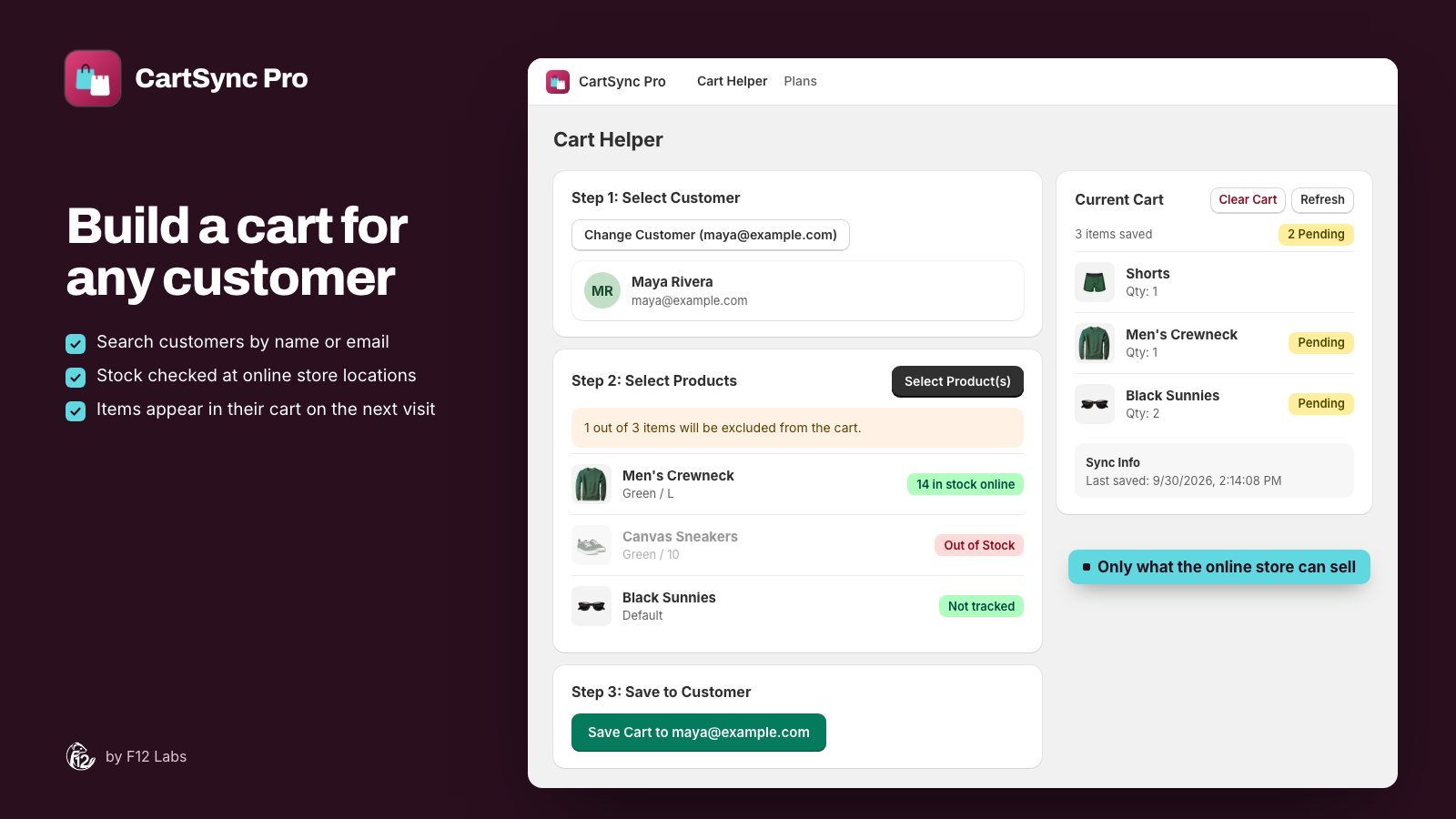
An order went out late, and the customer was patient about it. Your support agent wants to say thanks with something small: a candle, a sample of the new scent, a pair of socks. Not a discount on everything, not a promotion for every shopper. One free product, for one customer, in their next order.
Shopify doesn't have a button for that. Here's what it does have, where each option gets awkward, and how to put the gift in the customer's own cart.
Option 1: A discount code for that customer
Create an Amount off products discount for the gift product, at 100% off, and limit who can use it. Shopify's discount settings let you choose Specific customers under customer eligibility, and set Limit number of times this discount can be used in total and Limit to one per customer. (Amount off products discounts)
Then email the customer the code.
Where it falls short:
- The customer does the work. They have to find the product, add it, and type the code at checkout. Some won't, and a thank-you that takes effort isn't much of a thank-you.
- The quantity isn't the gift's. A percentage off a product applies to each unit of it in the cart, so a customer who adds three gets three free.
- One code per gift. A discount list full of "Thanks-Maya-Oct" codes gets hard to manage, and it's easy to forget one live.
Option 2: A cart link with the gift and a code
Shopify's cart permalinks put products in a cart from a link: your store's address, then /cart/, then variant_id:quantity. Add ?discount= and a code, and the code is applied too. (Cart permalinks)
Where it falls short:
- It's a new checkout, not their cart. Shopify says a permalink "creates a new checkout for each customer." Whatever the customer already had in their cart isn't in it, and they have to add it again.
- You still need the code from Option 1, and anyone who gets the link gets the gift unless the code is limited to that customer.
- Variant IDs by hand. Someone has to look up the variant ID and build the link.
Option 3: A draft order
Build a draft order with the gift, click its price, and discount that line by 100%. Shopify lets you add a Reason for discount, and "this note is displayed to your customer." (Adding discounts to draft orders) If the gift is all there is, you can complete the order yourself and ship it.
Where it falls short:
- It's a separate order. Good for sending a gift on its own. Not for adding it to the order the customer is about to place, so you pay to ship it twice.
- It isn't their cart. If they're shopping on your website, the draft doesn't help them.
- Automatic discounts don't follow. "Automatic discounts won't automatically apply to orders created as drafts in your admin." If you add the customer's other items to the draft, they can end up paying more than in their cart.
What to look for
- The gift in the customer's own cart, next to what they already picked, ready when they come back.
- Free for that customer only, and only for the quantity you gave.
- Your own message on the line, so the customer knows why it's there.
- No code to type, and nothing else for them to do.
- Know what happened to it: whether it reached the cart, whether they ordered it, or removed it.
How CartSync Pro does it
CartSync Pro saves a signed-in customer's cart to their customer record in Shopify, and keeps it the same on every device they shop from. Because the cart is on the customer record, your team can add to it from the admin, gifts included. It's free.
Give the gift in Cart Helper. Open the customer (from the app, or More actions → Create Customer Cart on their page in the admin), pick the product, tick Free gift, and optionally write a Gift message of up to 60 characters, such as "Thanks for your patience". Save. Their current cart isn't touched: the gift is added as its own line.
It's in their cart on the next visit. The next time the customer opens your store, signed in, on any device, the gift is in their cart. At checkout it's discounted to 0 and labelled with your message, or Free gift in the shopper's language.
Free for them, and only them. CartSync Pro's discount checks each gift line against the customer's record: only the customer you gave it to, only the variant and quantity you gave. Extra units are charged at the normal price, and no other shopper can make a line free. It's an automatic discount, so there's no code to type, and it's set to combine with your product, order and shipping discounts.
Follow it through. Cart Helper shows the gift as Pending until it reaches the customer's cart. CartSync Pro records whether it was redeemed in an order, declined (the customer removed it) or taken back by your team, and the home page counts gifts given, redeemed with their cost, still open and declined.
Or send it on a draft. Create draft order turns the customer's saved cart into a Shopify draft, with the gift at 100% off, and can email the invoice.
Free gifts and draft orders covers each step.
For a gift that every shopper gets when they spend enough, added to the cart automatically, see How to automatically add a free gift to the cart on Shopify.
Setting it up
- Install CartSync Pro from the Shopify App Store.
- From the app's home page, open your theme editor, turn on the Cart Sync app embed, and click Save.
- Give your first gift in Cart Helper. CartSync Pro creates an automatic discount called CartSync Pro free gifts in Discounts. Leave it active.
Getting started with CartSync Pro covers the setup.
Before you rely on it
- The customer has to sign in. The gift is saved to their customer record. It reaches their cart when they open your store signed in, and it's only free when they're signed in at checkout.
- It arrives on the next visit, not by email. If you want them to know, tell them: "There's a little something waiting in your cart."
- The gift has to be in stock at the locations your online store sells from. Out of stock, draft and archived products can't be gifts.
- Changing it means giving it again. To change the message or quantity, remove the gift and give it again.
- The block on the customer's page doesn't mark gifts. The Customer's Active Cart block shows the gift at its full price. Cart Helper marks it as a gift. See The customer's cart on their Shopify admin page.
- Uninstalling ends free gifts. Gifts still in carts may be charged at full price once the app is gone. See Uninstalling CartSync Pro.
- CartSync Pro keeps its own records. It stores each gift (customer ID, product, quantity, message, the staff member who gave it, and what happened to it) on F12 Labs' servers, to make the gift free and to count it.
Shopify behavior checked on 30 October 2026 against Shopify's help center: Amount off products discounts, Cart permalinks and Adding discounts to draft orders. If Shopify adds a way to put a free product in one customer's cart, we'll update this post.