 F12 Labs
How to show Shopify discounts on the product page, before the cart
Shopify's automatic discounts only appear once a product is in the cart, so shoppers on the product page never see the deal. Why, the usual workarounds and how they go stale, and how to list live offers on each product page.
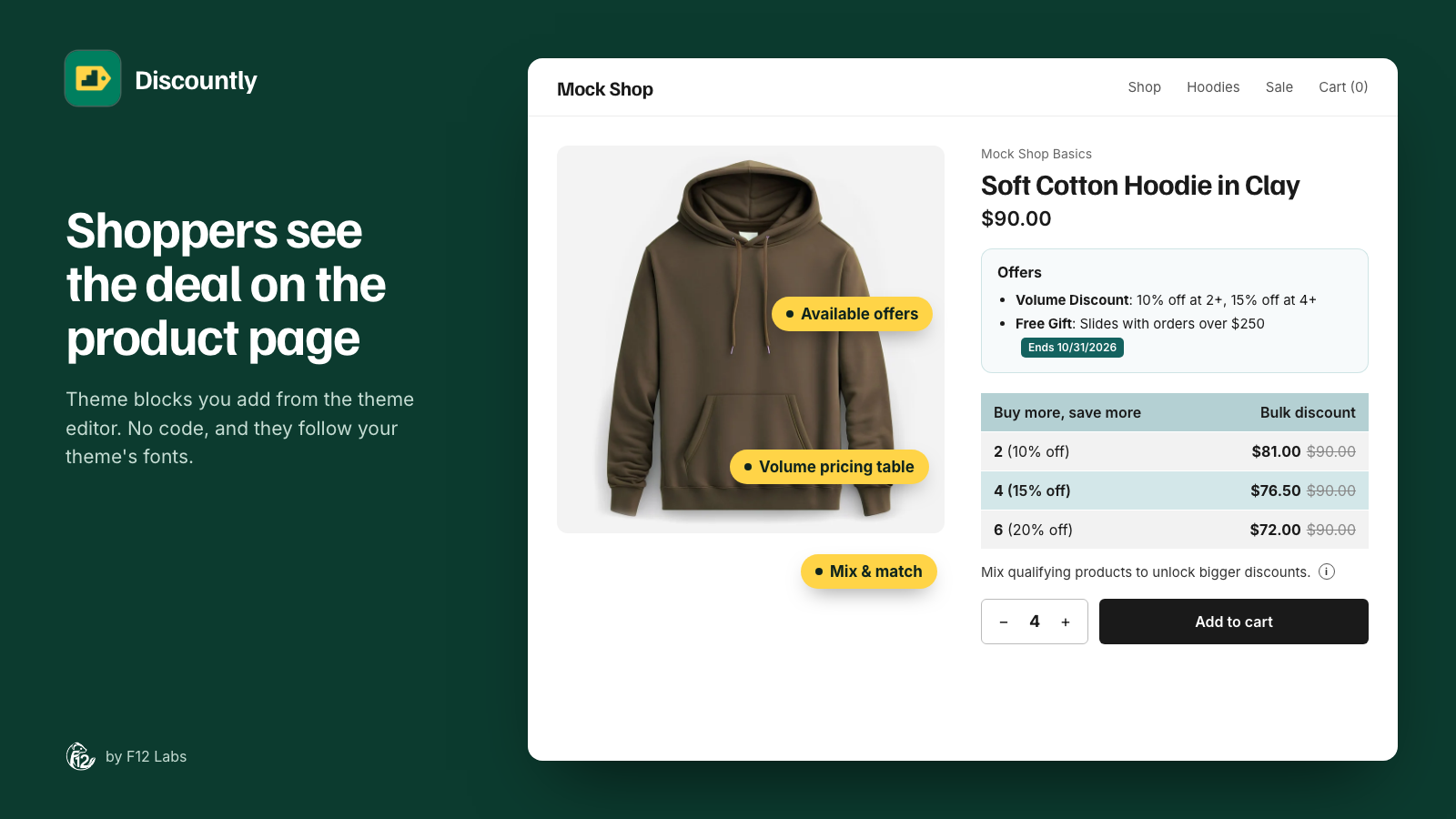
You set up a free gift for orders over $250 and 15% off when someone buys four hoodies. A shopper lands on the hoodie page, sees $90, buys one and leaves. They never knew about either deal: nothing on the product page mentioned them.
That's the default on Shopify. An automatic discount does its job at the cart, and the product page, where people decide how many to buy, says nothing. Here's why, what stores usually do about it, and what to look for in a fix.
What Shopify does: discounts show up in the cart
Shopify applies automatic discounts when the cart qualifies: they're "automatically applied in the cart and at checkout." (Automatic discounts)
Shopify's guide for theme developers covers two places to show a discount: "With individual line items" and "With the total summary." Line-item discounts come from the cart's line items, cart-wide ones from the cart and the order. (Discounts, Shopify theme docs) Both are in the cart. The product page isn't on the list, so themes built on these docs, which is most of them, show nothing there.
Buy X get Y deals are the hardest to spot. Shopify is clear that "The free or discounted 'get' item is never automatically added to the cart" and "Customers must add all items to their cart manually." (Buy X get Y discounts) A shopper who doesn't know about the offer won't add the free item and won't get it.
Option 1: Use a compare-at price
The one discount-like thing every theme shows on the product page is a sale price. "If you set a sale price and a compare-at price, then both these amounts can be displayed on product pages." But "Using sale prices is different from setting up discounts." (Sale pricing)
Where it breaks:
- It's a price change, not an offer. Everyone pays the sale price, from one item up. There's no "15% off at 4", no gift over $250, no members-only price.
- It doesn't end on its own. Someone has to change prices back when the promotion is over, on every product.
- It interacts with your other discounts. A discount comes off the sale price, so a sitewide code takes even more off. (More on that in Shopify discounts on sale items.)
Good for: a straightforward sale on a handful of products.
Option 2: Write it into the page
The other common fix is text: an announcement bar ("Free slides over $250!"), a line in the product description, or a custom Liquid snippet a developer hard-codes into the template.
Where it breaks:
- It goes stale. The promotion ends on Sunday; the banner is still there on Wednesday. Text doesn't know the discount's schedule.
- It shows to everyone. A deal only for logged-in members, or customers tagged
vip, is announced to guests who can't get it. - It's not per product. An announcement bar is the same on every page, whether the product is in the deal or not. Keeping product descriptions in step means editing them every time a discount changes.
- Every change is a theme change. New tier, new gift, new end date: someone edits text or code.
Good for: one sitewide promotion you'd advertise anyway.
What to look for in a fix
- Reads the live discount. What the product page says comes from the discount itself, so editing the discount updates the page.
- Only on products it applies to. A hoodie deal shows on hoodies, not on socks. A product excluded from the discount shows nothing.
- Follows the schedule. The offer appears when the discount starts and disappears when it ends, without anyone touching the theme.
- Only to shoppers who can get it. Members-only deals stay hidden from guests.
- Says when it ends. An end date, or a countdown in the last hours, gives a reason to buy now.
- Doesn't slow the page down. No extra requests while the product page loads.
- No theme code. A block you place and style in the theme editor.
How Discountly does it
Discountly adds an Available offers block to the product page (in the theme editor it's called Product Page Discount). It lists the deals that product qualifies for, from your live Discountly discounts.
- You choose which discounts appear. In each discount, under Advanced settings, tick Include in available offers section on the Product Page. You can give the offer its own heading and a one-line description, or leave them blank and the block uses the discount's own wording, such as "10% off at 2+, 15% off at 4+".
- Four kinds of offers. Volume pricing, product discounts, free gifts and Buy X get Y deals, when they're automatic.
- Only where it applies. An offer shows on the products the discount covers and not on excluded ones. On products with variants, the list updates when the shopper picks another variant.
- Only to shoppers who qualify. Offers limited to logged-in customers, customer tags or specific customers only show to those shoppers.
- End dates and countdowns. If the discount has an end date, the offer shows it ("Ends 10/31/2026"). In the last 48 hours, by default, it turns into a live countdown. Scheduled offers appear and disappear on time by themselves.
- Three layouts. A bulleted list, a card carousel or full-width offer banners, with colors, sizes and corner radius set in the theme editor.
- No requests while the page loads. Discountly saves your live offers into your store each time you save a discount, and the block reads them along with the product page.
For tiered pricing, Discountly also has a Volume pricing table block that shows each tier's price and highlights the one the shopper's quantity reaches. Tiered pricing on Shopify for regular shoppers covers it.
Setting it up
- In your Shopify admin, open Online Store → Themes → Customize, go to a product page and add the Product Page Discount block to the product section. Discountly's Store setup, at the bottom of the Discounts page, has an Add to product page button that opens the right spot.
- Pick a Layout and click Save.
- In Discountly, open a live automatic volume, product, free gift or Buy X get Y discount and click Advanced settings.
- Tick Include in available offers section on the Product Page. Optionally add a heading and description, and check Show offer end date if the discount has an end date. Click Save rule.
- Open a product the discount applies to and check the offer is there.
The Available offers docs list every setting and what each offer says by default.
Before you rely on it
- Code discounts don't appear. The product page can't know whether a shopper has the code, so only automatic discounts are listed.
- Order and shipping discounts don't appear either. They depend on the whole cart, not on the product you're looking at. To tell shoppers how close they are to free shipping or an order discount, use a cart progress bar: see Add $X more: cart progress bars for Shopify discounts.
- Customer segments are never shown. The product page can't check which segments a shopper is in, so offers limited to segments stay hidden there. They still apply at checkout.
- One volume and one product discount per product. If two volume discounts cover the same product, the block lists the older one. Free gifts and Buy X get Y deals are all listed.
- Free gifts and Buy X get Y need the cart embed to actually add the free item, and the Starter or Pro plan. The block itself is on every plan.
Shopify behavior checked on 21 October 2026 against Shopify's help center and developer docs: Automatic discounts, Discounts (theme docs), Buy X get Y discounts and Sale pricing. If Shopify starts showing discounts on product pages, we'll update this post.