 F12 Labs
 Discountly
Discountly documentation / Theme blocks
Available offers block
How Discountly's Available offers block (Product Page Discount in the theme editor) lists a product's offers, which discounts it shows, the three layouts, every setting with its default, end dates and countdowns, and the per-discount heading and description.
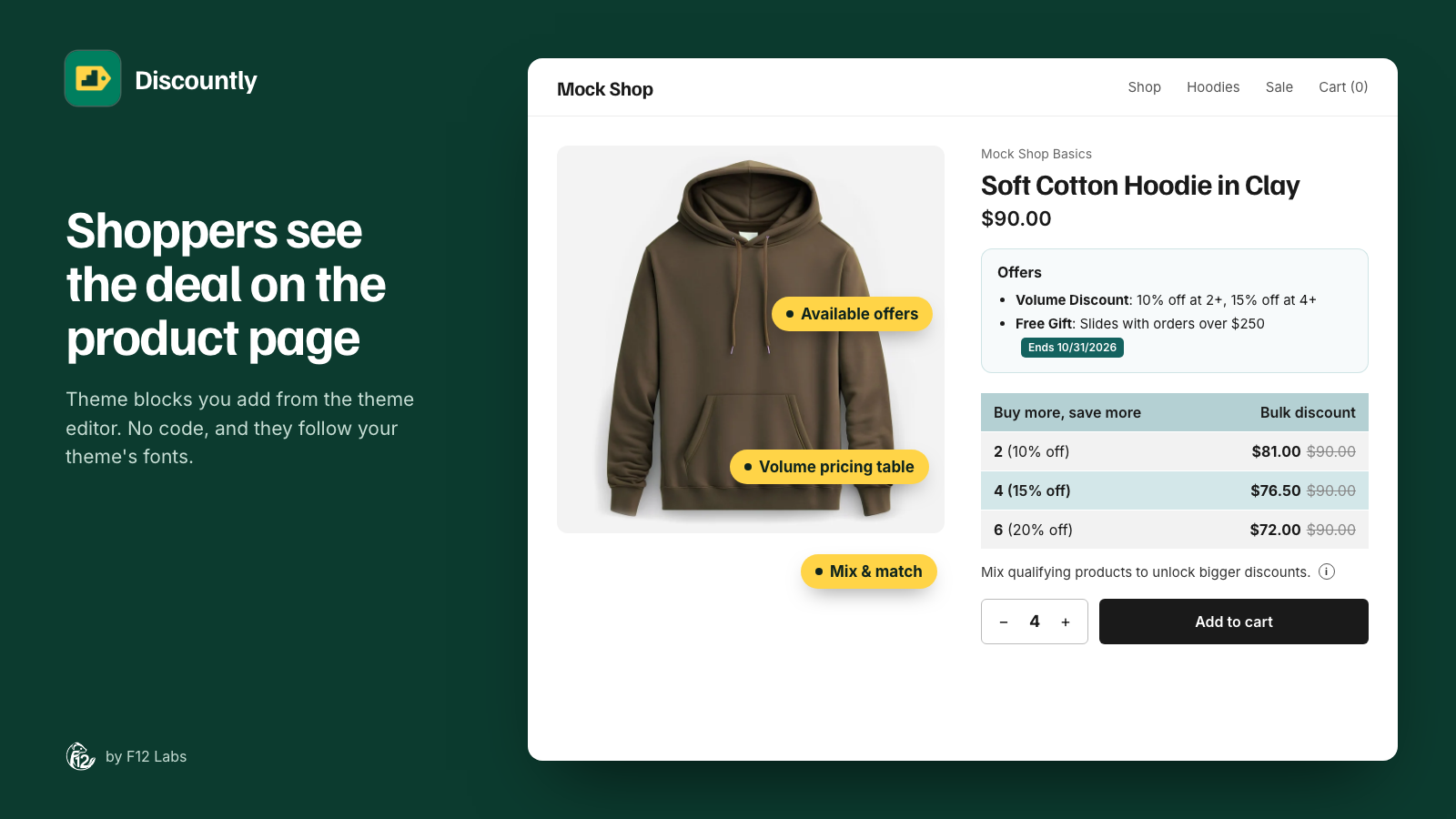
The Available offers block lists the offers a product qualifies for on its product page: a volume discount, a product discount, a free gift, a Buy X get Y deal. Each offer can show its end date, and switch to a live countdown when the end is close.
In the theme editor the block is called Product Page Discount. It's the same block.
If you haven't added it yet, Store setup and theme blocks shows how.
Choosing which discounts appear
The block shows nothing until you pick the discounts it should list. You do that in each discount, not in the theme editor:
- Open the discount in Discountly and click Advanced settings (under Details).
- Under Available offers (Product Page), tick Include in available offers section on the Product Page.
- Optionally fill in the fields below. Close the window and click Save rule.
| Field | Default | What it does |
|---|---|---|
| Heading | Blank | The offer's title in the block. Blank uses the type's name: Volume Discount, Discount, Free Gift or Buy More, Save |
| Description | Blank | One line under the title, up to 100 characters. Blank uses the discount's own messages (see What each offer says) |
| Show offer end date | On | Shows when the offer ends. Uses the discount's scheduled end date, so a discount with no end date shows nothing here |
| Live countdown when under (hours) | 48 | When less than this many hours are left, the end date turns into a live countdown. 0 to 100; set 0 to always show just the date |
Which discounts can appear
The block lists these types, when they use Automatic discount:
- Volume pricing
- Product discount
- Free gift with purchase
- Buy X get Y
Discounts with a discount code don't appear, because the product page can't know whether a shopper has the code. Order and Shipping discounts don't appear either, even with the box ticked: they depend on the whole cart, not on the product. To promote free shipping or an order discount, use the cart embed's upsell hints instead (Pro plan).
For a discount to show on a product, it also has to apply to it:
- The discount is live and inside its schedule. A scheduled offer appears at its start time and disappears at its end time, without you saving anything.
- The product matches the discount's Who it applies to, and isn't excluded.
- The shopper qualifies. Offers limited to logged-in customers, customers with tags or specific customers only show to those shoppers. Offers limited to Customer segments never show, since the product page can't check segments.
- For volume and product discounts, the selected variant isn't on sale when the discount's Items already on sale is Don't apply.
The block lists one volume discount and one product discount per product, plus every free gift and Buy X get Y deal that applies. If two volume discounts include the same product, it shows the older one. On products with variants, the list updates when the shopper picks another variant.
What each offer says
Each offer has a title and a description. When you leave Heading and Description blank in the discount, the block fills them in:
| Type | Title | Description |
|---|---|---|
| Volume pricing | Volume Discount | One line per tier: the tier's message if you wrote one per tier, otherwise 10% off at 2+ |
| Product discount | Discount | The discount's display message, such as 30% off |
| Free gift with purchase | Free Gift | The gift's message |
| Buy X get Y | Buy More, Save | The logic block's message |
End dates and countdowns
With Show offer end date on and an end date in the discount's schedule, the offer shows Ends 10/31/2026, in the shopper's own time zone. When fewer hours are left than Live countdown when under (hours), it changes to a countdown that ticks every second, such as Ends in 1d 04:11:09. The offer disappears when the discount ends.
Layouts
Pick a layout in the theme editor under Layout.
| Layout | What it looks like |
|---|---|
| Bulleted list (default) | One line per offer, with a bullet: the title in bold, then the description |
| Card carousel | A titled section with one card per offer and left and right arrows to scroll |
| Offer banners | Full-width bars stacked on top of each other, each with a price-tag icon tile |
Settings
Open Online Store → Themes → Customize, go to a product page, and click Product Page Discount in the product section.
Heading and layout
| Setting | Default | What it does |
|---|---|---|
| Heading (optional) | Blank | A heading above the offers. Blank shows no heading, except in Card carousel, which shows Offers |
| Layout | Bulleted list | See Layouts |
| Show icon tile on desktop | On | Offer banners only. The price-tag icon to the left of each offer |
| Show icon tile on mobile | Off | Offer banners only. Off gives the text the full width on small screens |
| Merge icon into banner | Off | Offer banners only. Drops the icon tile's own background, so the icon sits on the banner. Set Icon color to something that reads against the banner |
Appearance
| Setting | Default |
|---|---|
| Accent | #b4d0d3 |
| Background | #f7fafb |
| Border | #e3e3e3 |
| Offer title text | #1c1c1c |
| Offer title size | 16px (12 to 26) |
| Description text | #333333 |
| Description size | 15px (11 to 22) |
| End date background | #14625f |
| End date text | #ffffff |
| Countdown background | #b42318. Replaces the end date background during the countdown |
| Countdown text | #ffffff |
| Banner background | #cfe4e5. Offer banners only |
| Icon tile background | #14625f. Offer banners only |
| Icon color | #ffffff. Offer banners only |
| Corner radius | 6px (0 to 24) |
| Top margin | 24px (0 to 60). Set 0 when the block sits right under another element |
Click Save in the theme editor after changing anything.
Speed
Like the Volume pricing table, the block makes no requests while the page loads. Discountly saves your live offers into your store each time you save a discount, and the block reads them with the product page.
Troubleshooting
The block doesn't show. Check, in order:
- The block is on the product template and the theme editor is saved. Store setup shows Available offers as On.
- At least one discount has Include in available offers section on the Product Page ticked, and you saved the discount after ticking it.
- That discount is a live, automatic volume, product, free gift or Buy X get Y discount, inside its schedule.
- The product matches the discount. Click the eye icon on the discount's logic block to preview the matching products.
- You qualify for it. If it's limited by tag or to logged-in customers, sign in as an eligible customer to check.
An offer shows the wrong wording. Fill in Heading and Description in the discount's Advanced settings. Those always win over the generated text.
There's no end date. The discount needs an end date: in its Schedule, choose Activate now, end on a date or Schedule for later with an Ends at date. Also check Show offer end date is on.