 F12 Labs
How to reuse a section across Shopify pages and edit it in one place
A shipping notice, a size guide or a "why shop with us" row pasted into twenty pages becomes twenty edits the next time it changes. What Shopify's templates, section groups and metaobjects can share between pages, where they stop, and how to keep one copy of a section that every page uses.
Some content belongs on many pages. A "Free shipping over $75" strip. The same size guide under every dress. A row of trust badges, a returns summary, a "Join the newsletter" box at the end of every blog post.
The first time, you build it once and paste it into each page. The trouble starts when it changes. The threshold goes up to $100, and now you're opening twenty pages, finding the strip in each, and hoping you didn't miss one. The page you missed keeps promising free shipping at $75.
What you want is one copy of the section, used on every page, so a change in one place shows everywhere. Here's what Shopify gives you for that, and where it stops.
What Shopify's templates share
In an Online Store 2.0 theme, each kind of page has a template, and you add sections to it in the theme editor. Shopify's help center is clear about how far a change goes: "When you edit a template, your changes apply to every page that uses the template" (Templates).
That's the reuse you want, with two catches:
- It's all or nothing per template. Every page on the template gets the section. To have the size guide on dress pages but not on your About page, you need a second template.
- The section sits around the page's content, not in it. Sections go above or below the page's own text. You can't put the shipping strip between the second and third paragraph of one page.
You can make more templates. Shopify lets you create one "based on" an existing template, which starts with the same sections, and assign it to a page from the page's Theme template menu (Templates). But the copy is a copy: the new template's sections are separate from the original's. Change the shipping strip on one template and you still have to change it on the others.
Shopify also sets limits: "Each template can have up to 25 sections," and up to 1,250 blocks across them (Sections and blocks), and a theme can have "only 1,000 templates in total" (Templates).
What section groups share
Your header and footer show on every page because they're section groups: sections that belong to the theme's layout rather than to one template. Shopify's developer docs say a group in the main layout is "rendered on all pages that use that layout", and recommend that "in most themes, you should use section groups for only the header and footer" (Section groups).
So an announcement bar in the header is a good place for a store-wide message. It isn't a way to put a size guide on twelve pages and not the rest.
What metaobjects share
Metaobjects are Shopify's structured content: an entry with fields, such as a size guide with a title and a table. Shopify says a metaobject "can be referenced by metafields or used stand-alone", and themes can show them "using Liquid and through the Storefront API" (Metaobjects).
That's real reuse: edit the entry, and every page that shows it updates. But it's built for data, not layout. Someone has to define the fields and connect them to a section in your theme, and the layout lives in the theme, so a new look means theme work.
Where it stops
| You want | Template sections | Section groups | Metaobjects |
|---|---|---|---|
| Edit once, update everywhere | ✓ per template | ✓ | ✓ |
| On some pages, not others | One template per combination | ✓ with theme setup | |
| Placed inside the page's own content | |||
| Built visually, no theme setup | ✓ | ✓ |
The missing piece is a section you design once, place wherever you want inside any page, and update everywhere with one edit.
Reusable templates inside the page
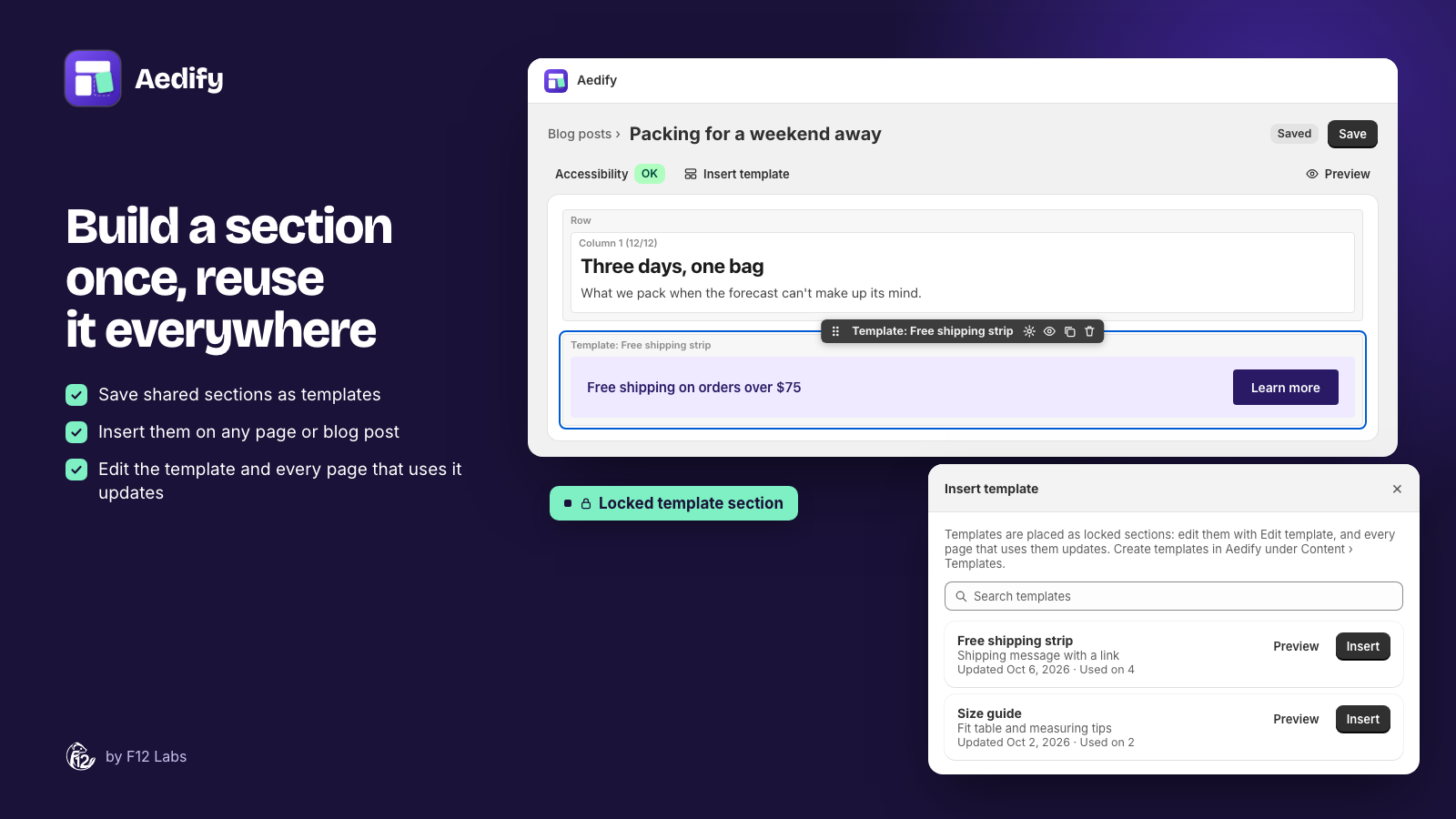
That's what templates are for in Aedify, our page builder. A template is a set of rows you build once: the shipping strip, the size guide, the trust badges.
- Build it once. Under Templates in Aedify, create a template and build its rows in the same builder you use for pages: text, images, buttons, icons, accordions, even live product grids.
- Place it anywhere. In any page or blog post, click Insert template, pick it from My templates, and drop it between any two rows. Different pages can use different templates, in different places.
- It's locked on the page. Nobody edits the copy on one page by accident. Its settings have one button, Edit template.
- Edit once, every page updates. Save the template, and Aedify saves every page that uses it again with the new version: "Template saved. Updated 12 of 12 pages that use it."
Templates are saved in your store as Shopify metaobjects, and each page keeps a full copy of the template's rows in its own content. Shoppers and search engines see the section as part of the page, and if you ever remove the app, the pages keep the last version.
Aedify also comes with 23 starter templates, such as a sale banner, an FAQ accordion and a "Follow us" row. Those are copied in as ordinary rows for you to edit, a quick start rather than a shared section.
The templates guide covers every step, including the size limit (64 KB per template, plenty for most sections) and deleting templates.
Setting it up
- Install Aedify and run through Storefront setup on its home page.
- Open Templates, click Create template, and name it, such as "Free shipping strip".
- Build the rows and click Save template.
- Open each page that should show it, click Insert template, choose it under My templates, and save the page.
From then on, change it in one place.
Tips for reusable sections
- Reuse what changes together. If a section should read the same everywhere, make it a template. If each page needs its own wording, copy it instead; a starter template is good for that.
- Keep them small. A strip or a single row is easier to reuse than half a page. Two small templates mix and match better than one big one.
- Name them for the job. "Size guide: dresses" tells you more in a list than "Size guide 2".
- Prices and promises go in one place. Shipping thresholds, return windows and guarantees are what go stale first. Those are the best candidates.
- Fix accessibility once. An image's alt text or a button's label fixed in the template is fixed on every page.
Shopify behavior checked on 20 October 2026 against Shopify's documentation: Templates, Sections and blocks, Section groups and Metaobjects.