 F12 Labs
 Aedify
Aedify documentation / Templates
Templates
How Aedify templates work: the 23 starter templates, saving your own set of rows, placing it on pages as a locked section, editing it once to update every page that uses it, the 64 KB size limit, and deleting a template.
A template is a set of rows you build once and use on many pages: a free-shipping strip, a size guide, a "Why shop with us" row. Aedify has two kinds:
| Kind | What it is | On the page |
|---|---|---|
| Starter templates | 23 ready-made sections that come with Aedify, with sample text and images | Added as ordinary rows. Edit them like anything else; they're no longer linked to anything |
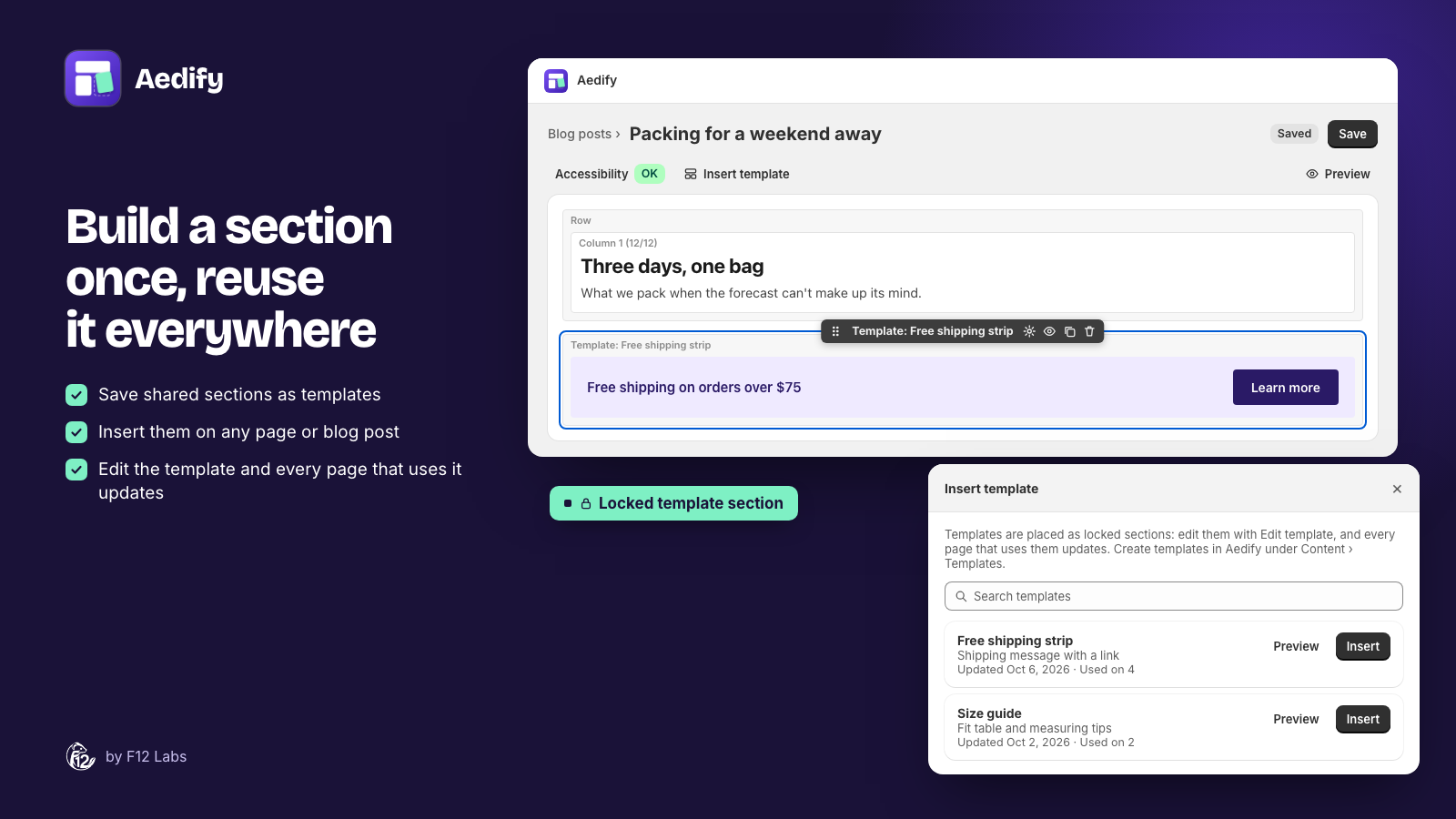
| Your templates | Rows you save in Aedify under Templates | Placed as a locked section. Edit the template, and every page that uses it updates |
New to the builder? Start with Using the builder.
Insert a template on a page
- In the builder, click Insert template in the toolbar, or drag Template from the Layout group of the palette to where you want it.
- Choose Starter templates or My templates.
- Search, or for starters pick a Category. Preview shows a template at full size.
- Click Insert.
Templates go between rows, at the top level of the page, not inside a column. Clicking Insert without dragging adds it after the row you have selected.
Starter templates
Starters are a quick way to get a good-looking section, then make it your own. When you insert one, its sample images are copied to your Content → Files in Shopify, so the section works on your store straight away. Replace the sample text and images with your own.
| Category | Starters |
|---|---|
| Sales | Seasonal sale banner, Flash sale strip, Sale with image, Featured products, Shop by category (collection cards), Collection cards, Shop by category (tabs) |
| Banners | Two promo banners, Full-width hero, Parallax hero, Announcement bar |
| Media | Featured video, Video with text, Image gallery |
| Content | Latest blog posts, Featured stories, Features with icons, Trust badges, Customer reviews, Image with text, FAQ accordion, Product info tabs, Follow us |
There are two starters named Shop by category: one shows collection cards with the name over the image, the other shows tabs with an image, offer and button for each category.
Starters with live elements need one more step after inserting: pick a collection for Featured products, collections for Shop by category and Collection cards, or a blog for Latest blog posts and Featured stories. See Products element and Collections and Blog posts elements.
Create your own template
- In Aedify, open Templates and click Create template. (Or click Create on the home page and choose Template.)
- Enter a Name and, optionally, a Description. Both show in the Insert template dialog.
- Under Start from, keep Blank template, or pick a starter to begin with, such as "Content: Trust badges".
- Click Create and open builder.
- Build the rows in the template editor. It's the same builder, and Insert template here offers starters only: a template can't contain another template.
- Click Save template.
A template needs at least one row to save. Templates are saved in your store as Aedify template metaobjects, not as pages, so they don't appear in Online Store → Pages.
Placed templates are locked
A template you placed on a page shows as Template: and its name on the canvas. You can move it, duplicate it, delete it or hide it, like any element, but you can't edit what's inside it on the page.
Its Settings say This section comes from a template and can't be edited here. Changes to the template update every page that uses it. They have an Edit template button and the Advanced settings (hide on storefront, CSS classes and anchor ID). There's no Style section: the template's look is set in the template editor.
Edit a template: every page updates
There are two ways to open a template:
- From a page: select the placed template, open Settings and click Edit template. The template editor opens in a window over the builder. Make your changes, click Save template, then Close. The page behind it shows the new version. Edit template isn't available in full screen; it says Exit full screen to edit this template.
- From the Templates list: open Templates in Aedify and click the template's name.
The editor's banner says how many pages use the template, such as Used on 4 pages or blog posts. Saving updates them all.
When you click Save template, Aedify saves the template and then saves every page and blog post that uses it again, with the new version. You don't need to open them. When it's done, you'll see Template saved. Updated 4 of 4 pages that use it. If any page fails, the message says how many, for example Updated 3 of 4 pages; 1 failed, save them again to retry. Save the template again to retry.
Saving a page also picks up the latest version of every template on it.
Size limit: 64 KB
A template can be up to 64 KB, the most one metaobject field can hold. The template editor shows the size next to the save status, such as 12.4 KB of 64.0 KB. The badge turns red over the limit, and Save template is turned off until you make it smaller.
Most templates are a few KB. Long text and HTML code elements add the most. If a template is too big, split it into two templates and place both.
Products, Collections and Blog posts elements in a template add almost nothing, because the products, collections and posts aren't saved in it. They're filled in live on your storefront. In the page builder, Products elements inside a placed template show a placeholder; preview them in the template editor or on your store.
The Templates list
Templates in Aedify's menu lists your templates, with Name, Description, Used on (such as 4 pages, or Not used) and Updated. Search by name with the search box. Click a name to open the template editor.
Delete a template
- Open the template from the Templates list.
- At the bottom, click Delete template, then Confirm delete.
A template that's still in use can't be deleted. The button is turned off and says Remove this template from the pages that use it before deleting it. Delete the placed template from each page and save the page, then come back.
Deleting can't be undone. Delete template isn't shown when the editor is open in a window from a page; open it from the Templates list.
Tips
- Name templates for what they are, such as "Free shipping strip" or "Size guide: dresses". The name and description are all you see when inserting.
- Use a starter to start, a template to repeat. Starters are copied in and edited per page. Anything you'll want to change everywhere at once belongs in your own template.
- Keep seasonal content in a template. A holiday shipping notice placed as a template on many pages changes everywhere with one edit. To take it down everywhere at once, edit the template rather than hiding it on each page: for example, turn on Hide on storefront for its rows in the template editor.
- Check accessibility in the template editor. The Accessibility check works there too, and a fix there fixes every page.