 F12 Labs
How to add live products to a Shopify blog post
Blog posts bring shoppers in, then send them away without a way to buy. What Shopify's blog editor and blog post templates can do for products, where they stop, and how to put a live product grid with prices and Add to cart inside the post itself.
A good blog post does what an ad can't: a planting guide, a gift list, a "how we make it" story brings shoppers in from search and keeps them reading. Then, at the moment they're most interested, the post usually offers them a text link.
The shopper has to click through, find the product, check the price, and come back to finish reading. Many don't. And the link you wrote in March still points to a product that sold out in May.
What you want is the product itself in the post: image, current price, and an Add to cart button, right next to the paragraph that talks about it. Here's what Shopify can do on its own, and how to get the rest.
What Shopify's blog editor can do
Blog posts use Shopify's rich text editor. In the Content field you can "add an image, insert a link, make a table, and embed a video or other media" (Shopify Help Center). Images can be new uploads or existing ones, "such as product images".
So natively, a product in a post is a picture plus a link:
- Insert the product's image.
- Link it, or a line of text, to the product page.
- Type the price, if you want shoppers to see it.
It works, but it's a copy. The price you typed doesn't change when the product goes on sale. A sold-out product still looks available. And there's no way to add it to the cart from the post.
What blog post templates can do
Online Store 2.0 themes give blog posts a template, and you can add sections to it in the theme editor, such as a featured product or a collection list. Each template can have up to 25 sections (Sections and blocks). Those sections are live: real prices, real stock, real buttons.
There are two catches:
- Every post using the template gets the same sections. "When you edit a template, your changes apply to every page that uses the template" (Templates). A featured product that fits your tulip guide also shows on your post about compost.
- For different products per post, you need a template per post. Shopify lets you create alternate templates and assign one to a specific blog post, under Content → Blog posts, in the post's Online store section (Templates). That's fine for a few cornerstone posts. For a blog with a new post every week, it becomes a long list of templates to keep in step.
Theme sections also sit above or below the post's content, not in it. You can't put a product grid between the second and third paragraph, where you mention the products.
Where it stops
| You want | Content editor | Blog post template |
|---|---|---|
| A product's image and a link | ✓ | ✓ |
| Current price and stock | ✓ | |
| Add to cart in the post | ✓ | |
| Different products in each post | ✓ | One template per post |
| Products in the middle of the story | ✓ (as images) |
The missing combination is live products, chosen per post, placed where they belong in the text.
Live product grids inside the post
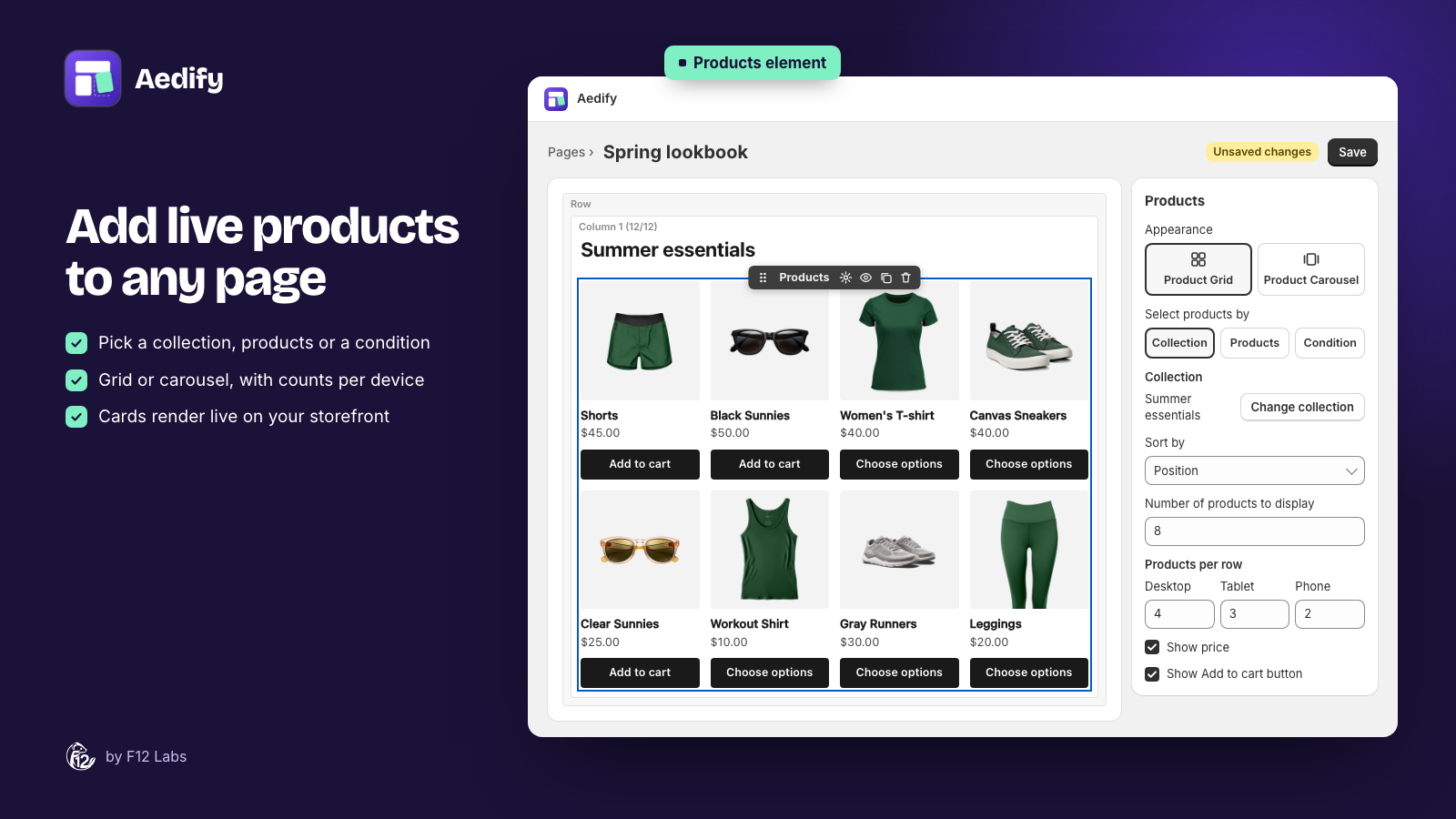
That's what we built the Products element in Aedify for. You build the post in Aedify's builder, and drop a Products element wherever it belongs: under the paragraph about spring bulbs, or at the end as "Everything in this guide".
Each element chooses its own products:
- A collection. The grid shows that collection's products, and keeps up as you add or remove products from it. The best choice for "shop this guide" grids that you'll keep updating.
- Products you pick, up to 50, searchable by name or SKU.
- A condition, such as Tag is
spring-guide, Vendor is or Price is at most 25.
You choose a grid or a carousel, how many products to show, how many per row on desktop, tablet and phone, and whether to show the price and Add to cart. Products with several variants get Choose options, which opens the product page; sold-out products say so.
The products aren't copied into the post. Your theme fills them in when the page loads, through Aedify's theme block, so prices, sale prices and stock are always current. Product data is rendered with the page, so search engines see it too.
The Products element guide covers every setting.
Setting it up
- Install Aedify and, from Storefront setup on its home page, turn on Aedify styles and add Aedify content to your blog post template. Some themes only allow the block below the post; that's fine, it shows the whole post.
- Create a blog post in Aedify, or open an existing one from Blog posts. Posts written in Shopify's editor are converted into editable elements.
- Write the post, then drag Products from the Commerce group to where you want it.
- Under Select products by, choose Collection and pick the collection for the guide.
- Save, and make the post visible when it's ready.
Tips for shoppable posts
- Write first, sell second. A post that reads like a catalogue loses the readers who came for the advice. One grid per section, near the paragraph that mentions the products, is plenty.
- Make a collection per guide. "Spring planting guide" as a collection keeps the grid current without editing the post, and gives you a page to link to from elsewhere.
- Keep it short on phones. Four products with two per row reads well; twelve is a scroll.
- Name the grid for screen readers. Set List name for screen readers to something like "Bulbs in this guide", so the list makes sense out of context.
- Revisit old posts. Your most-read posts are often a year or two old. Adding a live grid to them is quicker than writing a new one.
Shopify behavior checked on 17 October 2026 against Shopify's documentation: Adding and managing blog posts, Templates and Sections and blocks.