 F12 Labs
 Aedify
Aedify documentation / Elements
Products element
How to show live products on an Aedify page, blog post or description: grid or carousel, choosing by collection, picked products or conditions (tag, vendor, type, title, SKU, price, on sale), sorting, products per row on each device, card design, Add to cart, and why the Aedify content block is needed.
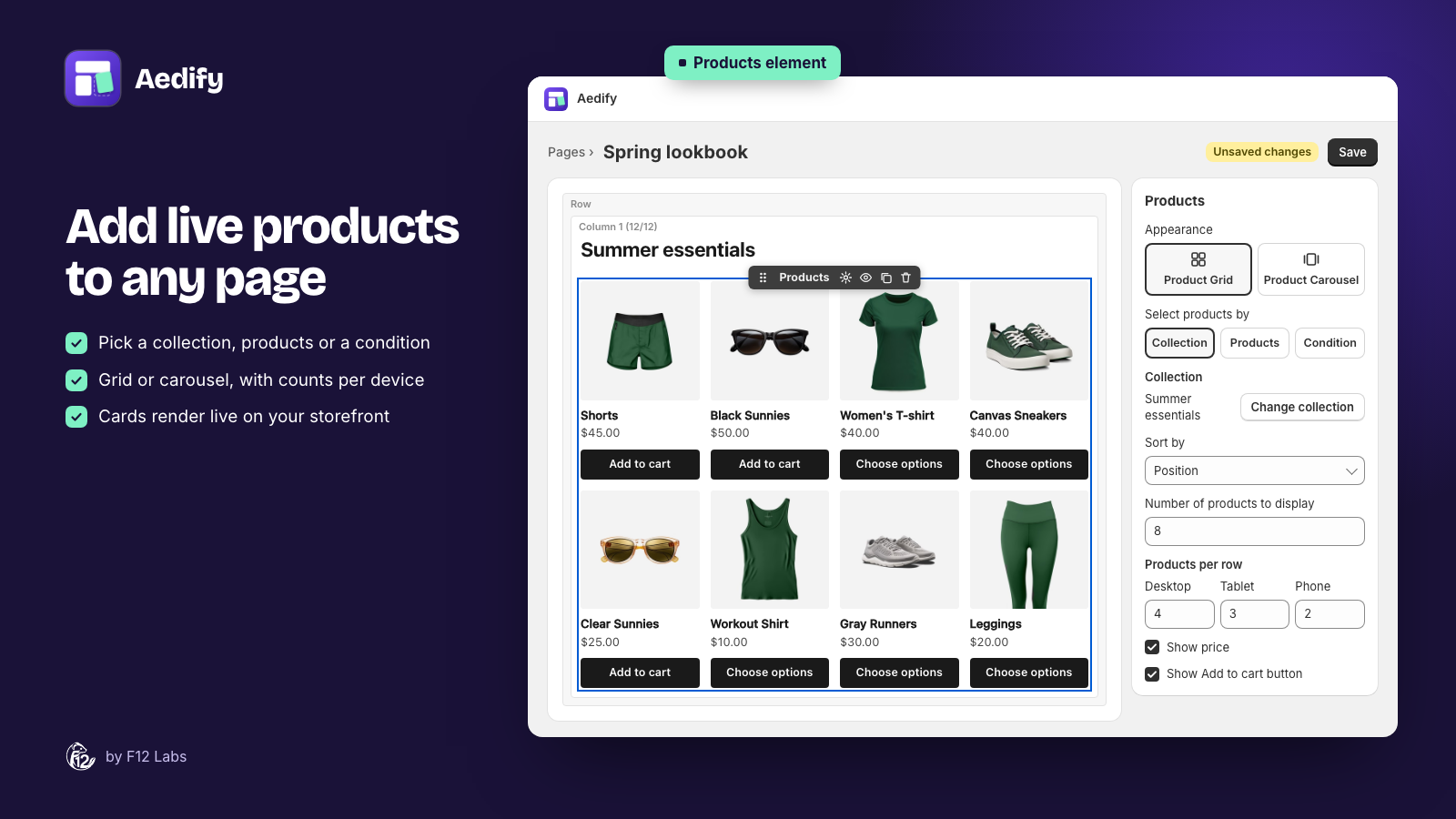
The Products element shows a grid or carousel of products from your store, each with its image, name, price and an Add to cart button. Prices, sale prices and stock come from your store every time the page loads, so the element is never out of date.
It's in the Commerce group of the palette, with Collections and Blog posts. New to the builder? Start with Using the builder.
Before you start: the Aedify content block
Product cards are filled in on your storefront by the Aedify content block in your theme. Without it, the element shows nothing to shoppers.
- Pages and blog posts: add the block from Storefront setup on Aedify's home page. See Getting started.
- Product and collection descriptions: add the block to your product or collection template too.
If the block is missing where you use a Products element, the builder shows Products, collections and blog posts need the Aedify content block with a link to add it. For descriptions, add the block to your product or collection template; see Product and collection descriptions.
Appearance
| Option | What it shows |
|---|---|
| Product Grid (default) | Rows of cards |
| Product Carousel | One row that scrolls sideways. Shoppers swipe, use a trackpad, or click into it and use the arrow keys |
Carousels have no arrows and don't move on their own.
Choosing products
Select products by has three options.
Collection (default)
Click Choose collection and pick one. The element shows that collection's products, read live on your storefront: products you add to the collection appear without saving the page again.
Products
Click Choose products and pick up to 50. You can search by name or SKU in the picker. Edit products changes the selection and Remove all clears it.
Condition
Build a rule and Aedify finds the matching products:
| Condition | Example value |
|---|---|
| Tag is | spring |
| Tag is not | clearance |
| Vendor is | Acme Seeds |
| Product type is | Bulbs |
| Title contains | tulip |
| SKU is | TUL-RED-10 |
| Price is at least | 20 |
| Price is at most | 50 |
| Is on sale | No value: matches products with a compare-at price above their price |
Click Add condition for more, and set Products must match to All conditions (default) or Any condition.
Products shoppers can't see
Only products that are active and published to the Online Store sales channel are shown. If some picked or matching products aren't, the settings say how many, for example 2 matching products aren't shown: not active, or not published to the Online Store sales channel. Publish them in Shopify under Products → Sales channels to show them.
Settings
| Setting | Default | What it does |
|---|---|---|
| Sort by | Position | See below |
| Number of products to display | 8 | 1 to 50 |
| Products per row (grid) or Products visible at once (carousel) | Desktop 4, Tablet 3, Phone 2 | 1 to 6 each |
| Customize design | Card design. See Card design | |
| Show price | On | Price, sale price with the regular price struck through, or "From" price for products whose variants differ in price |
| Show Add to cart button | On | See Add to cart |
| List name for screen readers | The collection's name, or Products | Names the list (and the carousel) for screen readers |
The canvas shows the desktop layout. Use Preview → Tablet or Mobile to check the others.
Sorting
| Option | Notes |
|---|---|
| Position | Named for what it does: Position (collection order) follows the collection's own sort order in Shopify, such as best selling. Position (order picked) keeps the order you picked products in. Relevance for conditions |
| Name: A–Z, Name: Z–A | |
| Price: low to high, Price: high to low | |
| Newest first | By the date the product was created |
Add to cart
With Show Add to cart button on, each card has a button that depends on the product:
| Product | Button |
|---|---|
| One variant, in stock | Add to cart. Adds one to the cart |
| Several variants | Choose options. Opens the product page |
| Sold out | Sold out, greyed out |
With the button off, sold-out products show a Sold out label instead.
The button text comes from Aedify in English. Screen readers also hear the product name, such as "Add to cart: Red tulip bulbs".
Card design
Customize design opens Customize product cards, with a live preview:
| Group | Settings |
|---|---|
| Image | Height (empty keeps images square, or a size such as 240px), Width, Fit (Crop to fill (default) or Fit whole image), Corner radius |
| Product name | Font size, Weight (Theme default, Regular, Medium, Semibold, Bold), Color, Maximum lines (No limit, 1, 2 or 3 lines) |
| Button | Look: Theme's button (default) or Custom. Width: Full width (default) or Fit text. With Custom: Style (Filled, Outline, Text link), Corner radius, Background (or Border for Outline), Text color |
| Layout | Alignment (Left, Center, Right), Space between cards |
Reset to default design clears it all.
Theme's button uses your theme's button style and primary colour, so card buttons match your product pages. With a custom filled button, the dialog shows the text contrast; under 4.5:1, the accessibility check reports Add to cart button text contrast is 3.20:1; it needs at least 4.5:1. as an error.
Limits
| Limit | Value |
|---|---|
| Products in one element | 50 |
| Picked or matched products across all Products elements on one page, post or description | 128. Collection elements don't count |
Over 128, saving stops with a message telling you to lower Number of products to display on some elements.
Troubleshooting
The element shows nothing on my store. Add the Aedify content block to the template the page uses (see Before you start), and check the products are active and on the Online Store channel.
A product I tagged doesn't appear. Condition matches are found when you save. Open the page in Aedify and save it again.
Buttons look dark in the builder. Your theme's styles aren't loaded in the Shopify admin. The storefront uses your theme's colours.
Products in a template show a placeholder. In a placed template, the page builder shows a placeholder for Products elements. Preview them in the template editor, or on your store.