 F12 Labs
How to build accessible landing pages on Shopify
Your theme can be accessible and your pages still fail: missing alt text, unreadable text on banners, skipped headings, autoplaying video. Here's what to check on every Shopify page you build, why it matters, and how to catch problems before you publish.
Most Shopify themes take accessibility seriously. Themes in the Shopify Theme Store have to meet accessibility requirements: keyboard access, alt attributes on images, 4.5:1 text contrast and a minimum Lighthouse accessibility score.
But a theme only covers its own code. The pages you build on top of it (a campaign landing page, an About us page, a size guide) are your content, and that's where most accessibility problems come from: an image with no description, white text on a pale photo, a heading used because it looked the right size.
Shopify says so itself: following its theme guidelines "doesn't guarantee that your online store is fully accessible." Here's what to check on every page you build.
Why it matters
- Customers. People who use screen readers, keyboards, zoom or high contrast settings shop online like everyone else. If they can't read a banner or reach a button, they can't buy.
- The law, in some markets. The European Accessibility Act has applied since 28 June 2025 and covers e-commerce services sold to consumers in the EU. Very small businesses (fewer than 10 staff and no more than €2 million turnover) are exempt from its service requirements. Other countries have their own rules. This isn't legal advice: check what applies to you.
- Search. Alt text, real headings and descriptive links are what search engines and AI assistants read too. An accessible page is easier to understand for everything that reads it.
The common benchmark is WCAG 2.1 level AA, the Web Content Accessibility Guidelines from the W3C. You don't need to read all of it. Six checks catch most problems on a landing page.
Six checks for every page you build
1. Every meaningful image has alt text
Screen readers read an image's alt text in place of the image (WCAG 1.1.1). Describe what the image shows that matters to the shopper. Shopify's advice: "pretend that you're describing the image to someone who has their eyes closed."
- A product photo: "Green linen shirt, worn open over a white t-shirt."
- A decorative texture or divider: mark it decorative (empty alt text), so screen readers skip it.
- A linked image: the alt text is the link's name, so describe where it goes: "Shop the summer collection."
2. Text is readable against its background
Normal text needs a contrast ratio of at least 4.5:1 with its background, and large text at least 3:1 (WCAG 1.4.3). Shopify's theme guidelines use the same numbers.
The usual failure on landing pages is text on an image. White text that's fine on the dark half of a photo disappears on the light half, and on phones, where the image is cropped differently. A dark overlay between the image and the text fixes it.
3. Headings are in order
Screen reader users jump between headings to find their way around a page (WCAG 1.3.1). That only works if headings reflect the structure:
- One H1 per page. On Shopify, your theme already makes the page title the H1. Start your own content at H2.
- Don't skip levels. An H4 straight after an H2 suggests something is missing. Shopify's guidelines say headings "don't skip over levels."
- Don't use headings for size. If you want bigger text that isn't a heading, change the text size instead.
4. Links and buttons say where they go
"Click here", "Learn more" and "Shop now" make sense next to the content they sit by. Read out as a list of links, which is how many screen reader users scan a page, they say nothing (WCAG 2.4.4).
Write "Shop linen shirts" instead of "Shop now". If the design needs a short label, add an accessible label that says more. An icon used as a link (a social icon, an arrow) needs a label too, or it's announced as just "link".
5. Video can be paused, and has captions
- Autoplaying video needs a way to stop it. Anything that moves for more than five seconds needs a pause control (WCAG 2.2.2). Muted autoplay is fine, but keep the controls.
- Captions for video with speech (WCAG 1.2.2). They help deaf shoppers, and everyone watching on a phone with the sound off.
- A title so screen reader users know what the video is before they play it.
6. Everything works with a keyboard
Tab through your page from top to bottom. You should be able to reach every link, button, tab and accordion, see where you are, and open each one with Enter or Space. Tabs and accordions built from custom code often fail here.
How to check a page
- Tab through it with the keyboard, as above.
- Zoom to 200% in the browser and check that nothing is cut off or overlapping.
- Try a screen reader for a few minutes: VoiceOver is built into Macs and iPhones, and NVDA is free on Windows.
- Run an automated checker, such as the accessibility audit in Chrome's Lighthouse. Automated tools miss plenty, such as alt text that's there but wrong, but they catch the mechanical problems fast.
The catch is timing. These checks happen after the page is built and published, when fixing a heading or an image means opening the page again.
How Aedify helps
Aedify is a page builder for Shopify, and it checks pages for accessibility while you build, not after.
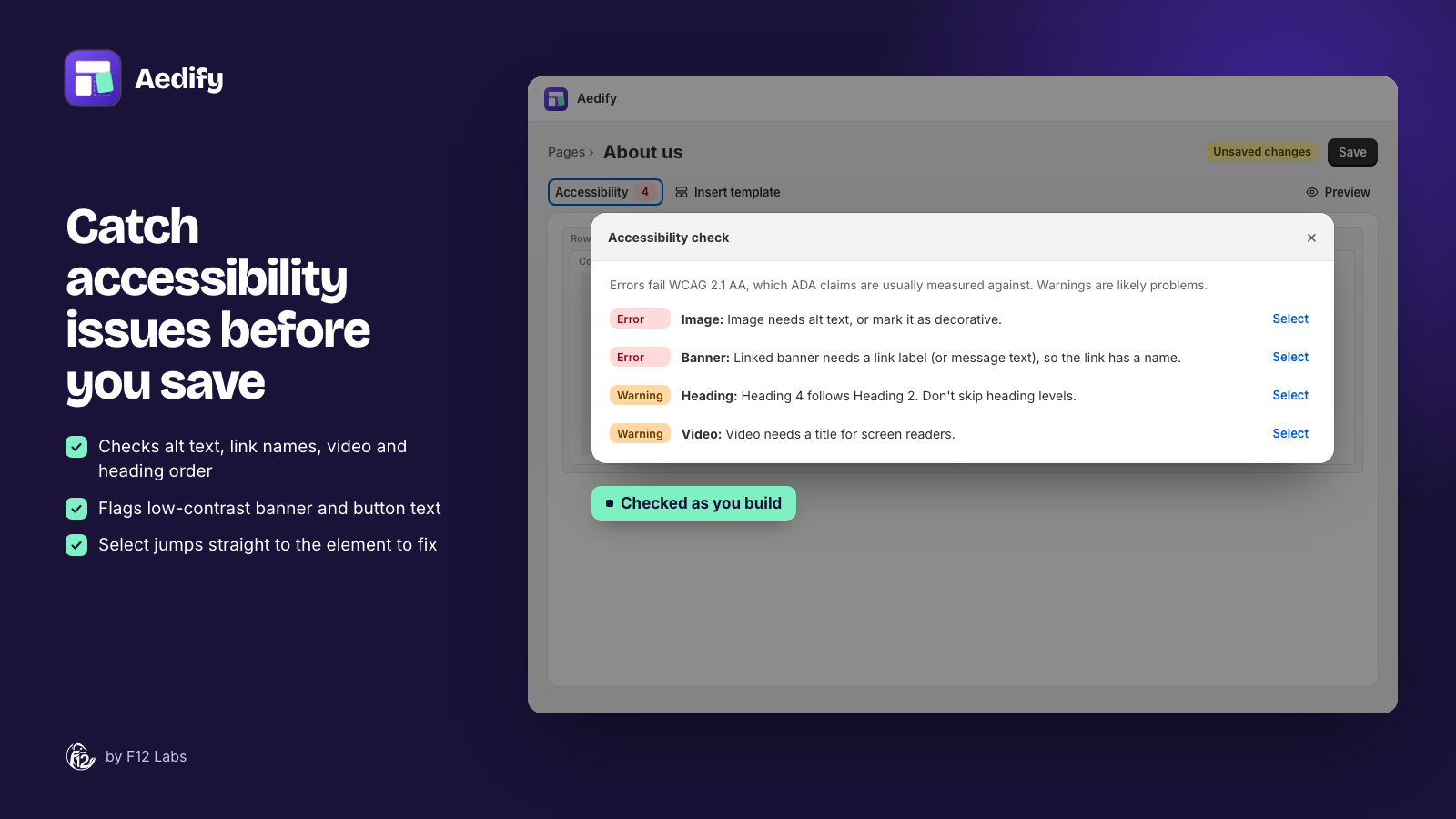
The Accessibility button above the canvas checks the page against WCAG 2.1 AA as you work. It reads Accessibility: OK, or counts the errors and warnings. Open it to see each issue, and Select takes you straight to the element.
Errors include:
- An image or banner with no alt text that isn't marked decorative
- A linked image, banner or icon with nothing to name the link
- An empty heading, a button with no text, or a tab or accordion item without a title
- Autoplaying video without controls
- Text or buttons on product and collection cards with contrast below 4.5:1
Warnings include:
- Vague link text, such as "Learn more", without an accessible label
- A Heading 1 in your content, or a skipped heading level
- Banner text with contrast below 4.5:1 against its overlay
- A video without a title or captions
The settings help you get it right the first time:
- Images and banners have Alt text and a Decorative switch. Row background images are always decorative, and the settings say so.
- Banners and row overlays show the contrast ratio as you pick colors, for example 7.12:1 (passes AA).
- Buttons and icons have an Accessible label field.
- Videos keep Show controls on by default, and take a captions file (WebVTT) for videos from Shopify Files.
- Accordions are built on the browser's own expandable sections, and Tabs work with the arrow keys, both without JavaScript.
- Product, collection and blog post lists have a list name for screen readers.
- Parallax backgrounds stay still for shoppers who've asked their device to reduce motion.
Pages are saved into Shopify as plain HTML, with real headings, lists and links, so your theme and Shopify serve them like any other page.
The getting started guide walks through building your first page, and Using the builder covers the accessibility check.
Before you publish any page
- Read the page with the images hidden. Is anything important only in a picture?
- Check the banner on a phone, where the crop and the text position change.
- Read the headings on their own. Do they outline the page?
- Read the links on their own. Does each say where it goes?
- Tab through it once.
A checker catches the mechanical problems. Whether the alt text actually describes the image, and whether the page makes sense read aloud, still takes a person.
Checked on 12 October 2026 against WCAG 2.1 (success criteria 1.1.1, 1.2.2, 1.3.1, 1.4.3, 2.2.2 and 2.4.4), Shopify's Accessibility for themes and Theme Store requirements, and the European Commission's European Accessibility Act page and Business.gov.nl.