 F12 Labs
 Discountly
Discountly documentation / Create discounts
Volume pricing discounts
Set up "buy more, save more" quantity tiers in Discountly. Tiers, % off and $ off per unit, the two tier modes, mix & match across products, tier messages, and a worked example with the prices customers pay.
A Volume pricing discount lowers the price per item as the quantity goes up: 10% off at 2, 15% off at 4, 20% off at 6. It's the type behind "buy more, save more", bulk pricing and quantity breaks, for any customer, not only B2B.
This page covers the offer side of a volume discount. Creating a discount covers what every type shares: method, schedule, eligibility and saving.
Worked example: hoodie tiers
A store sells a $90 hoodie and wants 10% off at 2, 15% off at 4 and 20% off at 6, on every hoodie, with sizes and colors counting together.
- On the Discounts page, click Create discount and choose Volume pricing.
- Title: "Buy more, save more". Leave the method on Automatic discount.
- Under Discount logic, click Add logic.
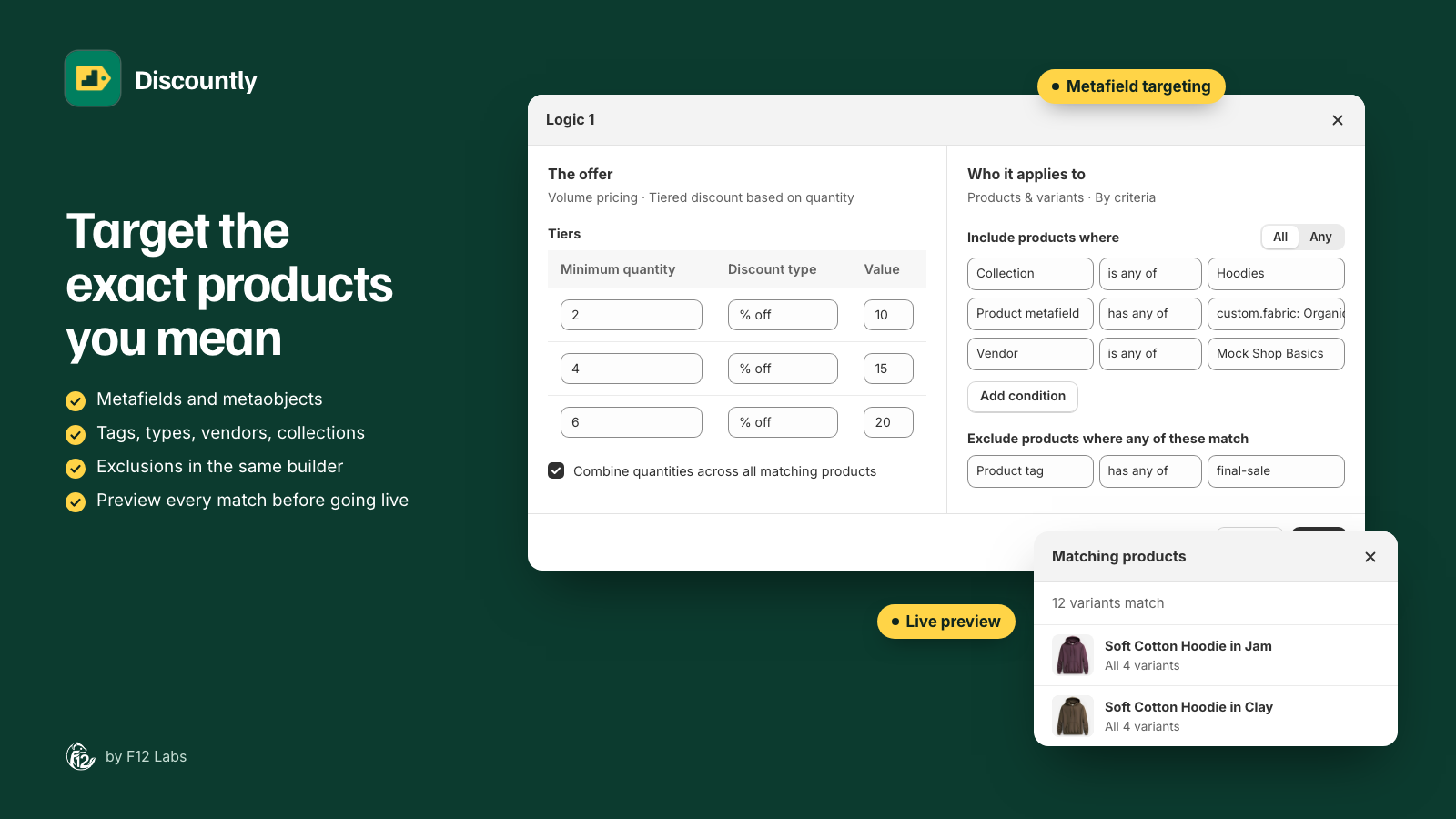
- In The offer, under Tiers, the first tier is already there: 2, % off, 5. Change its value to 10. Click + Add tier twice and set 4 at 15% and 6 at 20%.
- In Who it applies to, choose Specific products and add the criterion Collection is in any of "Hoodies".
- Under Mix & match, tick Combine quantities across all matching products, so a medium and a large count toward the same tier.
- Click Save to close the logic block, then Save rule.
What the customer pays per hoodie:
| Hoodies in the cart | Tier | Price each | Total |
|---|---|---|---|
| 1 | None | $90.00 | $90.00 |
| 2 or 3 | 10% off | $81.00 | $162.00 for 2 |
| 4 or 5 | 15% off | $76.50 | $306.00 for 4 |
| 6 or more | 20% off | $72.00 | $432.00 for 6 |
Add the Volume pricing table to your product page so shoppers see these prices before they add to cart, and the Mix & match block so they know sizes and colors combine.
Tiers
Each tier has three parts:
| Column | What to enter |
|---|---|
| Minimum quantity | The quantity the tier starts at. 2 or more, and different for every tier |
| Discount type | % off, or $ off (per unit): an amount off each item |
| Value | The percentage or amount. More than 0; a percentage can't be over 100 |
Click + Add tier to add one, and Remove to delete one. A discount needs at least one tier.
Shopify calculates the final price. Percentages are rounded down to whole cents per item, so 6% off $8.99 is $0.53 off.
Apply tier pricing to
This setting decides which quantities a tier covers.
| Option | A cart of 5 with tiers at 2, 4 and 6 |
|---|---|
| Quantity at or above the tier (until the next tier) (default) | Gets the 4-item tier. Each tier covers its quantity and everything up to the next tier |
| Exact tier quantity only | Gets nothing. Only exactly 2, 4 or 6 get a discount |
Use Exact tier quantity only for pack-style offers, such as "a pack of 3 for 10% off", where in-between quantities shouldn't be discounted.
Mix & match
By default, Discountly counts each cart line on its own. A cart line is one variant, so 2 medium hoodies and 2 large hoodies are two lines of 2, and each gets the 2-item tier.
With Combine quantities across all matching products ticked, Discountly adds up every line the logic block targets, and gives all of them the tier the total reaches. The same cart is 4 hoodies, and every one gets the 4-item tier.
| Cart | Without mix & match | With mix & match |
|---|---|---|
| 2 medium + 2 large hoodies | 10% off each | 15% off each |
| 3 hoodies + 3 T-shirts, both targeted | 10% off each | 20% off each |
| 1 hoodie | No discount | No discount |
Only the products the logic block targets count. If Items already on sale is Don't apply, sale items don't count toward the total either, since they don't get the discount. Free gifts and rewards added by other Discountly discounts never count.
With Exact tier quantity only, the combined total has to equal a tier exactly.
Messages
Customers see a message next to each discounted line in the cart and at checkout. By default it's the tier's amount and quantity: 15% off at 4+.
To write your own, tick Customize the display message and choose a Message style:
| Style | How it works |
|---|---|
| One template for all tiers | One Message template for every tier. {amount} becomes the discount (15% or $5) and {min} the tier's quantity. Example: "Bulk deal: {amount} off" |
| A different message per tier | A Message (optional) column appears in the tiers table. Blank tiers use the default |
The Preview under the setting shows what customers will see.
The volume pricing table builds its own labels and doesn't use these messages. The Available offers block lists per-tier messages, or the default wording, unless you give the offer its own description.
Different tiers for different products
A discount can hold several logic blocks, each with its own tiers and products: hoodies at 10/15/20% and socks at 20/30/40% in one "Buy more, save more" discount. Click Add more logic for each. When two blocks include the same item, the larger discount wins.
Keep one volume discount per product. If two separate volume discounts include the same product, the volume pricing table can only show one of them, and the price at checkout may not match it.
Sale items, minimums and customers
The settings below the logic work as for every type (Creating a discount); Sale items, minimums and the shipping add-on compares them across types. For volume pricing:
- Items already on sale: Don't apply skips sale items (and hides the table on them), Use compare-at price takes a percentage off the original price, Stack on sale price (default) takes it off the sale price.
- Minimum purchase requirements: rarely needed, since the tiers already set a minimum quantity. A Minimum purchase amount ($) counts the whole cart subtotal.
- Eligibility: for VIP or trade tiers, choose Customers with tags. The table and offers only show to customers who qualify.
Troubleshooting
The discount doesn't apply at checkout. Check that the quantity of one line reaches the first tier, or tick Combine quantities across all matching products if the customer mixes variants. Check the tier type isn't Fixed price (per unit). Click the eye icon on the logic block to check the product matches.
A customer gets a lower tier than expected. Without mix & match, each variant counts on its own. With Exact tier quantity only, quantities between tiers get nothing.
The table on the product page doesn't show. It needs an automatic discount. See Volume pricing table troubleshooting.