 F12 Labs
 Discountly
Discountly documentation / Theme blocks
Mix & match block
How Discountly's Mix & match block tells shoppers that quantities combine across products in a volume discount, when it shows, its settings and tokens, and how to word it.
A mix & match volume discount counts every product it covers together: 2 hoodies and 2 T-shirts reach the 4-item tier, even though neither product reaches it alone. Shoppers won't guess that. The Mix & Match block tells them, with a short line on the product page and an info icon that opens a few words of explanation.
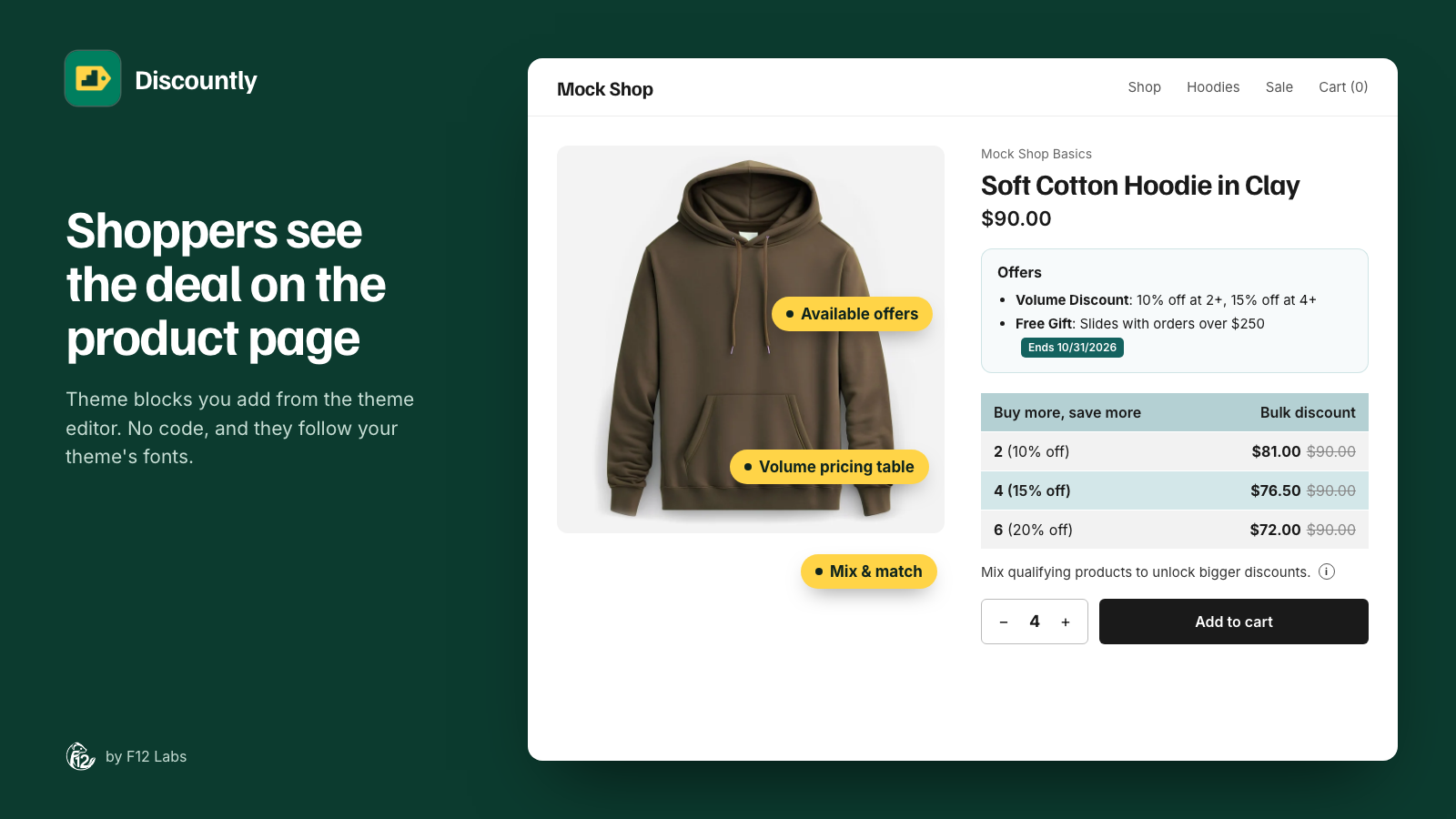
If you haven't added it yet, Store setup and theme blocks shows how. It usually sits right under the Volume pricing table.
Making a volume discount mix & match
Mix & match is a setting of the volume discount, not of the block:
- Open a Volume pricing discount and click Edit on a logic block.
- On the Who it applies to side, under Mix & match, tick Combine quantities across all matching products.
- Save the logic block, then click Save rule.
The discount now adds up the quantity of every product the logic block targets and gives all of them the tier that total reaches. Without it, each cart line counts on its own. Volume pricing explains the difference with an example.
When the block shows
The block stays hidden unless all of these are true:
- There's a live Volume pricing discount that uses Automatic discount, inside its schedule.
- One of its logic blocks has Combine quantities across all matching products ticked and includes this product.
- The shopper qualifies for the discount. Discounts limited to Customer segments don't show.
- The selected variant isn't on sale, if the discount's Items already on sale is Don't apply.
Store setup shows Mix & match as Needs attention when a live discount like this exists and the block isn't on your product page.
What shoppers see
- On the page: the Inline text, followed by an info icon.
- When they click the icon: a small window with the Heading and Description, and a close button. It also closes when they click elsewhere or press Escape.
- A link to shop more: Link text appears in the window when the discount targets products by collection with Discountly's older By collection option. It links to the first of those collections the product is in.
Discounts that choose products By criteria, including the Collection criterion, don't get a link. Leave Link text as it is; it simply doesn't show.
The icon only appears if the window has something in it. If you clear the heading, description and link text, shoppers see the inline text alone.
Settings
Open Online Store → Themes → Customize, go to a product page, and click Mix & Match in the product section.
| Setting | Default | What it does |
|---|---|---|
| Inline text | Mix qualifying products to unlock bigger discounts. | The line on the page, next to the info icon |
| Heading | Mix & match | The title of the info window |
| Description | Combine quantities across {collection} to unlock volume savings. | The text in the info window |
| Link text | See all eligible products → | The link in the info window, when there's a collection to link to. Blank hides it |
Click Save in the theme editor after changing anything.
Tokens
Inline text, Heading and Description can use two tokens:
| Token | Becomes |
|---|---|
{collection} |
The name of the collection the link goes to. Without a link, the words "the collection" |
{volume_discounts} |
The tier quantities, lowest first, such as 2, 4, 6 |
Troubleshooting
The block doesn't show. Check that the block is on the product template and saved, that the discount is live, automatic and inside its schedule, and that Combine quantities across all matching products is ticked on the logic block that includes this product. A volume discount with a discount code doesn't show the block.
There's no link in the info window. The link only appears for discounts that target by the older By collection option. See What shoppers see.
The block shows on one product template but not another. Add the block to each product template that should show it. Store setup tells you how many of your product templates have it.