 F12 Labs
 Discountly
Discountly documentation / Targeting and eligibility
Choosing products: targeting and exclusions
Choose which products a Discountly discount applies to. All products or specific products, the By criteria builder (tags, product type, vendor, collections, specific products, product and variant metafields, metaobjects), every operator, exclusions, background sync, previewing matches and exporting them to CSV.
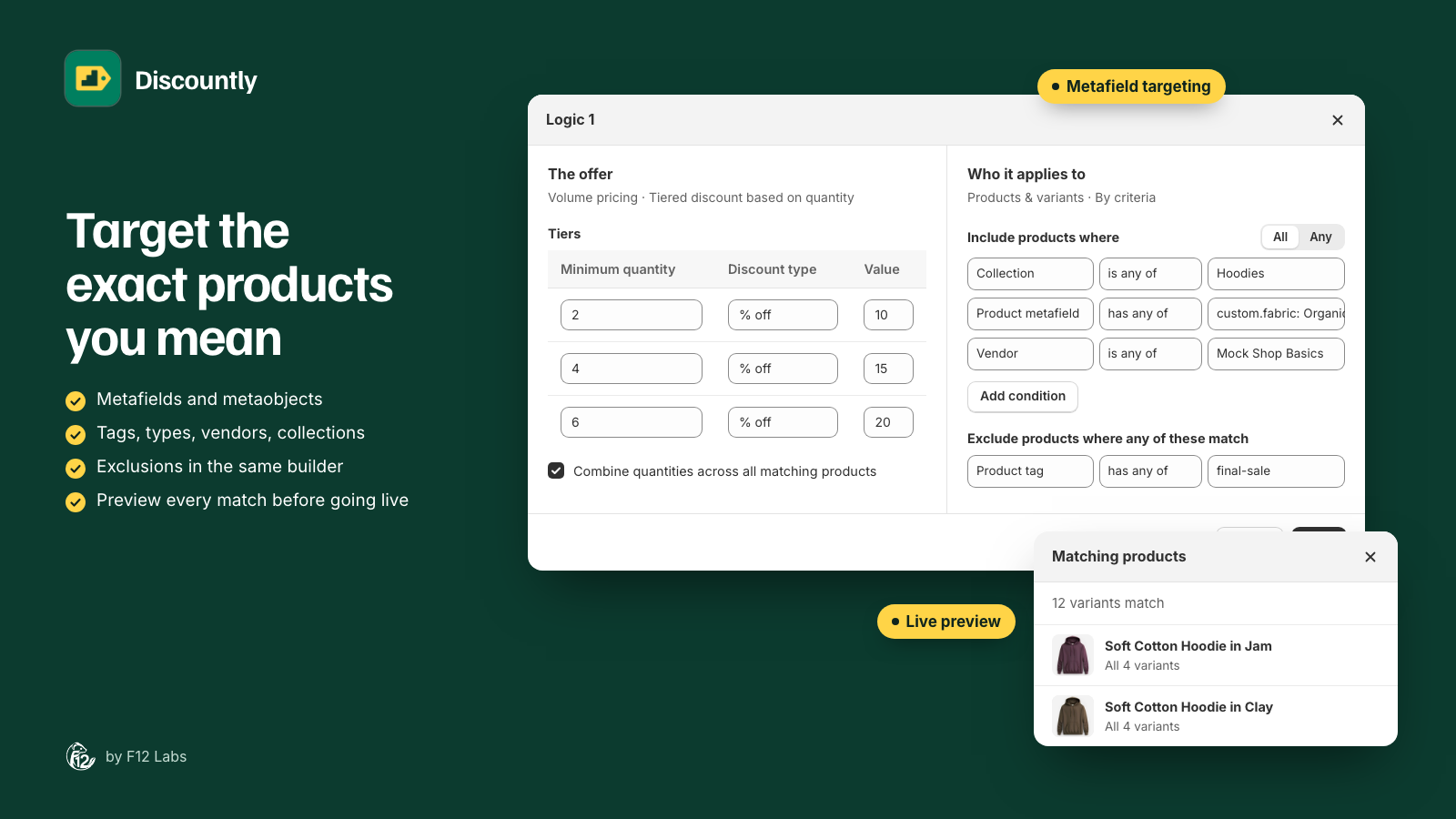
Every Discountly discount decides which products it applies to in Who it applies to, inside each logic block. You can apply it to every product, or describe the products you mean, such as "hoodies in organic cotton, except final sale", and let Discountly find them. Products added later that fit the description are included automatically.
This page covers targeting for every type. On a free gift discount, the same builder decides which products count toward the minimum subtotal (see Free gift with purchase).
All products or specific products
Open a logic block (click Add logic, or Edit on an existing one) and go to Who it applies to. Targeting has two choices:
| Targeting | Applies to |
|---|---|
| All products (default) | Every product in your store. You can still leave some out with exclusions |
| Specific products | Only the products that match the criteria you add |
All products suits sitewide sales and staff pricing, usually with an eligibility setting such as a customer tag. On Buy X get Y discounts this side is called Trigger products, on shipping discounts Required products: the products the cart needs.
By criteria
With Specific products, you choose products By criteria. Under Include products where, click Add condition and pick a Field, a Condition and the values.
| Field | Conditions | Values |
|---|---|---|
| Product tag | has any of, has all of | Tags. Start typing for suggestions from your store |
| Product type | is any of | Product types, with suggestions |
| Vendor | is any of | Vendors, with suggestions |
| Collection | is in any of | Collections, chosen with Select collections |
| Specific products | is any of | Products or variants, chosen with Select products |
| Product metafield | Depends on the metafield's type, see Metafields | A product metafield's value |
| Variant metafield | Depends on the metafield's type | A variant metafield's value |
Text values match whatever their capitalization: "Socks" matches a product type of "socks".
- Collection works with automated and manual collections, with no limit on how many you add.
- Specific products: pick a whole product to include all its variants, including variants you add later. Pick single variants to include only those.
All or Any
With two or more conditions, a toggle appears next to Include products where:
- All: "A product must meet every condition." Collection is Hoodies and vendor is Mock Shop Basics.
- Any: "A product needs to meet at least one condition." Collection is Hoodies or product type is Sweatshirts.
For a mix of both, such as "hoodies from either of two vendors", put the alternatives in one condition: Vendor is any of "Mock Shop Basics", "Northfield". Values inside one condition are always "any of", unless the condition says has all of or includes all of.
Metafields
For a metafield condition, enter its Namespace and Key, for example custom and fabric, as shown in Shopify under Settings → Custom data. If your store has a definition for that metafield, Discountly picks up its type and shows its name, such as "Fabric: this store's product metafield." Otherwise, choose the Type yourself:
| Type | Conditions |
|---|---|
| Text | is any of, has a value, is empty |
| List of text | includes any of, includes all of, has a value, is empty |
| Integer, Decimal | is any of, is at least, is at most, has a value, is empty |
| True or false | is True or False, has a value, is empty |
| Metaobject | is any of, has a value, is empty |
| List of metaobjects | includes any of, includes all of, has a value, is empty |
- Metaobjects: when the metafield has a definition, you pick entries from a searchable list ("Search entries") by name, instead of typing IDs.
- Choice lists: when the definition limits the metafield to a set of values, you pick from those.
- Other types: a metafield with a definition of another simple type, such as a date, color, URL, or a product or collection reference, can be used too, with the same conditions as text. Structured types, such as JSON, money, rating or rich text, can't.
A Product metafield condition applies to every variant of the product. A Variant metafield condition checks each variant on its own, so one size can match and another not.
Worked example: target by a metaobject
Your products have a metafield custom.fabric that points to entries of a "Fabric" metaobject: Organic cotton, Recycled polyester, Merino. You want 15% off everything in organic cotton or merino, except final sale.
- Open the discount's logic block and set Targeting to Specific products.
- Click Add condition. Set Field to Product metafield, Namespace to
customand Key tofabric. Discountly reads the definition and sets the type to Metaobject. - Leave Condition on is any of and pick "Organic cotton" and "Merino" from the entries.
- Tick Exclude products where any of these match and add Product tag has any of
final-sale. - Click Save, then Save rule.
When you tag a new merino jumper with its fabric, it's included without editing the discount. If the metafield were a List of metaobjects (a product can have several fabrics), use includes any of to match products with either fabric, or includes all of for products with both.
Excluding products
Tick Exclude products where any of these match to leave products out: "A product that matches any of these is left out, even if it's included above." Exclusions use the same fields and conditions, and a product is left out if it matches any one of them.
Excluded products don't get the discount and don't count toward it: not toward a volume tier, a Buy X get Y trigger or a Minimum quantity of items. A Minimum purchase amount ($) counts the whole cart, excluded products included.
Exclusions work with All products too, for "everything except gift cards and final sale". A discount on Specific products needs at least one include condition: "Add at least one 'Include' criterion".
Limits
| Limit | Value |
|---|---|
| Conditions per logic block, include and exclude together | 25 |
| Values per condition | 250 |
Criteria keep a discount small however many products match, so they rarely reach the 10 kB size limit (see Size limits).
How matching products stay up to date
Discountly works out which products match in the background and stores the result on each product, where Shopify's checkout reads it. "Matching products are found and kept up to date in the background. After you save, it can take a few minutes for changes to reach checkout."
- After you save a discount, Discountly checks your whole catalog.
- When you edit products, add them or change a collection, the affected products are checked again, usually within a minute or two.
- Every night, a full pass catches anything else.
Drafts and paused logic blocks are kept up to date too, so activating them later doesn't wait for a sync.
Under the builder, a line shows the last sync: Synced with the date and "N matching products", or "Finding matching products… reload in a minute to see the count." If a sync fails, a banner reads Last sync failed with the reason. The line reflects the page as it loaded, so reload to see a newer count.
Previewing matches
Click the eye icon on a logic block to open Matching products: how many variants match, and the list, with a search box ("Filter by product or variant title…").
- Export CSV downloads the matches, with product, variant and SKU, to check against a spreadsheet.
- Refresh reloads the list.
- With All products, the preview says the logic applies to all products instead of listing them.
Save the discount first: a new logic block shows "Save the rule to preview the products this logic applies to."
More than one logic block
A discount can have several logic blocks, each with its own targeting and offer: 10% off hoodies and 15% off T-shirts in one discount. Each block is checked on its own. When two blocks match the same item, the larger discount wins. See Logic blocks.
Older targeting modes
Discounts created before By criteria may use one of three older modes. They appear under How to choose products only on logic blocks that already use them, and keep working:
| Mode | How it works | Limit |
|---|---|---|
| By variant metafield value | Variants whose metafield (Namespace, Key) equals a Value | One metafield per discount |
| By collection | Products in the chosen collections | 5 collections per discount |
| Pick specific products or variants | A fixed list of variants. Variants added to a product later aren't included | 100 items per discount |
To move one to criteria, choose By criteria and add the equivalent condition. Criteria have none of these limits.
Troubleshooting
A product isn't discounted. Open the preview and search for it. If it's missing, check its tags, type, vendor or metafield value against the conditions, and whether an exclusion matches it. If you changed the product in the last few minutes, wait for the sync and reload.
The count says "Finding matching products…" for a long time. Large catalogs take longer, especially on the first sync. Reload the page after a few minutes.
A metafield condition matches nothing. Check the namespace and key, and that the type matches the metafield's real type. A metafield stored as a list needs a list type.