 F12 Labs
 Aedify
Aedify documentation / Publish
Accessibility check
How Aedify's accessibility check works: the Accessibility button in the builder, every error and warning it reports and how to fix each one, contrast checks for banners and cards, heading order, and what it can't check for you.
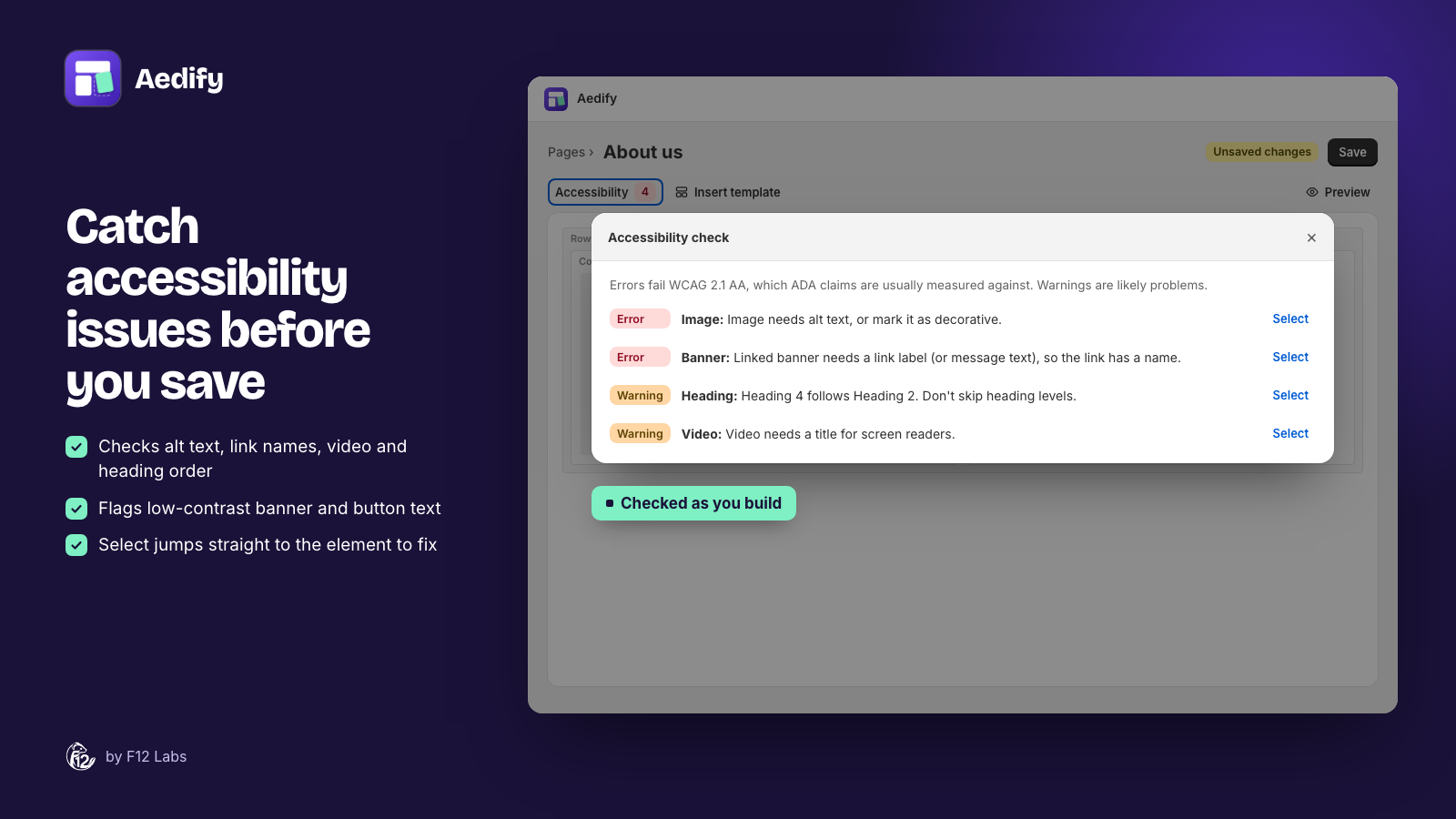
Aedify checks your page for common accessibility problems as you build: images without alt text, buttons without a name, low-contrast text, headings out of order. It checks against WCAG 2.1 level AA, the standard accessibility complaints are usually measured against.
The check runs in the builder for pages, blog posts, product and collection descriptions, and templates.
Where to find it
The Accessibility button is the first item in the toolbar above the canvas. Its label updates as you edit:
| Label | Means |
|---|---|
| Accessibility: OK | No issues found |
| Accessibility: 2 errors | At least one error. The button turns red |
| Accessibility: 3 warnings | Warnings only, no errors |
Click it to open the Accessibility check. It lists every issue in page order, each with an Error or Warning badge, the element it's on, and what's wrong. Select next to an issue closes the dialog, selects that element on the canvas and opens its settings, where you fix it.
An element with issues also lists them in an Accessibility box at the top of its settings, so you can see when the fix has worked.
- Errors fail WCAG 2.1 AA. Fix them before you publish.
- Warnings are likely problems. Check each one; some are fine on purpose.
The check never stops you from saving. Elements set to Hide on storefront are skipped, because shoppers don't see them.
Errors and how to fix them
| Element | Message | Fix |
|---|---|---|
| Heading | Heading is empty. | Type the heading, or delete the element |
| Button | Button has no text. | Enter a Label, or an Accessible label for an icon-only button |
| Accordion item | Accordion item needs a title: it's the button that opens it. | Give the item a Title |
| Tab | Tab needs a title: it's the button that shows it. | Give the tab a Tab title |
| Icon | Linked icon needs an accessible label, so the link has a name. | Fill in Accessible label with where the link goes, such as "Follow us on Instagram" |
| Image | Image needs alt text, or mark it as decorative. | Write Alt text describing the image, or turn on Decorative image if it adds no information |
| Image | Linked image needs alt text or a link label, so the link has a name. | Add Alt text, or fill in Link label with where the link goes |
| Banner | Banner image needs alt text, or mark it as decorative. | Same as Image. Most banners are decorative: the message carries the meaning |
| Banner | Linked banner needs a link label (or message text), so the link has a name. | Fill in Link label, or add a message |
| Video | Autoplaying video needs controls so visitors can pause it. | Turn on Show controls, or turn off Autoplay |
| Products | Add to cart button text contrast is 3.10:1; it needs at least 4.5:1. | In Customize design → Button, pick a darker background or a lighter text color |
| Collections, Blog posts | Collection name colour on the overlay shade is …; it needs at least 4.5:1. | With the Overlay card style, in Customize design, clear the name's Color (white) or pick a lighter one |
| Collections, Blog posts | Collection name contrast on the card background is …; it needs at least 4.5:1. | With the Boxed card style, pick a name Color that stands out from the Card background |
For Blog posts elements the last two say Post title instead of Collection name.
Warnings and how to fix them
| Element | Message | What to do |
|---|---|---|
| Button | Button text "Shop now" doesn't say where it goes. Add an accessible label. | Change the Label to say where it goes ("Shop tulip bulbs"), or keep it and fill in Accessible label |
| Banner | Banner button text "Learn more" doesn't say where it goes. Add an accessible label. | Banners have no accessible label for their button, so change the Button label to something specific, such as "Shop the spring sale" |
| Button | Button doesn't link anywhere. | Set a Link, or remove the button |
| Video | Video needs a title for screen readers. | Fill in the video's Title |
| Video | Add a captions file (WebVTT) for this video. | For a video from Shopify Files, add a Captions file. YouTube and Vimeo captions are set on those sites, so this warning only shows for Files videos |
| Banner | Banner text contrast is 2.80:1 against the overlay; aim for at least 4.5:1. | Pick a text colour that stands out from the Overlay color, or change the overlay. Only checked when Overlay opacity is 50 or more |
| Any heading | Heading 1 is usually the page title already. Use Heading 2 here. | Change the level to H2 |
| Any heading | Heading 4 follows Heading 2. Don't skip heading levels. | Use the next level down (H3 here), or change the heading before it |
The vague link text the check looks for is: click here, here, more, read more, learn more, shop now, buy now, see more, view more and details. A new Button's label is Shop now, so every new button starts with this warning until you change the label or add an accessible label.
Heading order
Your theme shows the page or post title as the page's main heading, H1. So headings in your content should start at H2 and go down one level at a time: H2, then H3 under it. Going back up (H3, then H2) is fine.
The check reads headings from Heading elements and from headings inside Text, Banner messages and icon text, in page order. See Text and headings.
Contrast while you edit
Two settings panels show contrast as you pick colours, before anything shows in the check:
- Banner: under Text color, Text contrast against the overlay, with "(passes AA)" or "(aim for 4.5:1)".
- Products, Customize design: for a custom filled button, Button text contrast, with "(passes AA)" or "(needs at least 4.5:1)".
4.5:1 is the WCAG AA minimum for normal-size text.
Templates
A template placed on a page is checked in the template editor, not on the page: open it with Edit template and run the check there. A fix in the template fixes every page that uses it. See Templates.
What the check can't see
An automatic check catches the common mistakes, not all of them. Check these yourself:
- What your text says. The check doesn't read Text or HTML code content: link text inside a paragraph, or the alt text and headings in your own HTML. With no issues, the dialog reminds you: No issues found. Remember to check text you write in Text and HTML elements, too.
- Whether alt text is good. It checks that alt text exists, not that it describes the image.
- Your theme's colours. Text and buttons that use your theme's styles are checked by your theme, not Aedify. Contrast is only checked for colours you set in Aedify's banner and card settings, not for colours set in Style.
- Words inside images. Text baked into an image can't be read by screen readers or resized. Put it in a Heading or Text element instead.
- Keyboard use on your storefront. Tab through the published page with your keyboard once, to check every link and button can be reached.
Tips
- Mark decorative images as decorative instead of writing alt text like "image". Screen readers then skip them.
- Describe the destination, not the action. "Shop the spring sale" works out of context; "Shop now" doesn't.
- Fix errors before you tick Visible on storefront, and look at warnings when you have a moment.