 F12 Labs
 Discountly
Discountly documentation / Create discounts
Creating a discount
Create a Discountly discount from start to finish. The six discount types, live versus draft, discount codes versus automatic discounts, usage limits, scheduling in your store's time zone, plan limits and what happens when a save fails.
Every Discountly discount is built the same way: pick a type, give it a title and a method, add the logic (what the customer gets, and on which products), then decide who can use it, when, and with what else. This page walks through the parts every type shares. Each type has its own page for its offer, starting with Volume pricing and Product discount.
Pick a type
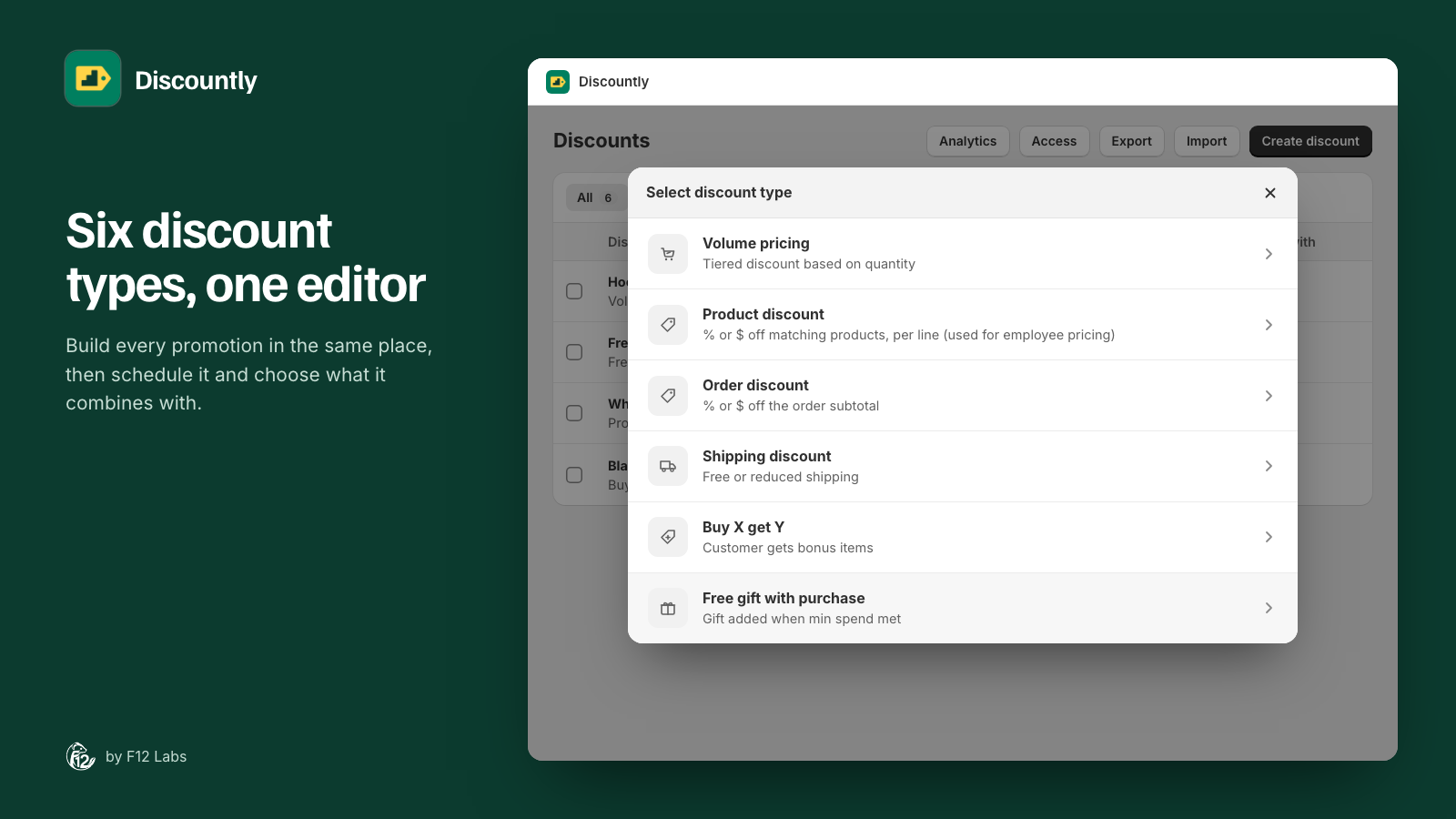
On the Discounts page, click Create discount. Select discount type lists six types:
| Type | What it does | Plan |
|---|---|---|
| Volume pricing | Tiered discount based on quantity: 5% off at 2, 10% off at 5 | Every plan |
| Product discount | % or $ off matching products, per item. Used for employee and member pricing | Every plan |
| Order discount | % or $ off the order subtotal | Every plan |
| Shipping discount | Free or reduced shipping | Every plan |
| Buy X get Y | Customers get bonus items free when they buy the trigger products | Starter and Pro |
| Free gift with purchase | A gift added to the cart when the order reaches a minimum subtotal | Starter and Pro |
Types your plan doesn't include show the plan they need. You can still open and save them as drafts.
Details
Title (required). Customers see it in the cart and at checkout when they unlock the discount, so write it for them: "Buy more, save more", "Staff pricing".
Method. Choose how customers get the discount:
| Method | How customers get it |
|---|---|
| Automatic discount (default) | Applies by itself when the cart qualifies |
| Discount code | Applies when the customer enters the code at checkout |
Buy X get Y and free gift discounts are automatic only, unless your store is on Shopify Plus. Their rewards are added to the cart before checkout, and a code entered at checkout comes too late. On Plus, a code is allowed: customers enter it in Discountly's free-gift code field at checkout, which adds the reward (see Checkout extensions).
Discount codes and usage limits
With Discount code selected:
| Field | What it does |
|---|---|
| Discount code (required) | The code customers enter at checkout |
| Limit number of times this discount can be used in total | Tick it, then enter a Total usage limit |
| Limit to one use per customer | Each customer can use the code once |
Usage limits only apply to codes. Automatic discounts have none.
Advanced settings
The Advanced settings button under Details opens two optional groups:
- Available offers (Product Page): list this discount in the product page's Available offers block. See Available offers block.
- Upsell hints (Pro plan): progress messages such as "Add 2 more to get 10% off" in the cart and on draft orders. See Cart embed and Discounts on draft orders.
When something is on, the line next to the button says so, for example On: available offers, cart hints.
Discount logic
The logic is the offer itself. Click Add logic to open Logic 1, which has two sides:
- The offer: what the customer gets. Tiers for volume pricing, a percentage or amount for product and order discounts, the reward for Buy X get Y and free gifts. Shipping discounts set their offer under Shipping instead.
- Who it applies to: the products. All products, or Specific products chosen By criteria: tags, product type, vendor, collection, specific products, product and variant metafields. You can also exclude products. See Choosing products: targeting and exclusions.
Click Save to close the logic block. Click the eye icon on it to preview the products it matches.
A discount can have more than one logic block, with Add more logic: for example 10% off hoodies and 15% off T-shirts in one discount. Each block is checked on its own, and when two blocks match the same item, the larger discount wins. You can pause a block to leave it out without deleting it; the last live block can't be paused. See Logic blocks.
Sale items, shipping, minimums, eligibility
Below the logic, every type has the same settings. The type pages cover them in detail, and Sale items, minimums and the shipping add-on compares them across types.
| Setting | Choices | Default |
|---|---|---|
| Items already on sale | Don't apply, Use compare-at price, Stack on sale price | Stack on sale price |
| Also include a shipping discount with this rule | Free, Percent off or Amount off shipping when the discount applies | Off |
| Minimum purchase requirements | No minimum requirements, Minimum purchase amount ($), Minimum quantity of items | No minimum requirements |
| Eligibility | All customers, logged-in customers, customers with tags, specific customers, customer segments | All customers |
| Combinations | Product discounts, Order discounts, Shipping discounts it can combine with. See Combining discounts | All three on |
Free gift and shipping discounts skip the settings that don't apply to them, such as sale items.
Schedule
The Schedule box on the right decides when the discount runs:
| Option | Runs |
|---|---|
| Activate now (no end date) (default) | From when you save, until you deactivate it |
| Activate now, end on a date | From when you save, through Ends at |
| Schedule for later | From Starts at to Ends at. The end date is optional |
Dates are in your store's time zone, set in Shopify under Settings → General. A discount starts at midnight on its start date and runs through 11:59pm on its end date.
While it waits to start, the discount shows Scheduled in the Discounts list. After its end date it shows Expired. You don't need to do anything at either point: Shopify starts and stops it, and product page blocks appear and disappear on time.
Save: live or draft
At the top of the page:
| Button | What it does |
|---|---|
| Save rule | Saves the discount and puts it live in Shopify (or schedules it). It also appears in Shopify's own Discounts list |
| Save as draft | Saves it in Discountly only. Customers can't use it, and it doesn't count toward your plan |
When Save rule works, a banner confirms "Your changes are live in Shopify." Drafts are checked less strictly, so you can save a half-finished discount and come back to it.
To take a live discount offline later, open it and click Deactivate rule. It goes back to draft, and Activate rule puts it live again.
Plan limits
Only going live is checked against your plan. Drafts always save. If Save rule would go over your plan, a banner titled Your plan doesn't include this explains why, with a View plans link. For example:
Your Free plan allows 5 active discounts, and 5 are already live. Deactivate one, save this as a draft, or upgrade your plan.
Scheduled discounts count as live. Downgrading your plan never switches off discounts that are already live. See plans.
Size limits
A discount's settings are stored in Shopify, which limits their size. The Configuration size box on the right shows how much the discount uses, out of 10 kB. If it's over, a banner says This rule can't be published yet and Save rule is turned off. Choosing products By criteria keeps discounts small, however many products match.
When a save fails
Discountly saves the discount and creates it in Shopify in one step. If Shopify refuses the change, nothing is saved, and a banner reads Couldn't save: sync to Shopify failed, with Shopify's reason. Fix what it says and save again. Your discount is never left half-updated, with one version in Discountly and another in Shopify.
After saving
- The discount appears in the Discounts list with its status: Active, Scheduled, Draft or Expired.
- It also appears in Shopify's Discounts list. Clicking it there opens it in Discountly. If someone deactivates or deletes it from Shopify's list, Discountly shows Deactivated in Shopify or Deleted in Shopify, and Activate rule brings it back.
- Store setup at the bottom of the Discounts page flags any storefront piece the new discount needs, such as the cart embed for an automatic free gift.