 F12 Labs
 Discountly
Discountly documentation / Theme blocks
Volume pricing table
How Discountly's Volume Pricing Table block shows quantity tiers on the product page, when it appears, every setting in the theme editor with its default, the per-unit price, and what to check when the table doesn't show.
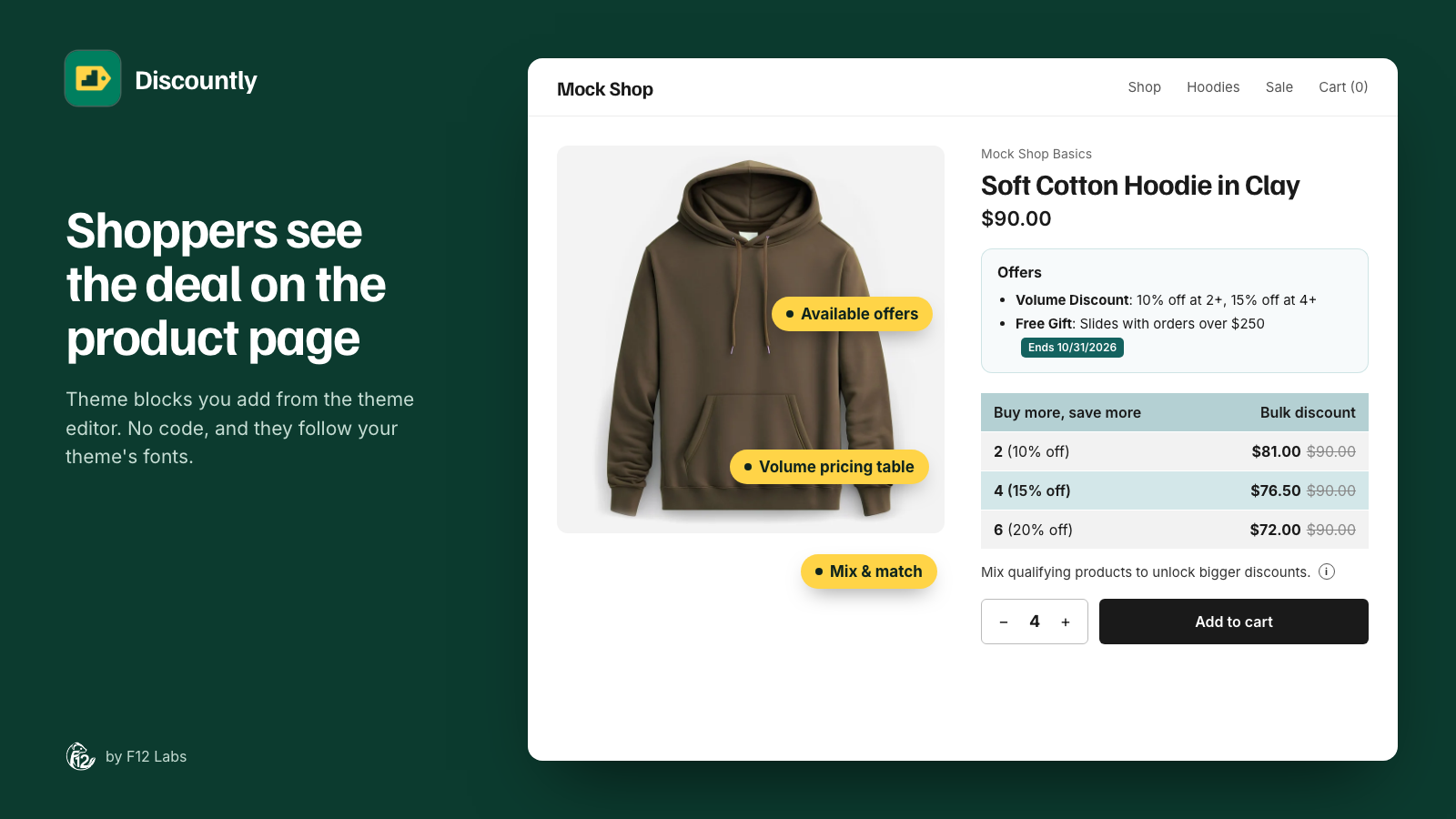
The Volume Pricing Table is a product page block. It lists the quantity tiers of your volume discount next to Add to cart, with the total and the saving at each tier, and highlights the tier the shopper's quantity reaches.
If you haven't added it yet, Store setup and theme blocks shows how. Volume pricing discounts explains how to set up the tiers it shows.
When the table appears
The block stays hidden until a discount applies to the product. It shows when all of these are true:
- There's a live Volume pricing discount that uses Automatic discount. Volume discounts with a discount code don't show a table.
- The discount includes this product, under Who it applies to.
- The discount is inside its schedule. Scheduled discounts appear on their start time and disappear at their end time, without you saving anything.
- The shopper can get the discount. If it's limited to logged-in customers, customers with tags or specific customers, other shoppers don't see the table. Discounts limited to Customer segments never show a table, since the product page can't check segments.
- The selected variant isn't on sale, if the discount's Items already on sale is set to Don't apply.
On a product with variants, the table updates when the shopper picks another variant.
What the table shows
One row per tier:
| Column | Shows |
|---|---|
| Quantity | The tier's minimum quantity and its discount, such as 4 (15% off) |
| Discount | The total for that many items, with the full price struck through, such as $34.00 |
The prices match what Shopify charges at checkout, including how it rounds percentages: a per-unit discount is rounded down to whole cents, so 6% off $8.99 is $0.53 off.
Selecting a tier. The row for the shopper's current quantity is highlighted. With the default Quantity at or above the tier, that's the highest tier their quantity reaches. With Exact tier quantity only, a row is highlighted only at its exact quantity.
Shoppers can also click a row to set the quantity box to that tier. Clicking the highlighted row again resets the quantity to the smallest they can buy (1, or the variant's minimum if you've set quantity rules).
Settings
Open Online Store → Themes → Customize, go to a product page, and click Volume Pricing Table in the product section.
Column headings
| Setting | Default |
|---|---|
| Quantity column heading | Buy more, save more |
| Discount column heading | Bulk discount |
Visibility
| Setting | Default | What it does |
|---|---|---|
| Hide the table when the selected variant is out of stock | Off | Hides the table while an unavailable variant is selected. It comes back when the shopper picks one in stock |
Per-unit pricing
| Setting | Default | What it does |
|---|---|---|
| Update product price to the per-unit price when a tier is selected | On | Changes the main product price to the discounted price per item. See The main product price |
| Show the per-unit price in the discount column | Off | Adds a line under each total, such as $8.50 each |
| Per-unit label | each | The word after the per-unit price. Products with variants use the variant name instead, such as $8.50 per 3" Pot |
Appearance
| Setting | Default |
|---|---|
| Per-unit price text | #8a8a8a |
| Header background | #b4d0d3 |
| Header text | #1c1c1c |
| Row background | #ffffff |
| Alternate row background | #f2f2f2 |
| Row hover background | #e9f1f2 |
| Selected row background | #d3e7e9 |
| Selected row accent bar | #b4d0d3. The bar on the left edge of the selected row |
| Border | #e3e3e3 |
| Corner radius | 6px (0 to 24) |
Click Save in the theme editor after changing anything.
The main product price
With Update product price to the per-unit price when a tier is selected on, the product price follows the quantity:
- Not on sale: the price shows the discounted per-unit price, with the regular price struck through next to it.
- On sale: the sale price becomes the discounted per-unit price, and the compare-at price stays struck through.
When the quantity drops below the first tier, the price goes back to normal.
If the product is on sale and your theme shows a badge such as Save 20%, the table adds a plus sign (Save 20%+), since buying more saves more.
Wording the tiers
The table builds its own labels from each tier, such as 15% off or $2.00 off. The message you write for each tier in the discount is what shoppers see in the cart and at checkout. The Available offers block lists the tier messages too, unless you gave the offer its own description. The table doesn't use them.
Speed
The table makes no requests while the page loads. Discountly saves your live volume discounts into your store each time you save one, and the block reads them with the product page. There's nothing to cache and no delay after you save.
Troubleshooting
The table doesn't show. Check, in order:
- You added the block to the product template and saved the theme editor. Store setup shows Volume pricing table as On.
- The discount is a live Volume pricing discount using Automatic discount, and it's inside its schedule.
- The product matches Who it applies to. In the discount, click the eye icon on the logic block to preview the matching products.
- The discount isn't limited to customers you aren't. Try it signed in as an eligible customer, or set Eligibility to All customers while testing.
- The variant isn't on sale (if Items already on sale is Don't apply) or out of stock (if Hide the table when the selected variant is out of stock is on).
The table shows on a product template but not another. Products can use different templates. Add the block to each product template that should show it.
The highlighted row doesn't follow the quantity. Some themes put the quantity box somewhere the block can't find. Email support@ftwelvelabs.com with your theme's name so we can add support for it.
The checkout price differs from the table. Usually two discounts apply to the product. Check for another Discountly volume discount, or a Shopify discount that combines with it.