 F12 Labs
 Aedify
Aedify documentation / Elements
Images, video, banners and maps
How to add pictures and media to Aedify pages: the Image, Video, Banner and Map elements, every setting with its default, mobile images, uploads to Shopify Files, YouTube, Vimeo and MP4 video with captions, banner overlays and contrast, and alt text.
The Media group of the palette has four elements:
- Image: a picture, with an optional caption and link.
- Video: a YouTube or Vimeo video, or a video file from your store.
- Banner: a large image with a message and a button on top of it.
- Map: a Google map of an address or place.
New to the builder? Start with Using the builder.
Choosing and uploading images
Images come from your store's Shopify Files (Content → Files in your admin). Aedify doesn't keep its own copies, so an image you upload is in Shopify like any other file.
A new Image element shows Drag image here on the canvas. You can:
- Drag a file from your computer onto it.
- Click Upload Image to pick a file.
- Click Select from Gallery to choose one already in Shopify Files. There's a search box for file names.
- In the gallery, use Or add from a URL and click Add to copy an image from another address into Shopify Files.
Uploads can be JPG, PNG, GIF, WebP or SVG, up to 20 MB.
In an element's settings, Choose (or Change) opens the same gallery, and Remove takes the image out of the element. It stays in Shopify Files.
Images
| Setting | Default | What it does |
|---|---|---|
| Image | Empty | The picture |
| Decorative image | Off | For images that add no information. Screen readers skip them |
| Alt text | Empty | Describes what the image shows, for people who can't see it. Hidden when the image is decorative |
| Mobile image | Empty | Optional. Shown instead on screens up to 749px wide, such as a portrait crop |
| Caption | Empty | Text under the image |
| Link | Empty | Makes the image a link. Browse picks a product, collection, page, blog or blog post |
| Link label | Alt text | Shown once there's a link. Names the link for screen readers, such as "Shop tulip bulbs" |
| Open in a new tab | Off | Shown once there's a link |
| Alignment | Theme default | Theme default, Left, Center or Right |
| Maximum width | 100% | Any CSS size, such as 600px. The image fills its column up to this width |
Writing alt text
Say what matters about the image for the shopper, in a sentence: "A wooden planter box filled with red tulips on a porch step". Leave out "image of". If the image is only decoration, such as a texture or a divider, tick Decorative image instead.
For a linked image, the alt text or Link label should say where the link goes.
Video
| Setting | Default | What it does |
|---|---|---|
| Video URL | Empty | A YouTube or Vimeo link, or a link to a video file (.mp4). Aedify tells you which it recognised |
| Choose from Shopify Files | Pick a video you've uploaded to Shopify Files | |
| Title | Empty | Describes the video for screen readers |
| Aspect ratio | 16:9 | 16:9, 4:3, 1:1 (square), 9:16 (vertical), 21:9 |
| Autoplay | Off | Starts the video muted when the page opens |
| Loop | Off | Plays it again from the start when it ends |
| Show controls | On | Play, pause and volume controls |
YouTube links can be normal watch links, youtu.be short links, Shorts or embed links. YouTube videos play from youtube-nocookie.com, YouTube's privacy-enhanced mode.
Video files
To use your own video file, upload it to Shopify first, under Content → Files, then click Choose from Shopify Files. The builder doesn't upload videos itself.
Video files get three more settings:
| Setting | Default | What it does |
|---|---|---|
| Poster image | Empty | Shown before the video plays |
| Captions file (WebVTT) | Empty | Upload a .vtt file under Content → Files and paste its link |
| Captions language and Captions label | en, English | Shown once there's a captions file. The label is what shoppers see in the captions menu |
YouTube and Vimeo videos use the captions you've added on YouTube or Vimeo.
Banners
A banner is an image with a message on it, and an optional button. It's the usual top of a landing page.
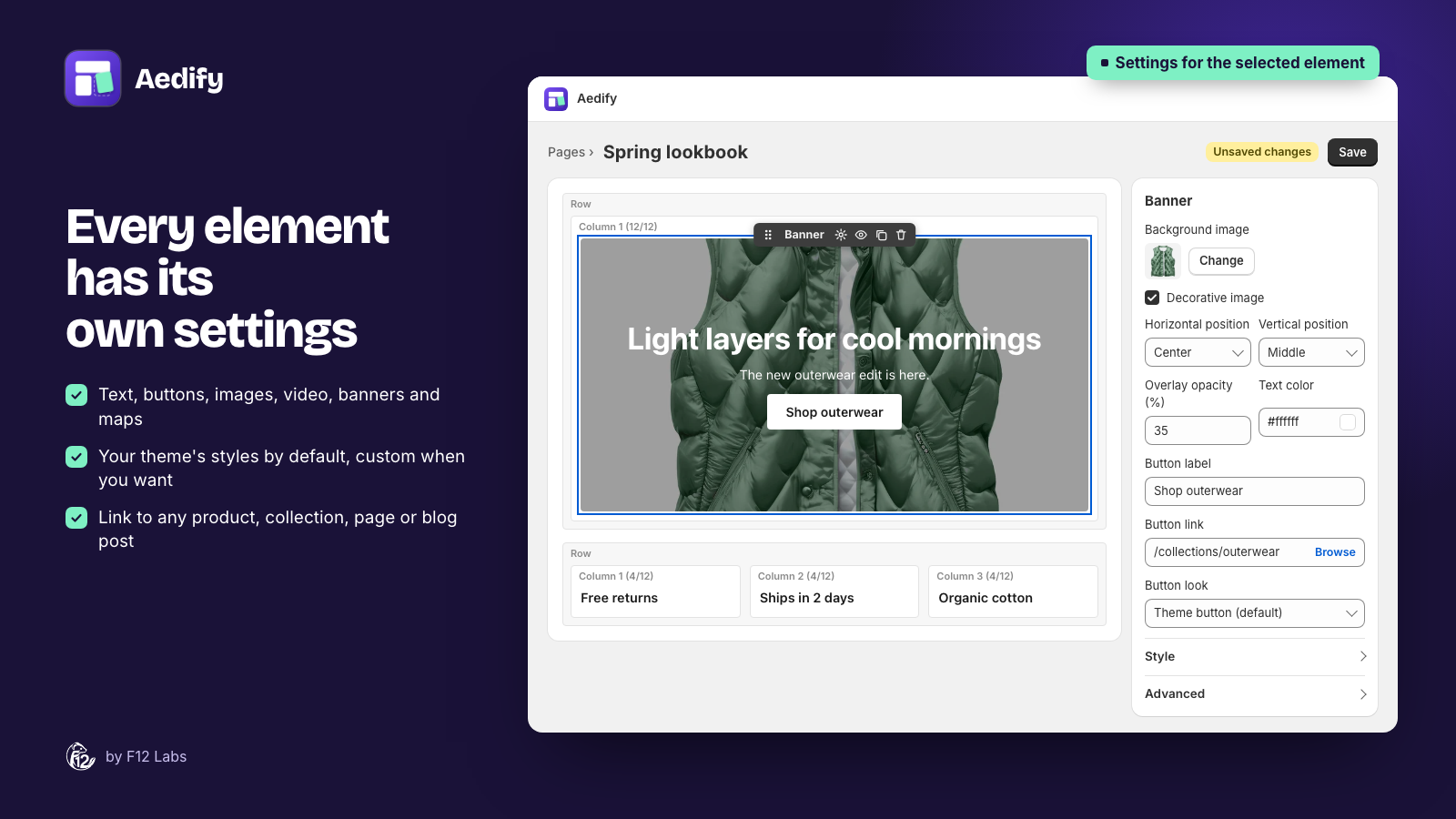
A new banner says Banner heading and Add a short message here. Edit the message in the settings, in a small text editor with bold, italic, lists, links and colours. The heading in a new banner is a Heading 2; keep it, so the banner's title is part of the page outline.
Banner settings
| Setting | Default | What it does |
|---|---|---|
| Background image | Empty | The image behind the message |
| Decorative image | On | On for most banners: the message carries the meaning, so screen readers skip the image |
| Alt text | Empty | Shown when the image isn't decorative |
| Mobile image | Empty | Optional. Shown on screens up to 749px wide |
| Horizontal position | Center | Where the message sits: Left, Center or Right |
| Vertical position | Middle | Top, Middle or Bottom |
| Minimum height | 400px | The banner grows if the message needs more room |
| Overlay opacity (%) | 30 | How dark the tint over the image is, from 0 to 100 |
| Overlay color | #000000 | The tint's colour |
| Text color | Empty | The message's colour. Empty uses your theme's |
| Button label | Empty | Adds a button under the message |
| Button link, Button style, Button look | Shown once there's a label. They work like the Button element | |
| Banner link | Empty | Optional. Makes the whole banner clickable. Its button and any links in the message still work |
| Link label | The message text | Shown once there's a banner link. Read by screen readers |
| Open in a new tab | Off | For the banner link |
Contrast
With an overlay colour and text colour set, the settings show the contrast, such as Text contrast against the overlay: 5.74:1 (passes AA). Aim for at least 4.5:1, so the message is readable for everyone. If the photo is busy, raise Overlay opacity.
Maps
| Setting | Default | What it does |
|---|---|---|
| Address or place | Empty | A street address or a place name, as you'd type it into Google Maps |
| Zoom | Neighbourhood | Region, City, Neighbourhood, Streets or Building |
| Height | 400px | |
| Title | Map of your address | Describes the map for screen readers |
The map is Google's standard embed, so there's no API key to set up. It loads only when the shopper scrolls to it.
What the accessibility check looks for
| Issue | Level |
|---|---|
| Image needs alt text, or mark it as decorative. | Error |
| Linked image needs alt text or a link label, so the link has a name. | Error |
| Banner image needs alt text, or mark it as decorative. | Error |
| Linked banner needs a link label (or message text), so the link has a name. | Error |
| Autoplaying video needs controls so visitors can pause it. | Error |
| Video needs a title for screen readers. | Warning |
| Add a captions file (WebVTT) for this video. | Warning. Video files only |
| Banner text contrast is 3.10:1 against the overlay; aim for at least 4.5:1. | Warning. When the overlay is 50% or more |
Click Select next to an issue to jump to the element.
Tips
- Use a mobile image for wide banners. A wide photo cropped to a phone often loses its subject. A separate portrait image fixes it.
- Keep files small. Export photos at about 2,000 pixels wide; there's no benefit from larger files on a web page.
- Rename files before uploading. The gallery search looks at file names, so
spring-tulip-banner.jpgis easier to find again thanIMG_4032.jpg.