 F12 Labs
 Discountly
Discountly documentation / Create discounts
Free gift with purchase discounts
Add a free gift to the cart when an order reaches a minimum subtotal with Discountly. Two worked examples (a gift on orders over $75, and a gift for spending $50 on one range), backup gifts, which products count toward the minimum, the cart embed, gift codes on Shopify Plus and troubleshooting.
A Free gift with purchase discount adds a gift to the cart when the order reaches a minimum subtotal: a free tote bag on orders over $75, a free seed packet when a customer spends $50 on seeds. Discountly puts the gift in the cart at $0, so customers don't have to find it and add it themselves. It's on the Starter and Pro plans.
This page covers what's specific to free gifts. Creating a discount covers what every type shares. To give a free item for buying certain products, counted by quantity rather than spend, use Buy X get Y.
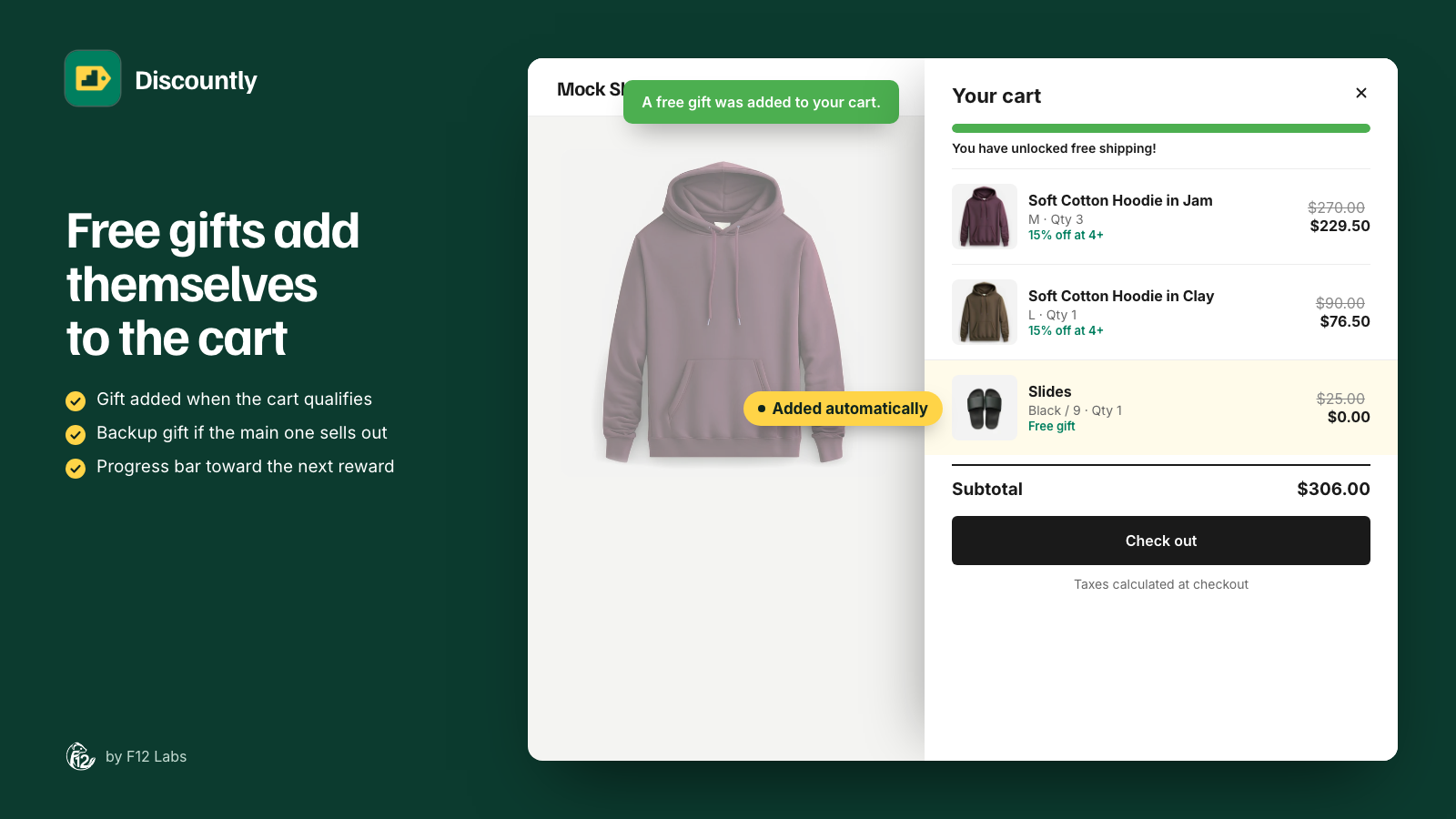
How the gift gets into the cart
The cart embed checks the cart each time it changes. When the cart reaches the minimum, it adds the gift as its own line, and Shopify makes it free at checkout. When the cart drops below the minimum again, the embed takes the gift out.
- Turn on the cart embed first. Without it, the discount is live but the gift never appears. Store setup at the bottom of the Discounts page shows Needs attention if a live free gift discount needs it.
- One gift per order. The gift is added with a quantity of 1, and customers can't raise it.
- A gift the customer removes isn't added back, unless you change that in the embed's settings. See When a shopper removes the gift.
Free gift discounts are automatic unless your store is on Shopify Plus, where they can use a code entered in Discountly's free-gift code field at checkout. See Gift codes on Shopify Plus.
Worked example: free tote bag on orders over $75
- On the Discounts page, click Create discount and choose Free gift with purchase.
- Title: "Free tote bag over $75". Customers see it at checkout.
- Under Discount logic, click Add logic. In The offer, click Select gift variant and pick the tote bag.
- In Who it applies to, enter 75 in Minimum order subtotal (required) and leave Targeting on All products. Click Save.
- Click Save rule, and check that the cart embed is On in Store setup.
| Cart | What happens |
|---|---|
| $60 of products | No gift |
| $80 of products | The tote bag is added at $0 |
| The customer removes a $20 item, back to $60 | The tote bag is taken out |
Worked example: free seed packet for $50 of seeds
Only seeds count toward the $50. A customer with $30 of seeds and $40 of tools gets nothing.
- Create a Free gift with purchase discount titled "Free seed packet with $50 of seeds".
- Click Add logic, click Select gift variant and pick the seed packet.
- Under Backup gift, tick Add a backup gift if the main is out of stock and pick a second packet.
- In Who it applies to, enter 50 in Minimum order subtotal (required). Set Targeting to Specific products and add the criterion Product type is any of "Seeds". Click Save, then Save rule.
The gift
| Field | What it does |
|---|---|
| Select gift variant (required) | The variant added to the cart. Out-of-stock variants are marked |
| Backup gift | Tick Add a backup gift if the main is out of stock and pick a second variant |
Pick the exact variant in the picker, such as the black tote rather than the tote. If you pick a whole product with several variants, the first variant is the gift.
The gift is always free. There's no percentage or amount to set.
Backup gift
When the main gift is out of stock, the cart embed adds the backup instead. When both are out of stock, nothing is added. A cart that already has one of them keeps it: the embed doesn't add the second. The Discounts list marks discounts whose gift is low or out of stock, so you can swap it before it runs out.
More than one gift
Each logic block has its own gift. With two logic blocks, a qualifying cart gets both gifts, since they share the discount's minimum. For a bigger gift at a higher spend (a tote over $75, a blanket over $150), create two free gift discounts, each with its own minimum.
Which products count toward the minimum
Minimum order subtotal (required) is the amount the cart must reach for the gift to be added: "Customer must reach this subtotal for the free gift to be added." It has to be more than 0.
Under it, Targeting decides which products count:
| Targeting | What counts toward the minimum |
|---|---|
| All products (default) | The whole cart |
| Specific products | Only products that match the criteria you add. Everything else in the cart is ignored |
Specific products are chosen By criteria, the same builder as other discounts: tags, product type, vendor, collection, specific products, and product and variant metafields. See Choosing products: targeting and exclusions.
To count everything except a few products, keep All products and tick Exclude products where any of these match: "A product that matches any of these doesn't count toward the minimum." For example, leave gift cards out so a $100 gift card doesn't earn a tote bag.
Free gifts and rewards added by Discountly never count toward a minimum limited to products or with exclusions. Click the eye icon on the logic block to preview the products that count.
Display message
Customers see a message on the gift line at checkout. By default it's Free gift. Tick Customize the display message to write your own Display message, such as "Your free tote bag".
Other settings
- Items already on sale and Minimum purchase requirements don't appear: the gift is always free, and the minimum subtotal is the requirement.
- Also include a shipping discount with this rule works as on other types: free or reduced shipping when the cart qualifies. See Free shipping add-on.
- Eligibility limits the gift to some customers, such as logged-in members. The cart embed only adds the gift for shoppers who qualify. See Customer eligibility.
- Combinations: the gift is a product discount in Shopify, a 100% discount on its own line. Leave Product discounts ticked, or the gift won't apply while another product discount is running. See Combinations.
Gift codes on Shopify Plus
On Shopify Plus, a free gift discount can use a Discount code. The cart embed doesn't add code-based gifts, since the code is only entered at checkout. Instead, add Discountly's free-gift code field to checkout: shoppers enter the code there, not in Shopify's discount code box, and the field adds the gift when the cart qualifies. See Checkout extensions.
On the product page and in the cart
- Available offers: add the Available offers block and, in the discount's Advanced settings, tick Include in available offers section on the Product Page. The gift is listed as Free Gift on the products that count toward the minimum.
- Upsell hints (Pro plan): in Advanced settings, turn on hints In the cart to show a progress bar such as "Add $15.00 more to get" the gift. See Upsell hints.
Troubleshooting
The gift isn't added. Check that the cart embed is On, that the discount is live and automatic, and that the products that count reach the minimum. Check the gift, or its backup, is in stock and available on the Online Store. If the discount has eligibility, check the shopper qualifies, and is signed in. If the shopper removed the gift earlier, share the reset link.
The gift was taken out of the cart. The cart dropped below the minimum, or the shopper stopped qualifying. It's added again when the cart qualifies.
The gift shows at full price. Discountly's discount makes only its own gift line free. A gift the customer added themselves from the product page is a normal item. Check Combinations too: with Product discounts unticked, another product discount can stop the gift from applying.
A gift appears a minute after I saved. The embed reads live gift discounts from a short cache, one minute by default. See How quickly changes reach the storefront.