 F12 Labs
 Discountly
Discountly documentation / Draft orders
Discounts on draft orders
Apply Discountly discounts to Shopify draft orders, on the Pro plan. The draft order card, the Apply discounts action, skipping discounts, the checkout rule that stops a draft being completed with discounts missing, its customer and staff messages, the Customer Support role, edited and duplicated drafts, and upsell hints for staff.
Shopify doesn't apply automatic discounts to draft orders by itself: "Automatic discounts won't automatically apply to orders created as drafts in your admin." (Adding discounts to draft orders) A phone or wholesale order built as a draft can go out at full price unless someone remembers to add the discounts.
Discountly's draft order tools, on the Pro plan, show staff which discounts a draft qualifies for, apply them in one step and can stop the draft being completed until someone has applied or skipped them. They work with every Discountly discount type, including free gifts and Buy X get Y rewards.
There are three parts:
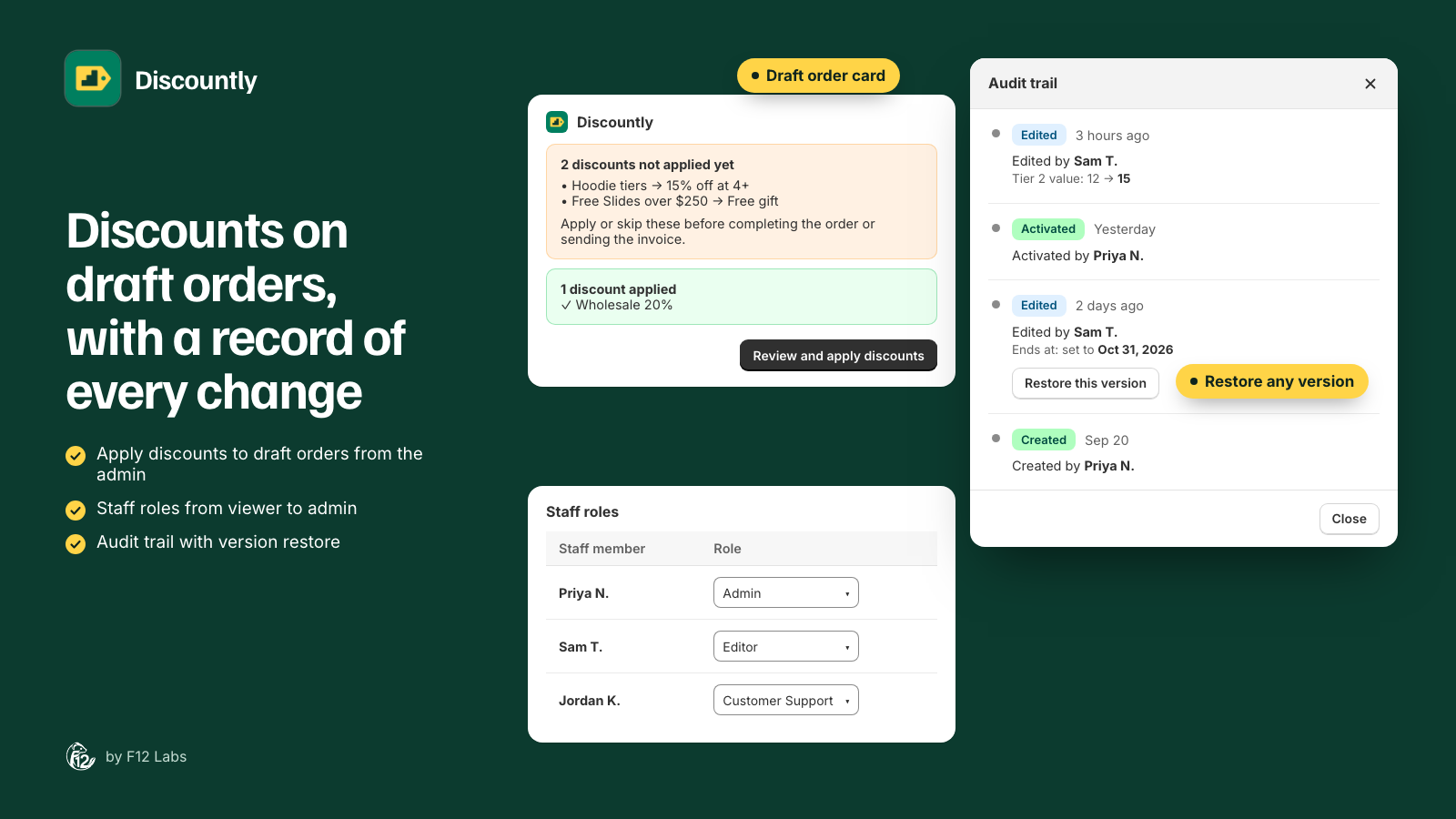
- The Discountly card on the draft order page lists the discounts the order qualifies for.
- Apply discounts (from the card, or More actions → Apply all discounts) applies the ones staff choose.
- Discountly draft order validation, a checkout rule you turn on in Shopify, blocks completing the draft while discounts are still waiting.
Set it up
- Pin the card. Open any draft order in Shopify and pin the Discountly card to the page.
- Turn on the checkout rule. In Shopify, go to Settings → Checkout, click Checkout rules, then Add rule. Choose Discountly draft order validation, click Save, then Turn on. (Checkout customization: adding cart and checkout validation)
- Set the messages. On the rule's page, under Draft order block messages, write what customers and staff see when a draft is blocked. See The messages.
- Give staff access. In Discountly, click Access on the Discounts page and give staff who build drafts the Customer Support role. See Who can use it.
- Test it. Build a draft that qualifies for a discount, try to complete it, then apply the discount and complete it.
The draft order card
The card checks the draft while staff build it, and updates every few seconds as lines, quantities or the customer change. What it shows:
| The card says | Meaning |
|---|---|
| Checking for discounts… | Discountly is looking at the order |
| No discounts available for this order. | Nothing applies to this order as it stands |
| No discounts available yet. Some discounts are only for customers. Select a customer on this order to check again. | Some of your discounts are limited to customers (logged-in, tags, specific customers or segments), and the draft has no customer |
| 1 eligible discount to review (or N eligible discounts to review) | Discounts the order qualifies for that aren't on it yet, listed under Eligible discounts as "discount → offer" |
| N discounts set to skip (won't be applied). | Staff chose to leave these off |
| 1 discount replaced by a manual discount | A line already has a discount typed in by staff, so Discountly left its own off that line |
| N discounts applied | On the order, each with a tick |
The button under the list opens Apply discounts. Its label follows the state: Review and apply discounts when something is waiting, Re-apply discounts after an edit, Review discounts otherwise.
A discount that earns a free item can list a count, such as "×2", when the order earns it more than once.
Apply discounts
Click Review and apply discounts on the card, or open More actions on the draft and choose Apply all discounts. Both open the same window, Apply discounts.
- Under Choose which discounts to apply:, each eligible discount has a checkbox, ticked to start with. Select all / Unselect all appears when there's more than one.
- Untick any you want to leave off. "Unchecked discounts won't be applied and won't block completing this order."
- Click the main button.
| Button | When | What it does |
|---|---|---|
| Apply 2 discounts | Some are ticked | Applies the ticked ones and skips the rest |
| Skip the unapplied discounts | Nothing new is ticked, some are already applied | Skips what's waiting. Applied discounts stay |
| Don't apply any discounts | Nothing is ticked or applied | Skips them all |
| Re-apply discounts | The order changed after applying | Updates the discounts to the order as it is now |
What applying does:
- Product, volume and Buy X get Y savings go on each line as a discount with the discount's title.
- Order discounts go on the order. Shipping discounts come off the draft's shipping line, so add the shipping rate first.
- Free gifts and Buy X get Y rewards are added as new lines, free. If the reward is out of stock, the backup is added, as on the storefront.
- Your Shopify automatic discounts are applied too, alongside Discountly's.
Already applied lists what's on the order. "To remove one, delete its discount from the order lines directly."
Skipping
Skipping is saved on the draft. A skipped discount stays off and doesn't hold up completing the order, and the card counts it under set to skip. To apply it later, open Apply discounts again and tick it.
The completion check
With Discountly draft order validation turned on, a draft that still has a Discountly discount waiting (not applied and not skipped) can't be completed:
- Staff completing the draft in the admin see the error.
- Customers paying from an invoice link can't check out either, so an invoice sent too early can't be paid at the wrong price.
Once everything is applied or skipped, the draft completes normally. Your online store's checkout isn't affected: the rule only acts on drafts Discountly is tracking.
Shopify lets staff override checkout rules on a draft: "These rules also apply by default to draft orders, but you have the option to override all validation rules on a draft order before completing it." (Checkout customization) The check makes leaving a discount off deliberate, not impossible. Tell your team when overriding is fine.
The messages
On the checkout rule's page, Draft order block messages has two fields. Both appear when a draft is blocked, to staff and to customers paying an invoice.
| Field | Default | Tip |
|---|---|---|
| Customer message | "This order is missing a discount and can't be completed yet. Please contact the store to finalize your order." | Add your support phone number or email, since customers can't fix it themselves |
| Staff instruction | "Staff: Open More actions → Apply all discounts." | Keep it short and specific to your team |
Leave a field blank to use the default.
Who can use it
The card and the action check each staff member's Discountly role (set from Access on the Discounts page):
| Role | Draft order tools | Discountly app |
|---|---|---|
| Customer Support | Yes | Can't open it |
| Editor, Admin, Owner | Yes | Yes |
| Viewer, No access | No | Viewer: browse only |
Customer Support is made for staff who build drafts: they can apply and skip discounts, but can't see or change your discounts. Staff without access see "You don't have permission to apply Discountly discounts to draft orders. Ask an admin for Customer Support (or editor) access."
When the order changes
Edited after applying. If a quantity or line changes after discounts were applied, an applied discount may no longer be right. The card shows A discount changed because the order was edited. and a red Re-apply discounts button, and the completion check blocks the draft until someone re-applies. Re-apply before sending the invoice.
A discount entered by hand. A line can hold one discount. If staff typed a discount onto a line, Discountly leaves that line alone and lists its own under Replaced by a manual discount. Remove the manual discount from the line if you want Discountly's instead.
Duplicated drafts. Shopify copies the free gift lines to a duplicate but not their discounts, so the copy would charge for the "free" items. Discountly removes them and refreshes the prices, and the card explains: "This order was duplicated. Discounts and free gifts do not carry over to a copy…". Apply discounts on the new draft to add back whatever it qualifies for.
Completed drafts. Once a draft becomes an order, the card is a record: "This order has been completed. Discountly discounts are locked and can no longer be changed here." It lists what was applied.
No customer yet. Discounts limited to customers can't be checked until the draft has one. Add the customer before reviewing discounts.
Shopify's own button. If staff use Shopify's Apply all eligible automatic discounts on the draft instead, Shopify applies Discountly's volume, product, order and shipping discounts itself, and the card counts them as applied. Free gifts and Buy X get Y rewards still need Apply discounts, since Shopify doesn't add their lines.
Upsell hints for staff
The card can tell staff when an order is close to a better deal, such as "Add 6 more for the 16+ price", under Upsell opportunities. Upsell hints are on the Pro plan.
Turn them on per discount: open the discount, click Advanced settings, and under Upsell hints tick On draft orders ("Staff see it on the draft order."). Show from sets how close the order must be before the hint shows: "8 of 16 items is 50%. 0 shows it always." The default is 0.
The option appears on every type except a product discount with no minimum purchase requirement and no shipping add-on: with nothing to reach, adding more can't change it. The cart version of the same hints is covered in Cart embed.
If you leave the Pro plan
Below Pro, the card can't be removed from the page by the app, so it shrinks to "Not available on your plan" and says "Draft order discounts aren't available on your current plan." The completion check stops blocking drafts, so nothing gets stuck.
Troubleshooting
The card says no discounts, but the order should get one. Check the discount is live and automatic, the draft has a customer if the discount is limited to customers, and the lines meet its minimums. For a shipping discount, add the shipping rate to the draft.
A draft can be completed with discounts missing. The checkout rule isn't on. Turn on Discountly draft order validation in Settings → Checkout → Checkout rules.
A customer can't pay their invoice. The draft still has a discount waiting, or was edited after applying. Open the draft, click the card's button, apply or skip the discounts, and the same invoice link works.
A staff member can't see the card's discounts. They need the Customer Support, Editor, Admin or Owner role in Discountly.
A free gift disappeared from a copied draft. That's expected: see Duplicated drafts. Apply discounts on the copy.
A free gift isn't offered on a draft. A Discountly discount on the order doesn't combine with product discounts, so rewards aren't added. See Combining discounts.
For why draft orders need this and what Shopify offers on its own, see the post Making sure staff apply discounts on Shopify draft orders.