 F12 Labs
 Aedify
Aedify documentation / Get started
Storefront setup
Set up your theme for Aedify: turn on the Aedify styles app embed, add the Aedify content block to your page, blog post, product and collection templates, alternate templates, switching themes, removing your theme's own Content block for anchor links, and what happens when a step is missing.
Aedify saves your layouts into Shopify, and two small pieces in your theme show them on your storefront: the Aedify styles app embed and the Aedify content block. Shopify asks merchants to add app pieces to their theme themselves, so Aedify gives you a checklist with a button for each step. It takes three clicks and a save each.
Aedify never edits your theme's code. Both pieces come from Aedify's theme app extension, and you turn them on and off in the theme editor.
What each piece does
| Piece | Type | Where | What it does |
|---|---|---|---|
| Aedify styles | App embed | Every page of your store | Loads Aedify's stylesheet, so rows, columns, banners, tabs and buttons look right wherever your theme shows a page, blog post or description |
| Aedify content | App block | Page, blog post, product and collection templates | Shows the page's Aedify content, fills in live Products, Collections and Blog posts elements, and hides your theme's own copy of the text so it doesn't show twice |
What you need depends on what you build:
| You use | Styles embed | Content block |
|---|---|---|
| Rows, text, images, buttons, banners, video, maps, tabs, accordions | Needed | Optional |
| Products, Collections or Blog posts elements, including inside a template you placed | Needed | Needed, on the template that page uses |
The Storefront setup checklist
You'll find Storefront setup on Aedify's home page.
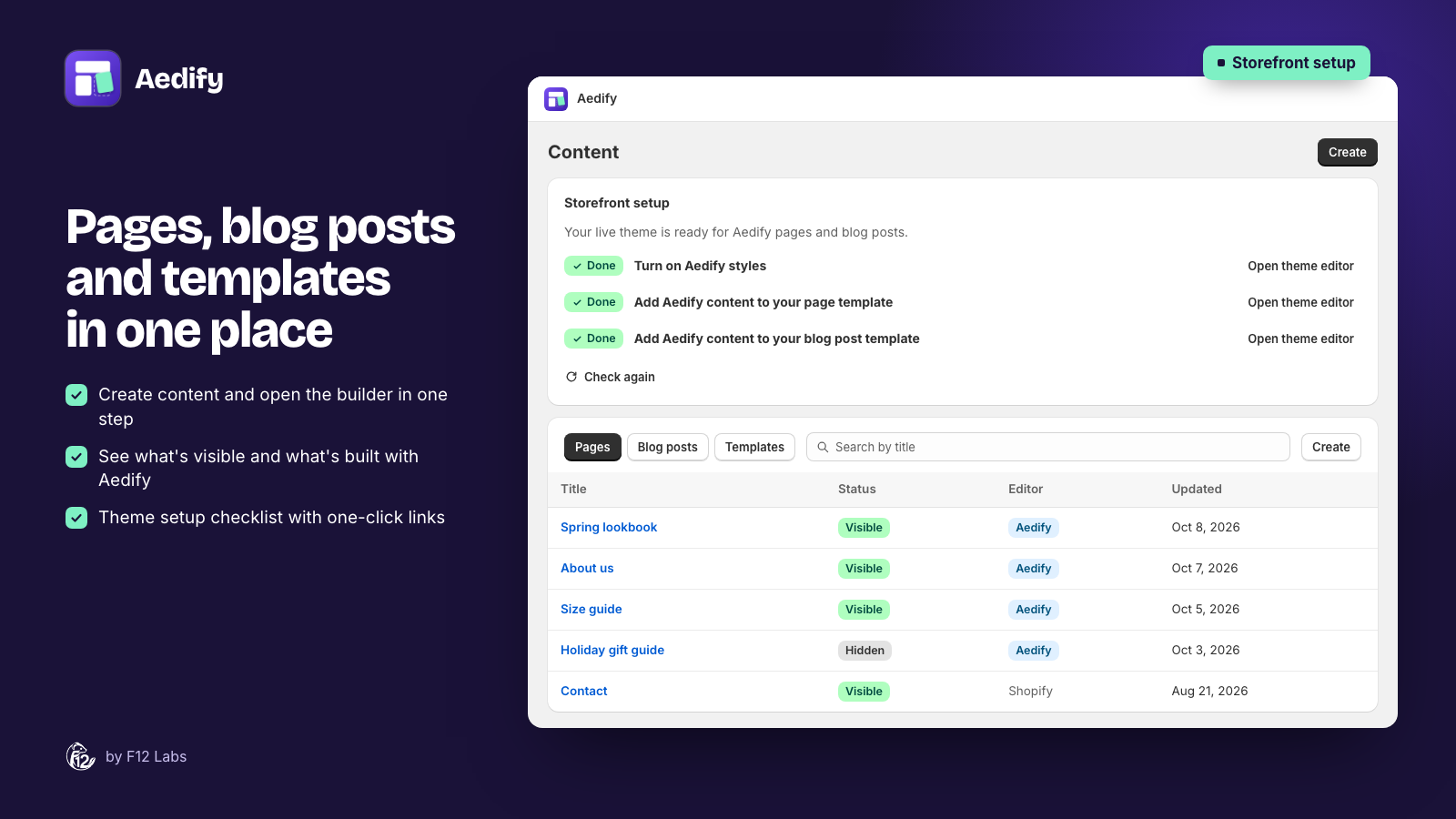
| Step | Button | What it says |
|---|---|---|
| Turn on Aedify styles | Turn on | "Makes Aedify layouts look right wherever your theme shows a page or blog post." |
| Add Aedify content to your page template | Add block | "Needed for live elements such as Products." |
| Add Aedify content to your blog post template | Add block | "The same for blog posts. Some themes only allow it below the post." |
For each step:
- Click the button. The theme editor opens your live theme with the step ready: the embed switched on, or the block added to the template in a new section.
- Click Save in the theme editor.
- Come back to Aedify. The step shows Done. Aedify checks again when you return to its tab; if it still says To do, click Check again.
A finished step shows Open theme editor instead, in case you want to move the block. When all three are done, the home page shows Your storefront is ready for Aedify.
If Aedify can't read your theme's setup, you'll see Couldn't check your theme setup with the reason. Reload the app and try again.
Doing it by hand
The buttons only save you some clicks. In the theme editor (Online Store → Themes → Customize):
- Styles: open App embeds in the sidebar, switch on Aedify styles, and click Save.
- Content block: pick the template from the menu at the top (for example Pages → Default page), click Add section, choose Aedify content under Apps, and click Save.
Shopify's own steps are in Extend your theme with apps.
Where the content block goes
The Add block button puts Aedify content in a new section of its own, which works on every Online Store 2.0 theme. Once it's on a template, your page's content shows where the block is, and your theme's own copy is hidden.
- Pages: the new section usually lands under your theme's main page section. That's normally right where the content belongs.
- Blog posts: some themes keep the post's title, image and text in one section that doesn't accept app blocks, so the Aedify content sits below the post section, under things like share buttons or comments. If your theme's blog post section accepts app blocks, drag Aedify content into it, under the title.
- Products and collections: see below.
You can move the section or block up and down in the theme editor like any other.
Remove your theme's Content block, if you can
Your theme still prints its own copy of the page text. Aedify hides it automatically, so shoppers see it once, but it stays in the page's HTML. Two side effects:
- Anchor links (a button linking to
#faq, for example) may not scroll, because the anchor ID is on the page twice and the browser picks the hidden one. - The page's HTML is about twice as long.
If your theme lets you remove its own Content block (sometimes called Page content or Text) from the page or blog post template, remove it and save. Your theme's title can stay.
Product and collection templates
The checklist covers page and blog post templates. For product and collection descriptions:
- Descriptions with only text, images, columns, tabs or accordions need just the styles embed.
- Descriptions with Products, Collections or Blog posts elements need the content block on the product or collection template. When it's missing, the builder shows Products, collections and blog posts need the Aedify content block with a link, Add it in the theme editor, that adds it for you.
The descriptions page explains where to put the block on a product page.
Alternate templates
Shopify lets you give pages, blog posts and products their own templates, such as page.faq or page.contact, picked under Theme template in Shopify's page editor (Templates). A new template starts as a copy of the one it's based on.
The content block has to be on the template each page uses:
- If you add the block to the default page template first and then create an alternate template based on it, the copy has the block too.
- An alternate template made before you set up Aedify doesn't. Open it in the theme editor and add Aedify content under Apps.
Switching themes
The checklist reads your published theme. When you switch themes, Shopify doesn't carry app embeds and blocks over: "you'll need to re-activate those apps in your new theme as they won't be active by default" (Extend your theme with apps).
After you publish a new theme, open Aedify and run through Storefront setup again. To set up a theme before you publish it, open it in the theme editor and follow Doing it by hand; the checklist will only show it as done once it's live.
In the builder
The builder warns you when the page you're editing needs a step that isn't done:
| Warning | Means | Link |
|---|---|---|
| Aedify styles are off in your theme | The styles embed is off in your published theme | Turn on in the theme editor |
| Products, collections and blog posts need the Aedify content block | The page uses a live element, and its template type has no content block | Add it in the theme editor |
What a missing step looks like
| Missing | On your storefront |
|---|---|
| Styles embed, on a template without the block | Columns stack one under another, banners show the text under the image, and all tab panels show at once. Elements set to Hide on storefront show |
| Content block | Products, Collections and Blog posts elements are empty. Everything else shows, through your theme's own copy of the text |
| Both | Your content shows in your theme's plain text styles, and live elements are empty |
The content block loads Aedify's styles itself, so pages on a template with the block look right even with the embed off. Turn the embed on anyway: your theme can show page and post content in other places, such as a page shown inside a section.